



































Workspaces

Workspaces
A workspace is a ready-made layout for one kind of work, from modeling to video editing.
A workspace is a ready-made layout for one kind of work, from modeling to video editing. Each tab at the top of the window opens one.
- Main
- Topbar — Menus, the workspace tabs and the main toolbar.
- 3D Viewport — Your scene, with the Asset Shelf of ready-made objects and materials along the bottom.
- Timeline — Play your animation and set keyframes.
- Outliner — Every object in the scene; pick, hide and rename them.
- Properties Editor — Settings for the render, scene, world and the selected object.
- UV Editing
- Topbar — Menus, the workspace tabs and the main toolbar.
- 3D Viewport — Select faces and mark seams on the model in Edit Mode.
- UV Editor — The unwrapped faces laid flat over the texture; move, scale and pack them.
- Outliner — Pick the object to unwrap.
- Properties Editor — UV maps live in the Object Data tab.
- Modeling
- Topbar — Menus, the workspace tabs and the main toolbar.
- 3D Viewport — A big viewport for building and editing meshes, curves and other geometry.
- Outliner — Organize your objects in collections.
- Properties Editor — Modifiers, object data and materials of the selected object.
- Nodes
- Topbar — Menus, the workspace tabs and the main toolbar.
- Spreadsheet — See the geometry's points, faces and attributes as numbers.
- 3D Viewport — The result of your node tree, live.
- Geometry Node Editor — Build the Geometry Nodes tree of the selected object.
- Outliner — Pick the object that carries the node modifier.
- Properties Editor — Modifier stack and node group inputs.
- Timeline — Scrub frames to test animated node setups.
- Animation
- Topbar — Menus, the workspace tabs and the main toolbar.
- 3D Viewport — A camera view to check your shot while you animate.
- 3D Viewport — Pose and key your characters and objects.
- Dope Sheet — All the keyframes of the selected objects; move and retime them.
- Timeline — Playback, frame range and auto keying.
- Outliner — Pick what to animate.
- Properties Editor — Object, bone and constraint settings.
- Texture Paint
- Topbar — Menus, the workspace tabs and the main toolbar.
- 3D Viewport — Paint straight onto the model in Texture Paint mode.
- Image Editor — The texture you paint, flat; paint here too.
- Outliner — Pick the object to paint.
- Properties Editor — Brush, texture slots and material settings.
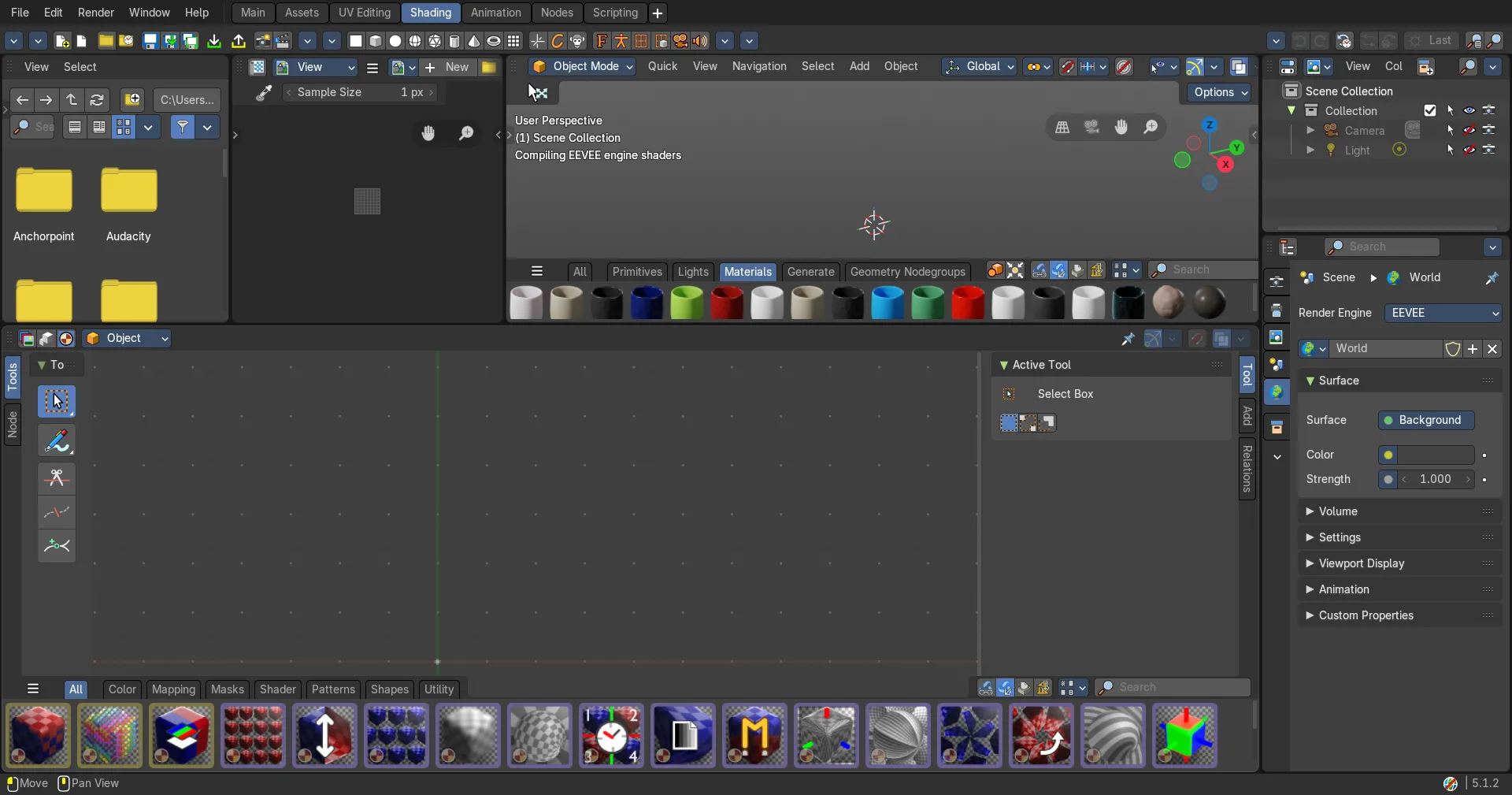
- Shading
- Topbar — Menus, the workspace tabs and the main toolbar.
- File Browser — Find textures on disk and drag them into the Shader Editor.
- Image Editor — Check the textures your material uses.
- 3D Viewport — Live material preview with studio lighting.
- Shader Editor — Build the material by connecting nodes: the heart of this workspace.
- Outliner — Pick the object you are shading.
- Properties Editor — Material and world settings without nodes.
- Rendering
- Topbar — Menus, the workspace tabs and the main toolbar.
- Image Editor — The finished render: look at it, compare slots and save it.
- Timeline — Pick the frame to render.
- Properties Editor — Render engine, samples, resolution and output.
- Sculpting
- Topbar — Menus, the workspace tabs and the main toolbar.
- 3D Viewport — Sculpt Mode with the brushes in the Tool Shelf and the Asset Shelf.
- Outliner — Pick the object to sculpt.
- Properties Editor — Remesh, multiresolution and object data.
- Compositing
- Topbar — Menus, the workspace tabs and the main toolbar.
- Image Editor — The composited result (Viewer node).
- 3D Viewport — The camera view of the scene you composite.
- Compositor — Combine render passes and add effects with nodes.
- Timeline — Pick the frame to work on.
- Outliner — Scenes and view layers.
- Properties Editor — View layer passes and render settings.
- Scripting
- Topbar — Menus, the workspace tabs and the main toolbar.
- 3D Viewport — See what your script does to the scene.
- Python Console — Try Python one line at a time.
- Info Editor — Every action you take, as the Python line that does it; copy and reuse.
- Text Editor — Write, open and run scripts.
- Outliner — Browse the scene and its data.
- Properties Editor — Settings you can read and change from Python.
- 2D Animation
- Topbar — Menus, the workspace tabs and the main toolbar.
- 3D Viewport — Draw on a white canvas with Grease Pencil, through the camera.
- Dope Sheet — Grease Pencil keyframes, one row per layer.
- Timeline — Playback and onion skin timing.
- Outliner — Your Grease Pencil objects and camera.
- Properties Editor — Layers of the selected Grease Pencil object.
- Properties Editor — Layer blend, opacity and masks.
- 2D Full Canvas
- Topbar — Menus, the workspace tabs and the main toolbar.
- 3D Viewport — The whole window is your drawing canvas.
- Dope Sheet — A slim strip with the Grease Pencil keys and playback.
- Masking
- Topbar — Menus, the workspace tabs and the main toolbar.
- Dope Sheet — Mask keyframes over time.
- Compositor — Use the mask in the compositor.
- Movie Clip Editor — Draw and animate masks over the footage.
- Outliner — Scenes and objects.
- Properties Editor — Scene and render settings.
- Motion Tracking
- Topbar — Menus, the workspace tabs and the main toolbar.
- 3D Viewport — Check the solved camera against the scene.
- Movie Clip Editor — Tracks over time, as a dope sheet.
- Movie Clip Editor — The footage: place and track markers, then solve the camera.
- Movie Clip Editor — Track motion curves, to spot bad tracks.
- Timeline — Frame range and playback.
- Outliner — Camera and tracking objects.
- Properties Editor — Scene and camera settings.
- Video Editing
- Topbar — Menus, the workspace tabs and the main toolbar.
- File Browser — Find clips, images and sounds; drag them into the sequencer.
- Video Sequence Editor — Preview: the edited picture at the current frame.
- Properties Editor — Output format, resolution and frame rate.
- Video Sequence Editor — Cut, move and fade strips on channels.
- Timeline — Playback and frame range.
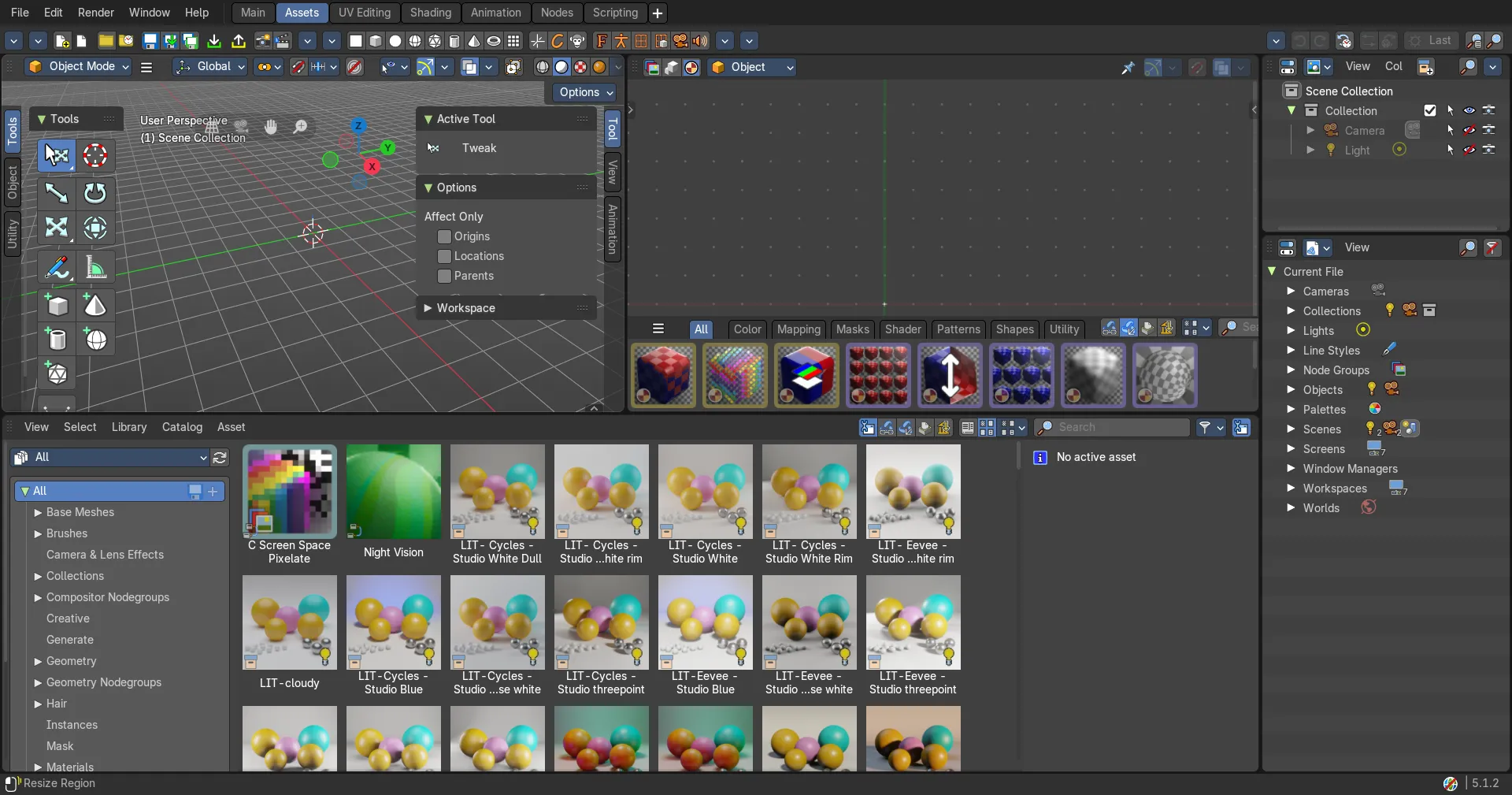
- Assets
- Topbar — Menus, the workspace tabs and the main toolbar.
- 3D Viewport — Drag assets in and try them in the scene.
- Shader Editor — Look inside a material asset.
- Asset Browser — Browse, tag and organize your asset libraries.
- Outliner — Mark objects, materials and more as assets.
- Outliner — Blender File view: everything this file holds.
- 3D Sequencer
- Topbar — Menus, the workspace tabs and the main toolbar.
- 3D Viewport — The camera of the current shot, as the sequencer plays it.
- 3D Viewport — Stage and light the shot in 3D.
- Video Sequence Editor — Your shots as scene strips; cut and reorder them.
- Dope Sheet — Keys of the current shot.
- Outliner — Scenes, cameras and objects.
- Properties Editor — Output and render settings.
- Timeline — Playback across all shots.
- Color Balance
- Storyboarding
- Sequencer Compositing
- Managing Workspaces — Create, change, save and load workspaces, and the workspace tab menu.
- Main — The general 3D workspace Bforartists opens with.
- UV Editing — Unwrap meshes and edit their UV maps.
- Modeling — Build and edit meshes and other geometry.
- Nodes — Build geometry with geometry nodes and check the data.
- Animation — Keyframe and time your animation.
- Texture Paint — Paint textures right on your models.
- Shading — Build materials with nodes and preview them.
- Rendering — Look at and save your rendered images.
- Sculpting — Sculpt shapes with brushes.
- Compositing — Post-process your renders with compositing nodes.
- Scripting — Write and run Python scripts.
- 2D Animation — Draw and animate in 2D with Grease Pencil.
- Storyboarding — Draw storyboards and animatics with Grease Pencil, shot by shot.
- 2D Full Canvas — Draw with Grease Pencil on a full-size canvas.
- Masking — Draw masks for visual effects work.
- Motion Tracking — Track camera and object motion in footage.
- Video Editing — Cut and edit video, images and sound.
- Sequencer Compositing — Composite and add effects to video strips with nodes, next to the sequencer.
- Assets — Browse, organise and use your assets.
- 3D Sequencer — Edit shots from your 3D scenes in a sequencer.
- Color Balance — Colour-correct video in the sequencer.