



































Documentation
Pick a path and get going in minutes, or look up any button, menu and panel in the reference. Every page says what a tool does, how to use it and why it is there.
- The Bforartists 5 manual
- What do you want to make today?
- Pick a path and get going in minutes, or look up any button, menu and panel in the reference. Every page says what a tool does, how to use it and why it is there.
- Quick Start
- Workspaces
- Keymap
- Migrating from Blender
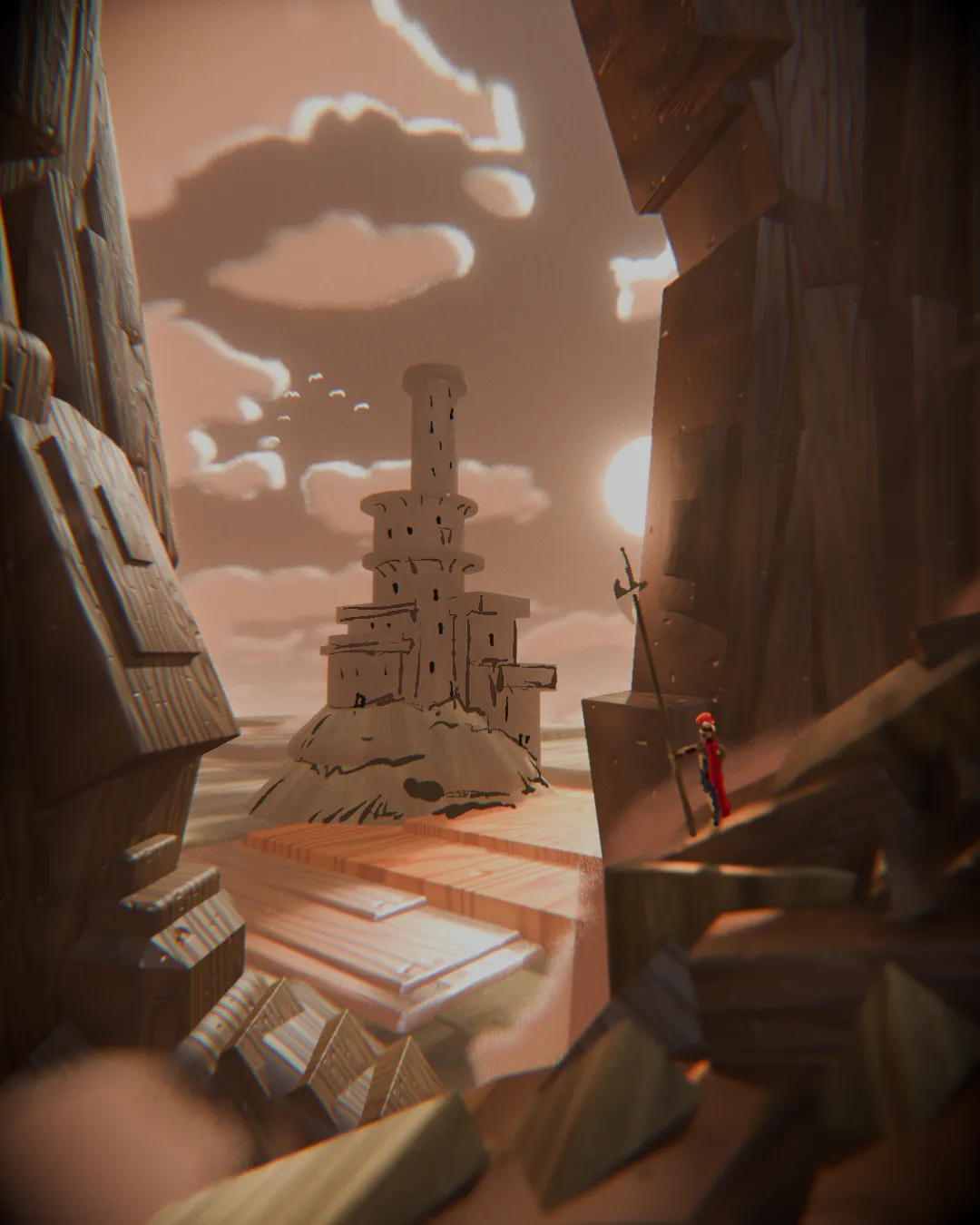
- Relic, a scene made in Bforartists
- Get started by making a story with Bforartists
- Look around the workspaces
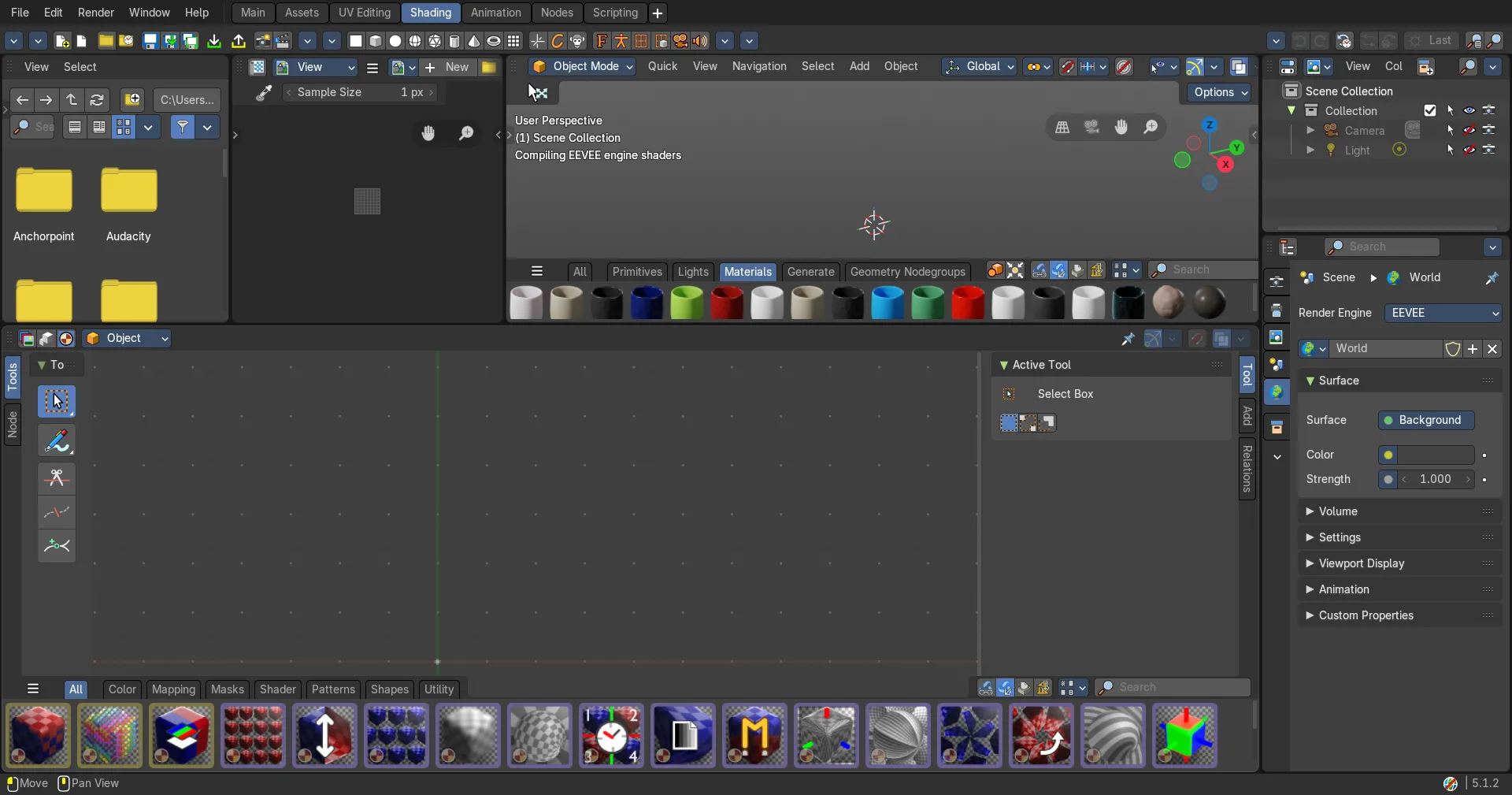
- Main
- Topbar — Menus, the workspace tabs and the main toolbar.
- 3D Viewport — Your scene, with the Asset Shelf of ready-made objects and materials along the bottom.
- Timeline — Play your animation and set keyframes.
- Outliner — Every object in the scene; pick, hide and rename them.
- Properties Editor — Settings for the render, scene, world and the selected object.
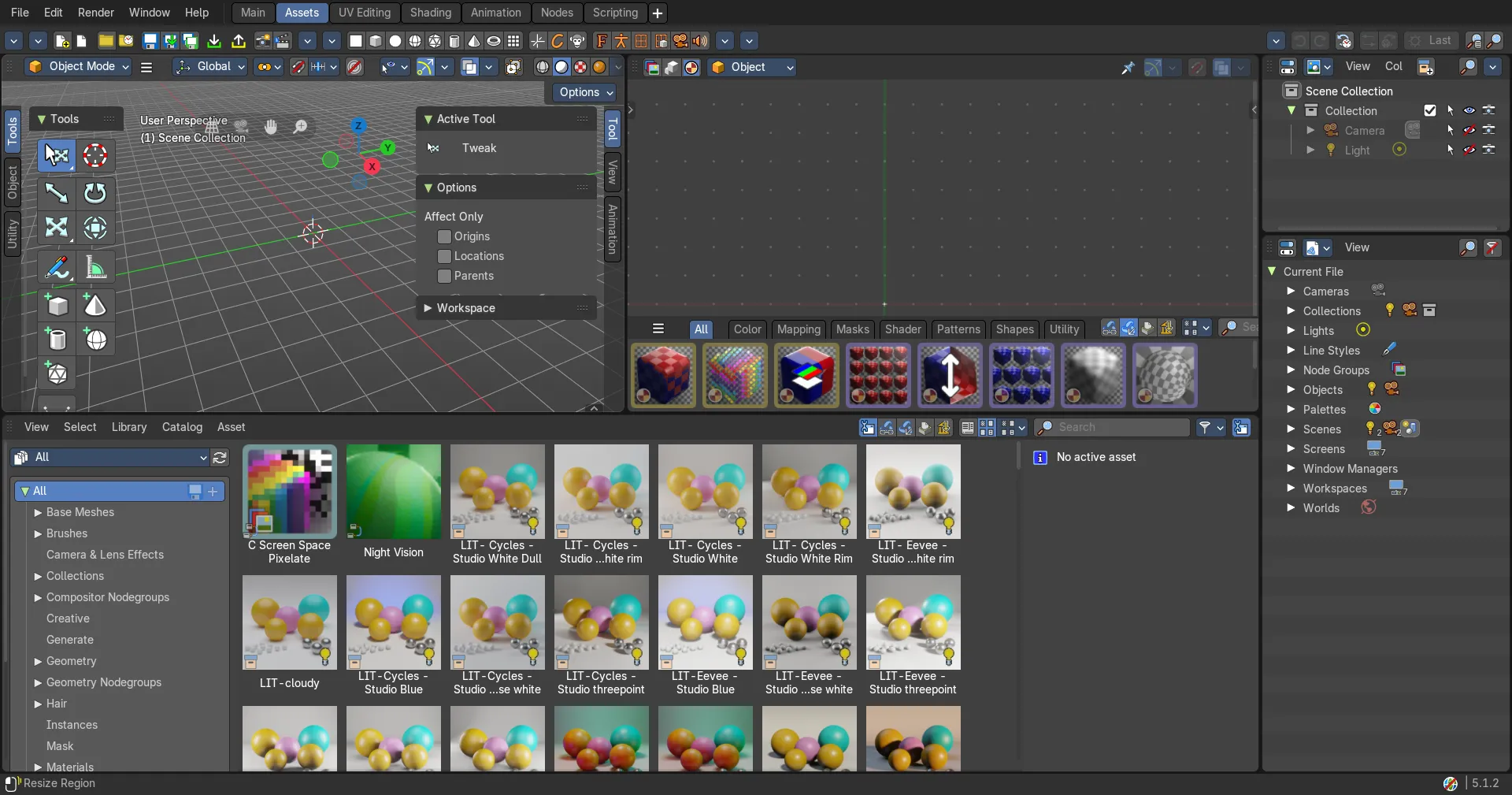
- Assets
- Topbar — Menus, the workspace tabs and the main toolbar.
- 3D Viewport — Drag assets in and try them in the scene.
- Shader Editor — Look inside a material asset.
- Asset Browser — Browse, tag and organize your asset libraries.
- Outliner — Mark objects, materials and more as assets.
- Outliner — Blender File view: everything this file holds.
- UV Editing
- Topbar — Menus, the workspace tabs and the main toolbar.
- 3D Viewport — Select faces and mark seams on the model in Edit Mode.
- UV Editor — The unwrapped faces laid flat over the texture; move, scale and pack them.
- Outliner — Pick the object to unwrap.
- Properties Editor — UV maps live in the Object Data tab.
- Shading
- Topbar — Menus, the workspace tabs and the main toolbar.
- File Browser — Find textures on disk and drag them into the Shader Editor.
- Image Editor — Check the textures your material uses.
- 3D Viewport — Live material preview with studio lighting.
- Shader Editor — Build the material by connecting nodes: the heart of this workspace.
- Outliner — Pick the object you are shading.
- Properties Editor — Material and world settings without nodes.
- Animation
- Topbar — Menus, the workspace tabs and the main toolbar.
- 3D Viewport — A camera view to check your shot while you animate.
- 3D Viewport — Pose and key your characters and objects.
- Dope Sheet — All the keyframes of the selected objects; move and retime them.
- Timeline — Playback, frame range and auto keying.
- Outliner — Pick what to animate.
- Properties Editor — Object, bone and constraint settings.
- Nodes
- Topbar — Menus, the workspace tabs and the main toolbar.
- Spreadsheet — See the geometry's points, faces and attributes as numbers.
- 3D Viewport — The result of your node tree, live.
- Geometry Node Editor — Build the Geometry Nodes tree of the selected object.
- Outliner — Pick the object that carries the node modifier.
- Properties Editor — Modifier stack and node group inputs.
- Timeline — Scrub frames to test animated node setups.
- Scripting
- Topbar — Menus, the workspace tabs and the main toolbar.
- 3D Viewport — See what your script does to the scene.
- Python Console — Try Python one line at a time.
- Info Editor — Every action you take, as the Python line that does it; copy and reuse.
- Text Editor — Write, open and run scripts.
- Outliner — Browse the scene and its data.
- Properties Editor — Settings you can read and change from Python.
- All workspaces