













































Interface

Interface
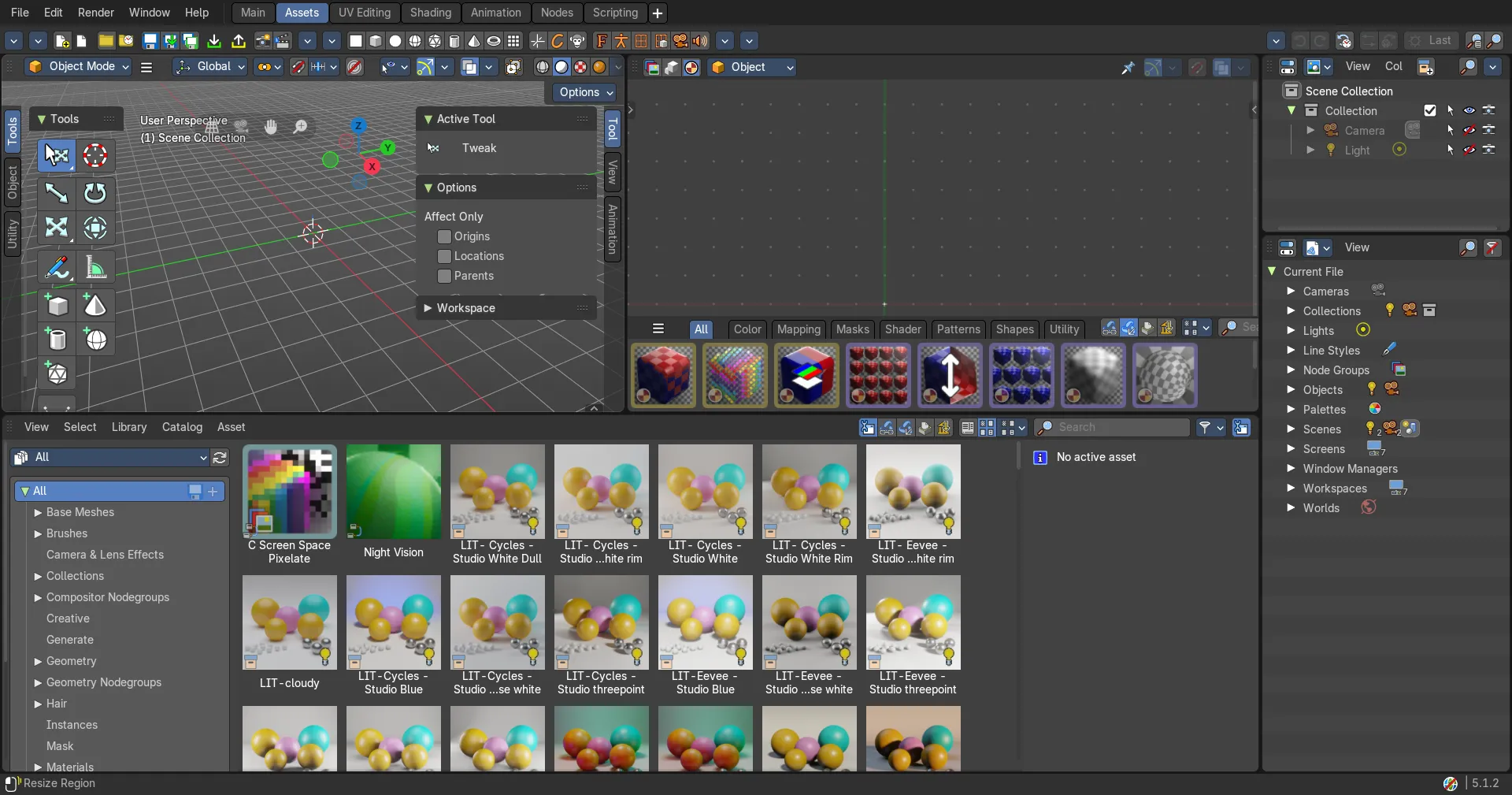
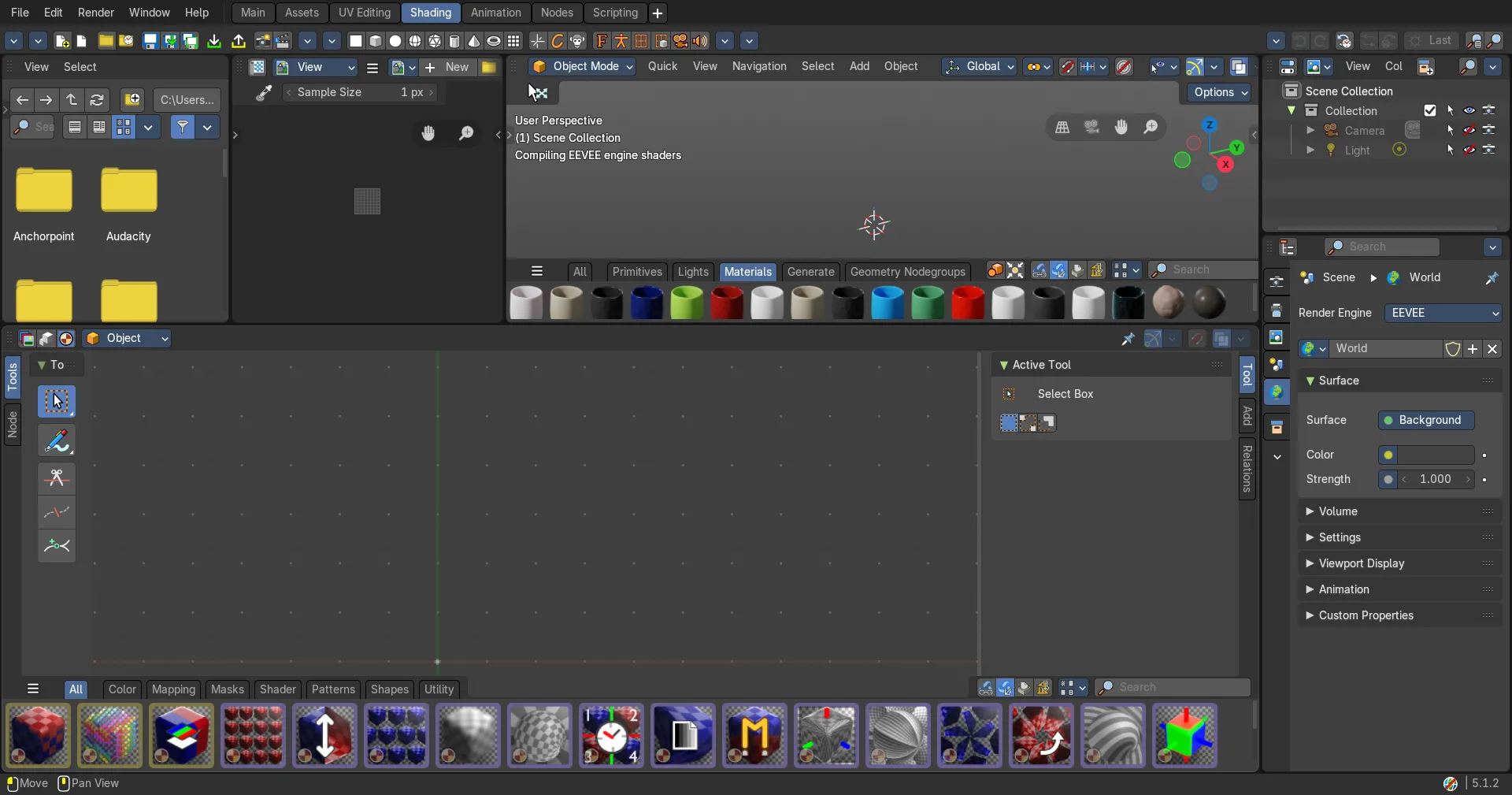
How the Bforartists window is built: windows, areas and editors, and the headers, shelves, panels and menus inside them.
How the Bforartists window is built: windows, areas and editors, and the headers, shelves, panels and menus inside them.
- Interface Basics — The ideas behind the Bforartists interface, tooltips, and the splash screen.
- Windows — The Bforartists window, extra main windows, and editors that float in a window of their own.
- Areas — The rectangles a workspace is made of: resize, split, join and swap them.
- Editors — Every area shows an editor: change its type and show or hide the editor type menu.
- Headers — The strip at the top of every editor: menus, tools and settings, scrolled and collapsed.
- Footers — The strip at the bottom of some editors, and the Status Bar at the bottom of the window.
- Tool Shelves — The tools on the left side of an editor: open, close, resize and zoom them.
- Side Bars — The tabs on the right side of an editor: open, close and resize them.
- Tabs & Panels — How settings are grouped: collapse, reorder and pin panels, and switch tabs.
- Properties — Buttons, toggles, fields, drop-downs, colour pickers and value editing, with expressions and units.
- Asset Shelves — A strip of assets inside an editor, such as brushes in the paint and sculpt modes.
- Context Menus — Right-click menus with the operations that fit what is under the mouse.
- Floating Menus — Header menus, hotkey menus and the F3 search menu: open, search and navigate them.
- Pie Menus — Round menus that open around the mouse: pick an item by direction.
- Last Operator Panel — Change the settings of the operation you just did, right after doing it.
- Floating Dialogues — Small windows that ask for settings or a confirmation before an operation runs.
- Input Devices — Mouse, keyboard, tablet and NDOF devices, and non-English keyboards.