












































Managing Workspaces
Create, change, save and load workspaces, and the workspace tab menu.
A workspace is a ready-made layout of editors for one kind of work, with its own tab in the Top Bar. This page explains how to create, change, save and load workspaces. The pages after it introduce each workspace that comes with Bforartists and the editors it shows.
Introduction
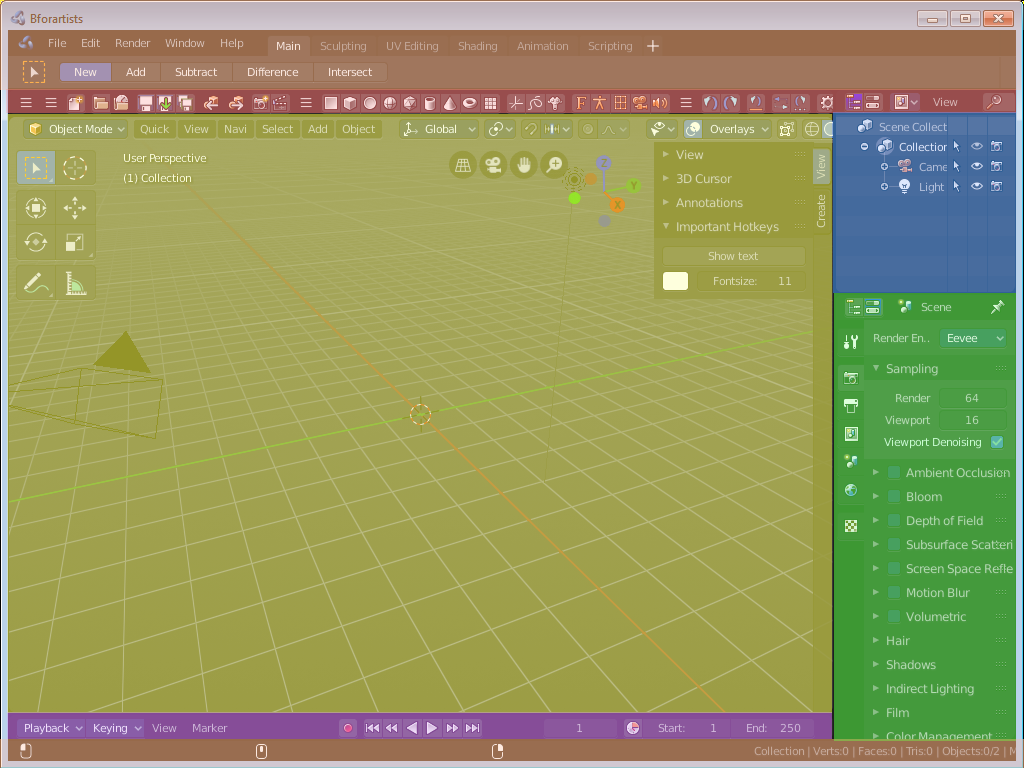
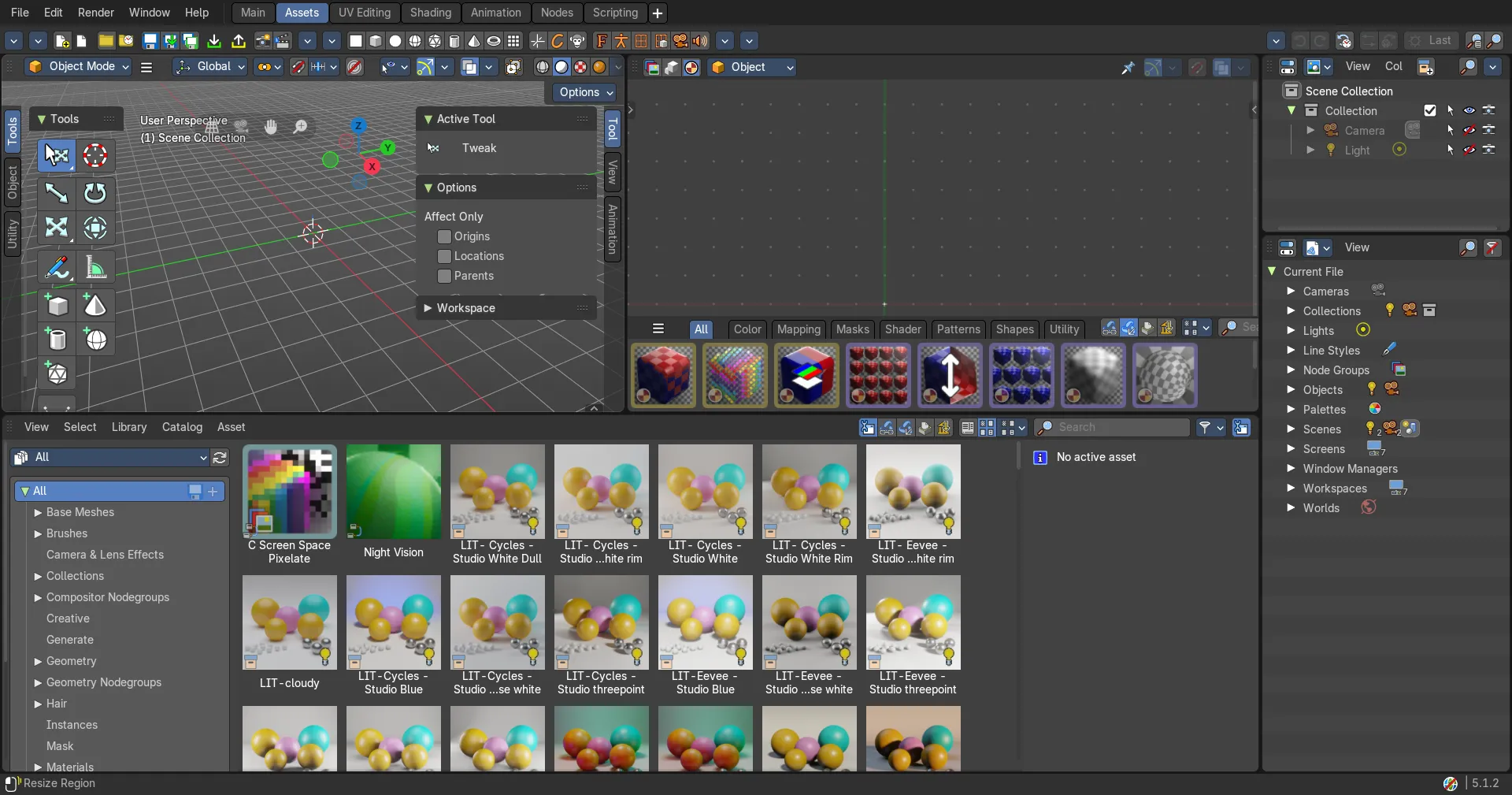
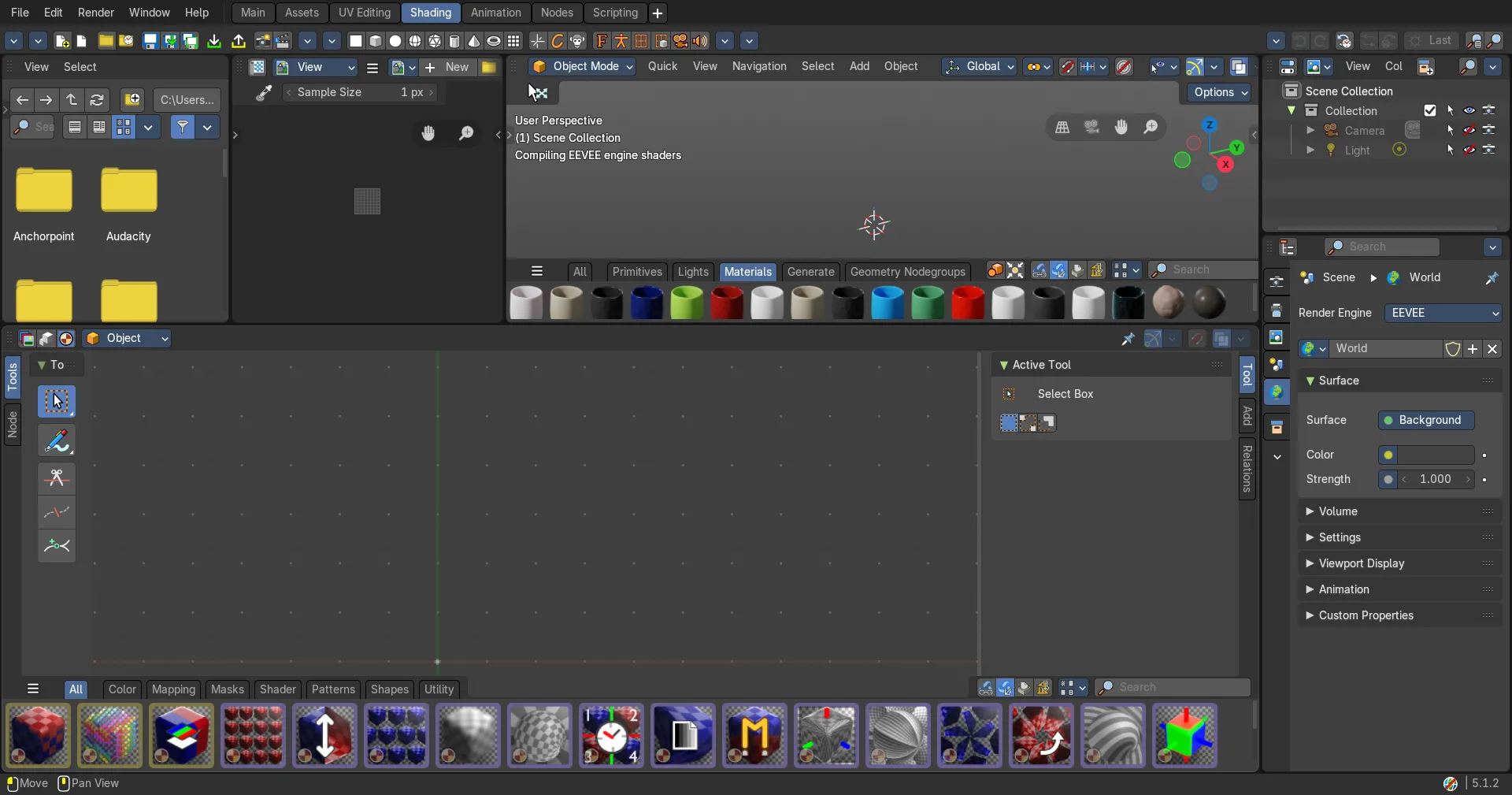
A Workspace is a layout with different editors. For example, in most workspaces you have a 3d view editor, a outliner and a properties editor. It includes Top Bar and Footer. And every workspace can have some specific settings. The Sculpting Workspace starts for example in Sculpt mode. And not in Edit Mode like the default workspace.
To switch between the workspaces simply click at the tabs.
The chapter tabs and default workspaces is explained in the chapter Topbar. It is menu functionality. And menu functionality gets explained where the menu is.
This chapter here is about the general functionality of workspaces.
Create new Workspace
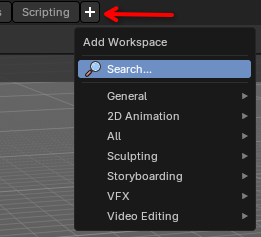
To create a new workspace, simply click at the + sign at the of the workspaces, a menu will popup for the user to choose what new workspace they want.
Once you choose a workspace, it will add it at the end of all other tabs and immediantly switches to it.
The name will be something like mycurrentworkspace.001
To rename the new layout, double click at the name. The text becomes editable, now you can start to edit your workspace and its settings.
Workspace Settings
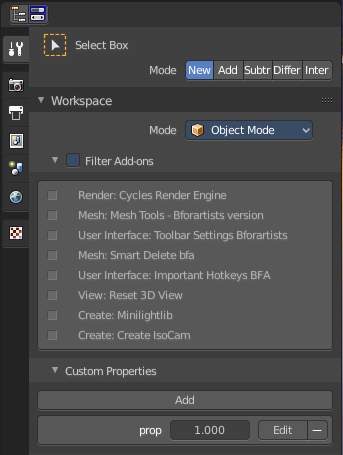
A workspace is not only a set of editor windows. In the Properties editor you can also find some workspace specific settings.
In this settings you can define in what mode the workspace starts. You can exclude addons. And you can add custom properties. Which are basically just values for scripting needs.
The settings from this panel will load every time you switch to this workspace.
Save changes at the Workspace
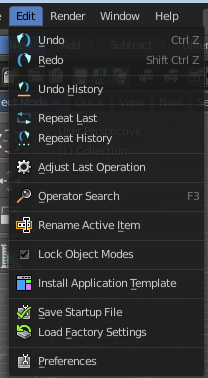
You cannot save new workspaces or modifications at an existing workspace directly. To save modifications at an existing workspace you have to save the Startup File. This menu item can be found in the File menu.
Once saved you will find this new workspace also in the add workspace menu under your template.
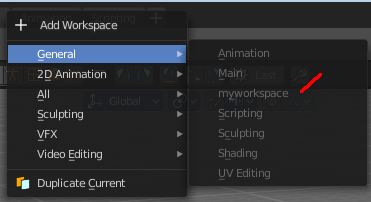
When you are in the default application template then this settings will save the new workspace to the defaults.
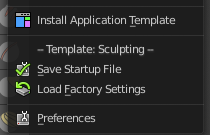
When you are in one of the other application templates though, then you will save the new workspace to the template. Same counts for the factory settings. You will then load the factory settings from the current active application template.
The menu entry will also look a bit different then. You will see a label that gives you a hint about the current application template in use. In this case the sculpting application template.
Note that this also affects other changes. Bforartists will for example now start with the currently active layout. And it will also preserve the changes that you did at other layouts before saving.
So when you work at a layout be sure that you don't accidentally do changes at other areas. And before you save the startup file you should switch back to the layout with which you want to start Bforartists.
Workspace Context Menu
Duplicate
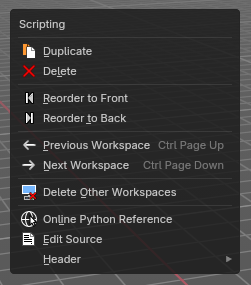
Creates a copy of the current workspace, including its editor layout and active tools.
Useful for experimenting with variations without losing the original setup.
| Entry | What it does |
|---|---|
| Delete | Workspace can also be deleted. To do so right click at the tab that you want to delete, and choose delete in the menu. Note that you can remove your own created workspaces this way. But the default workspaces will remain in the menus. They will just vanish from the tabs. These workspaces are protected so that you cannot remove them completely. |
| Reorder to Front | Moves the selected workspace tab to the beginning of the workspace list (far left). Ideal for prioritizing frequently used layouts. |
| Reorder to Back | Moves the selected workspace tab to the end of the list (far right). Useful for archiving less-used layouts. |
| Previous Workspace | Switches to the workspace tab immediately to the left of the current one. Shortcut-friendly navigation for rapid layout switching. |
| Next Workspace | Switches to the workspace tab immediately to the right. Complements the previous operator for fluid tab cycling. |
| Delete Other Workspaces | Deletes all workspaces except the currently selected one. Great for cleaning up clutter or preparing a minimal layout for export or sharing. |
Load Workspace layout from Blend Files
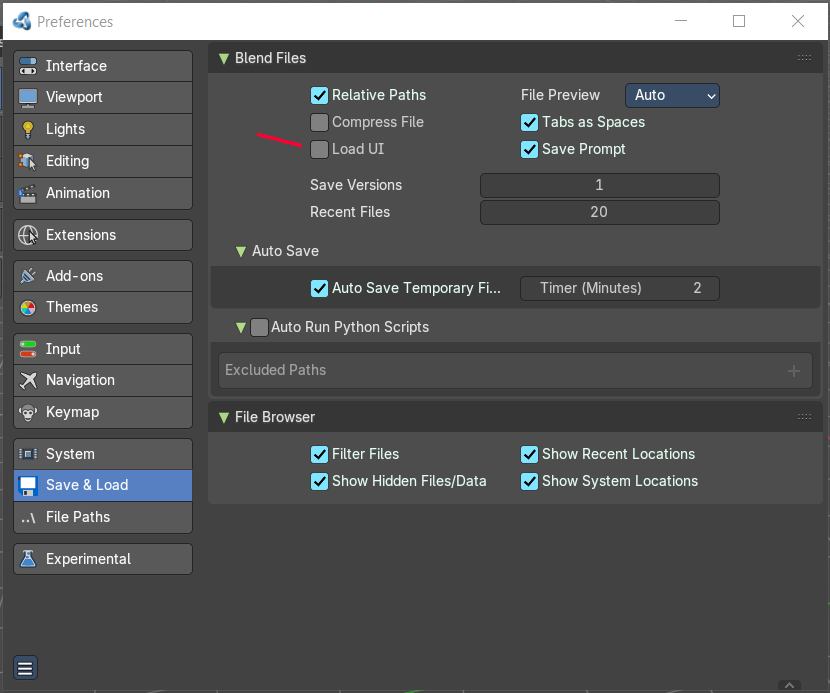
Every blend file saves also the layout in which the scene is at the point of saving. Means you can load a layout from the blend file.
This feature is off by default since it is usually unwanted behavior to load layouts from other people.
You can turn it on in the User Preferences in the File tab. Tick the menu item Load UI. Then save User Settings.
Note that now all Blend files that you open will load the workspace layout that the Blend files are saved with.
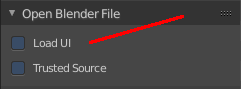
You can also do this at a file by file base. The file browser allows you to load a blend file with the saved layout. This setting can be found down left in the file browser.