

























































Text Editor
Write and run scripts and keep notes inside the file.
Text Editor
The *Text Editor*is mainly used to write scripts. And so the functionality orients towards this useage. But you can also use it to write any text. To store some notes for the scene for example. See Tip below.
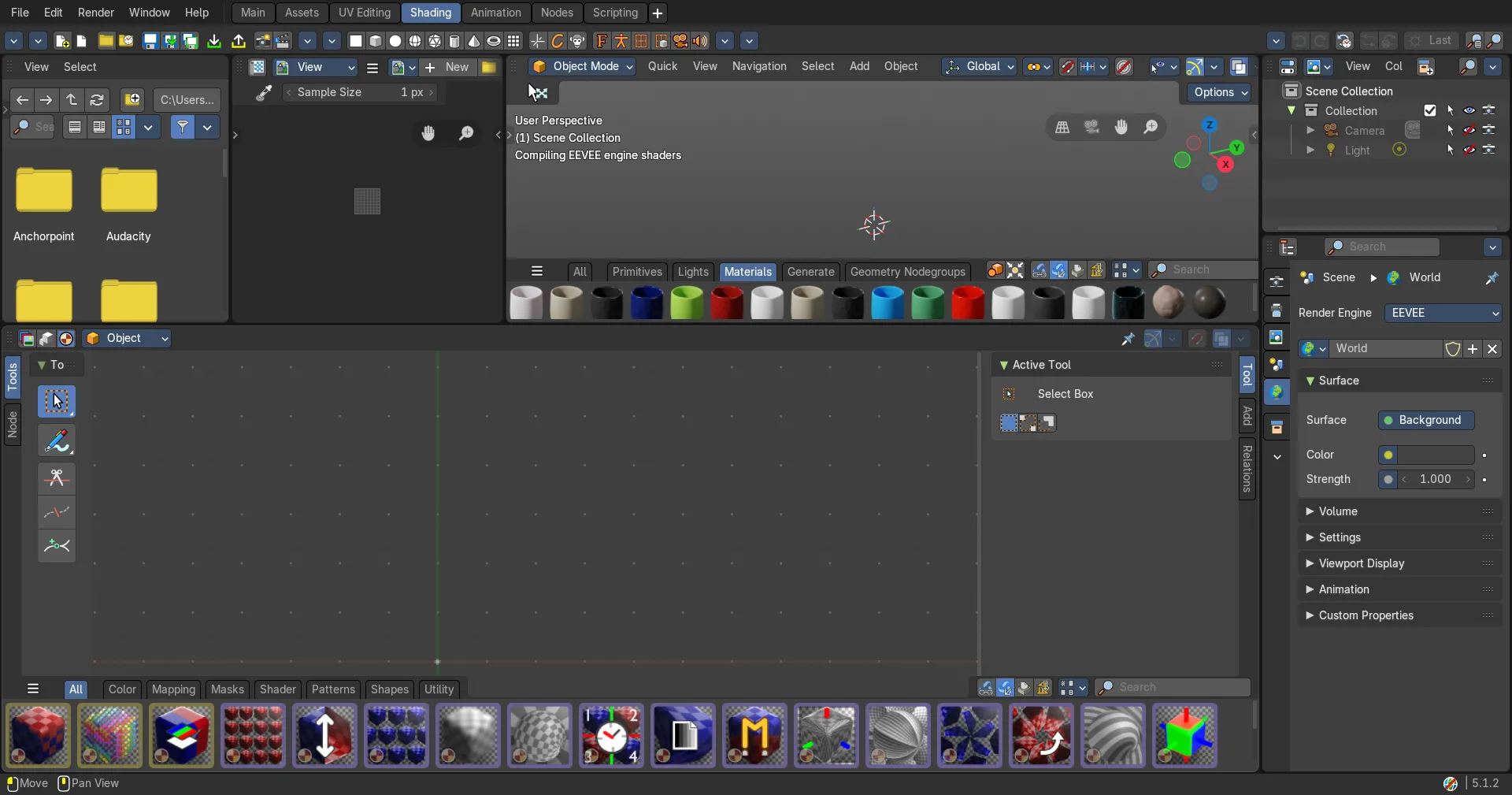
When you don't have a file loaded then the header content is rather small.

Once you create a new file, or load a file, you will see the toolbar change, and reveal further functionality.

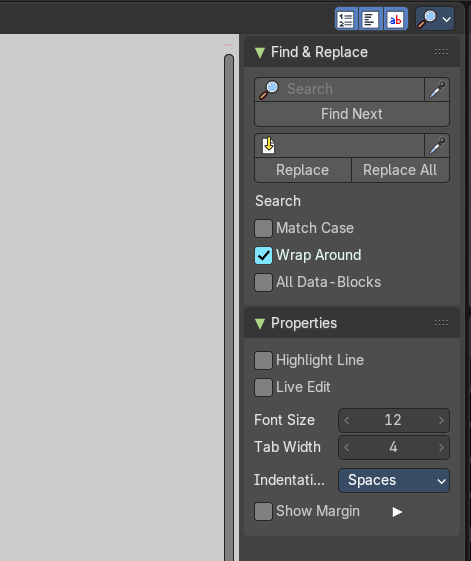
Some text related functionality can also be found in the tool shelf at the right.
Tip: A Text window can be used to write in a README text explaining the contents of your blend file. Be sure to keep it visible when saving! And be sure to tell the receiver to activate Load UI to display the text file then. Bforartists has Load UI deactivated by default.
Slider snapping
Hold Ctrl while dragging a slider to snap it. See Snapping in the Interface chapter.
Header - File Menu
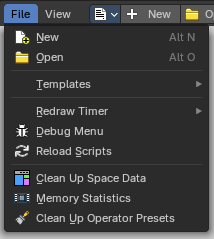
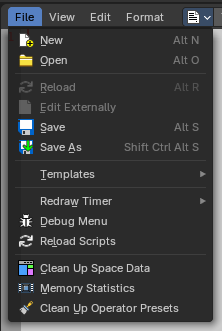
The File menu contains the load and save functionality. But also some Python and OSL templates. And some general debug functionality.
When no text is loaded then the menu is reduced.
New Text
Creates a new text file.
Open Text
Open a text file.
Reload
It can happen that you work with an external script editor, like Visual Studio, and change your script there. The reload button reloads the current active text file from hard disk.

You will get a warning symbol in the header when the script in the text editor doesn't match with the external text anymore.
Edit Externally
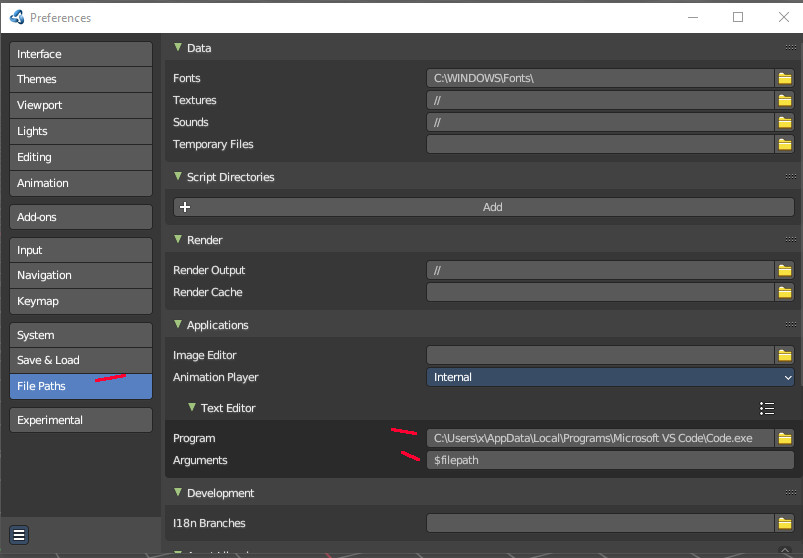
Allows you to edit your file externally with a defined code editor like VS Code.
Note that you need to define the external editor in the preferences first.
Save
Saves the text file. Overwrites the existing version immediately.
Save As
Save as opens a save as file dialog.
Save Autosave
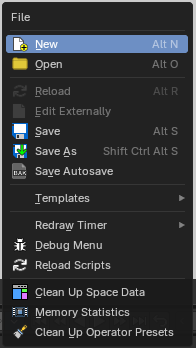
Creates an autosave of the current Bforartists file in the temp directory, right now. You don't have to wait for the timed autosave. It is handy when you write a script and want a safety copy before you run it.
The autosave does not replace your .blend file or your text file. To keep changes in a text file, use Save or Save As.
Templates

The Templates category contains some example scripts. There are two kind of templates. Python scripts and Open Shading Language scripts. The name of the files should tell you what the script is good for.
Redraw Timer
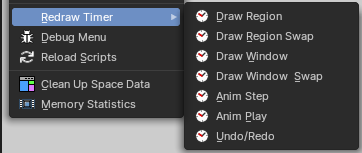
This is a relict from early Blender days. A debugging timer for the UI where you can test the redraw time of different UI elements.
Debug Menu
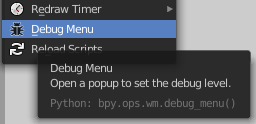
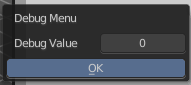
Another development tool. Set the debug level.

Reload Scripts
Reload Scripts reloads all active python scripts and addons. Including the Bforartists python UI files. This can be useful when you work at the UI or at an add-on. Then you don't have to close and reload Bforartists to see the changes. You can simply reload the scripts and keep Bforartists open.
Clean up Space Data
Remove unused settings for invisible editors.
Memory Statistics

Print memory statistics to the console. You need to have the console open.
Clean Up Operator Presets

Remove outdated operator properties from presets that may cause problems. This is useful when an operator supports presets to customize settings need to be reset.
Header - View Menu
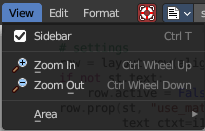
The View menu contains some view related functionality.
Sidebar
Opens or closes the sidebar.
Zoom In
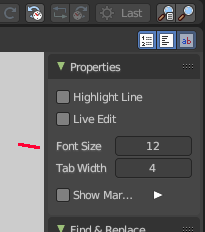
Zooms in to adjust the font size to use for displaying the text. The font size can also be adjusted in the sidebar.
Zoom Out
Zooms out to adjust the font size to use for displaying the text. The font size can also be adjusted in the sidebar.
Top of File
Jumps to the top of the text file.
Bottom of File
Jumps to the bottom of the text file.
Area submenu
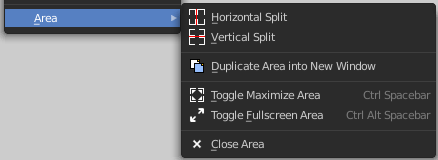
Area is a menu with window related settings.
Horizontal Split
Splits the editor horizontally into two editors.
Vertical Split
Splits the editor vertically into two editors.
Duplicate Area into new Window
Creates a floating window out of the current editor
Toggle Maximize Area
Displays the editor maximized with menus. To return to split view press hotkey Ctrl Up Arrow, or reuse the menu item in the View menu.
Toggle Fullscreen Area
Displays the editor maximized without menus. To return from the full screen view press hotkey Alt F10, or use the little button that appears up right when you move the mouse in this corner.
Close Area
Closes the area window.
Header - Edit Menu
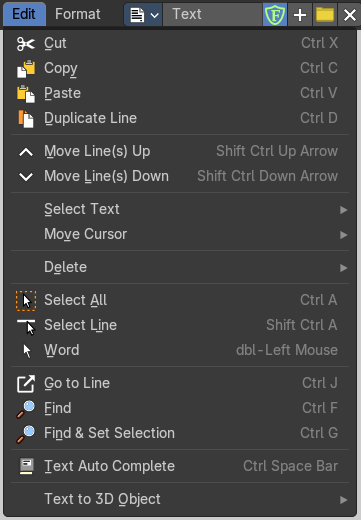
The Edit menu contains tools to modify the text.
Cut
Cuts the selected text.
Copy
Copies the selected text.
Paste
Pastes copied text at Text cursor position.
Duplicate Line
Duplicates the line where the Text cursor currently is.
Move Line up
Moves the line where the Text cursor is one line up.
Move Line down
Moves the line where the Text cursor is one line down.
Select Text submenu
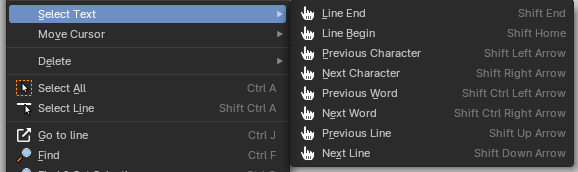
Select text is a sub menu that contains selection functionality, starting from the current position of the Text cursor. The buttons should be self explaining. And usually you use the hotkeys for this functionality.
Move Cursor submenu
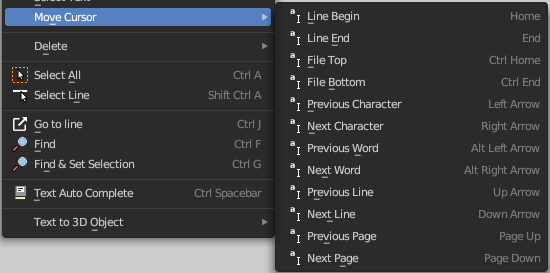
This sub menu contains all available methods and its hotkeys to set the mouse cursor in the text.
Delete

Delete is a sub menu with some special Delete methods, starting from the current position of the Text cursor. And usually you use the hotkeys for this functionality.
Select all
Selects all text.
Select Line
Selects the word under the mouse cursor.
Word

Selects the line where the Text cursor. currently is
Go to Line
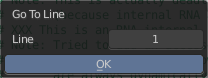
This tool opens a sub menu where you can type in the line number and jump to this line then.
Find
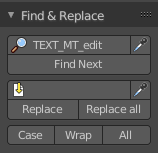
Find opens the Tool Shelf, where you can find a Find & Replace panel. The Find & Replace panel is explained in the tool shelf chapter.
Find & Set Selection
Finds and selects the next text element that matches with the current selection. It's the same functionality than the Find Next button in the Find & Replace panel.
Text Auto Complete
Auto Complete tries to complete your text input.
Text to 3D Object

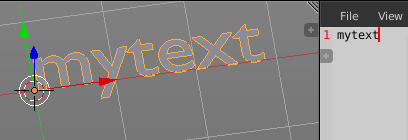
Text to 3D Object converts the text of the file to an editable 3D object in the 3D Viewport.
One Object
Converts the whole text into one object.
One Object Per Line
Converts every line of the text into a separate object.
Header - Format Menu
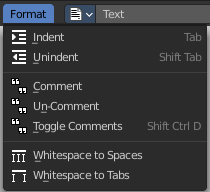
The format menu contains some formatting functionality.
Indent
Indents the text. Python requires proper indentation.
Unindent
Unindents the text.
Comment
Comments the text out. For Python usually with a # sign.
Uncomment
Uncomments commented text.
Toggle comments
Toggles the comments.
Whitespaces to Spaces
Converts Whitespaces in the text to Spaces.
Whitespaces to Tabs
Converts Whitespaces in the text to Tabs.
Header - Tools

The Header tools provides you with quick access functionality.
Text Prop
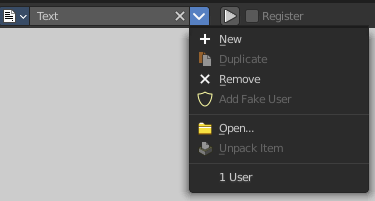
List of text files

This is a list of the images in the scene. This list allows you to switch to other images.
Search form
Search for specific images.
Text Edit Box
Read the name of the currently selected text. And you can rename the textfile here too.
Unlink Datablock
This closes the selected text. Attention, different from the rest of the UI this text really vanishes immediately from the list then.
File selector property

File browser
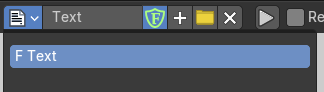
The list of loaded text files.
Fake User
Wit this button you assign a fake user to this selected image. Data, like images, that is not longer linked to anything else gets removed when you save and reload a scene. Bforartists has the concept of fake users to go around this behavior. An image with a fake user is in fact linked to something. And so it is not lost when you save and reload the scene.
New Text
Create a new text file.
Open Text
Open a text file. A file browser will open.
Remove
Close the text. It will be removed from the list.
Run Script

This button is for python or OSL scripts. It executes the script.
Register
This checkbox is for Python or OSL Scripts. When checked the classes of the script gets registered in Bforartists.
Info String
Shows infos about the current text file. When it's an internal created file then it displays the String File: Internal. When it's an external loaded file, then the string displays the path to the location of the file.
Show Line Numbers, Wrap and Syntax Highlight

Show Line numbers displays a row of numbers at the left side of the text file.
Wrap words wraps the text to fit into the current editor size.
Syntax highlighting colors text parts fitting to the language.
Find and Replace
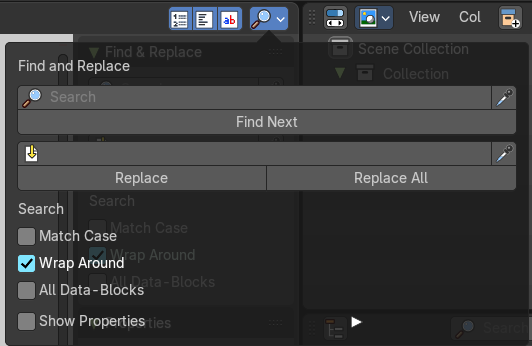
Calls a find and replace dialog.
Tool Shelf
The Tool Shelf is the place for some options and the text search panel.
Find & Replace Panel
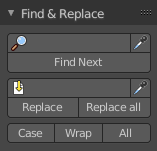
In the find panel you will find tools with text search and replace functionality.
Find Edit Box
Here you can type in the string that you want to search.
Find set selected
Copies the currently selected text into the Find edit box, searches for a matching string in the text, and selects this match then.
Find Next
Searches for the next matching string in the text.
Replace Edit Box
Here you can type in the string that you want to replace in the text.
Replace set selected
Copies the currently selected text into the Find edit box, searches for a matching string in the text, and replaces this match with the string in the Replace edit box.
Replace
Searches for the next matching string in the text. And replaces it the string in the Replace edit box.
Replace all
Searches for matching strings in the text. And replaces them all by the string in the Replace edit box.
Note: 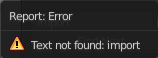
By default when the search does not find a matching string anymore in the text below the current selection, then you will get a warning that the search string is not present in the text file. It will not automatically start the search from the top again. You have to place the text cursor manually at the top of the text.
Or turn on the Wrap checkbox below.
Match case
When ticked then the search is Upper case sensitive.
Wrap
Starts the search from the top of the document when the search has reached the end of the document.
All
Search in all opened Text files, not just the currently active one.
Properties Panel
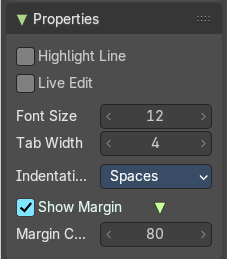
Highlight
Highlights the line where the text cursor is.
Live Edit
Updates the script while editing.
Font Size
The font size for the text editor
Tab width
Number of spaces to display tabs with. Default is four.
Intendation
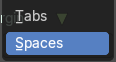
How to deal with intendation. Treating it as tabs or as spaces.
Show Margin
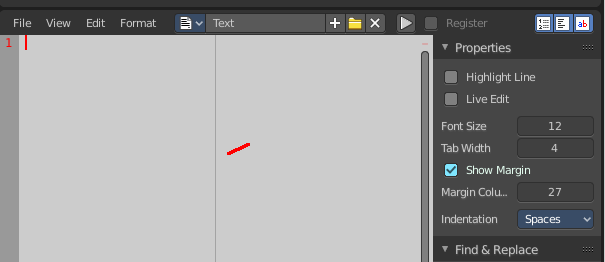
Shows a dotted line at the right. Note that we have currently a theming problem here with the default Bforartists theme. We have white text, means a white dotted line. And we have a white background. This means that the dotted line just shows with other themes where the header text color is black.
Margin Column
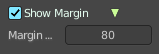
This edit box becomes visible when Show Margin is ticked.
Here you can adjust the width from the left at which the dotted margin line should show.
Footer
Info String

This string shows infos about the current text file.
When it's an internal created file then it displays the String File: Internal.
When it's an external loaded file, then the string displays the full path to the location of the file.
Context menu
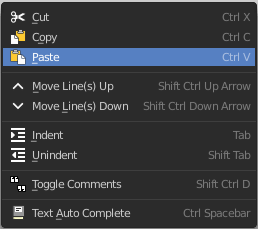
When you right click into the text editor then a popup menu opens up. It is to 100% made of double menu entries.
Cut
Cuts the selected text.
Copy
Copies the selected text.
Paste
Pastes copied text at Text cursor. position.
Move Line up
Moves the line where the Text cursor. is one line up.
Move Line down
Moves the line where the Text cursor. is one line down.
Indent
Indents the text. Python requires proper indentation.
Unindent
Unindents the text.
Toggle comments
Toggles the comments.
Text Auto Complete
Auto Complete tries to complete your text input.