











































Workspaces

Scripting
Write and run Python scripts.
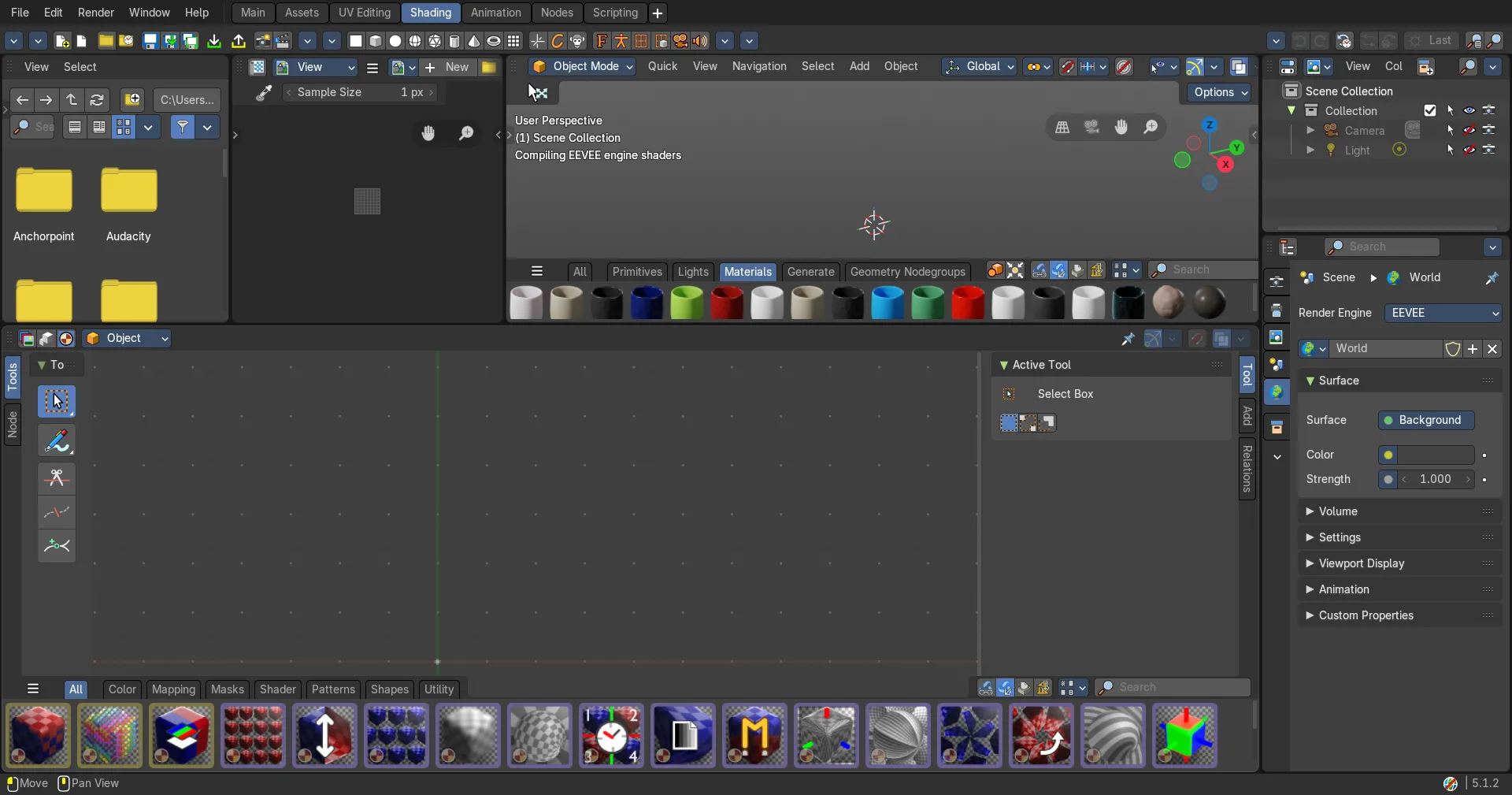
The scripting workspace gives you a layout where you can write Python code. It contains an Info editor, a 3D View editor, a Console editor, a Text editor, a Outliner Editor and a Properties Editor.
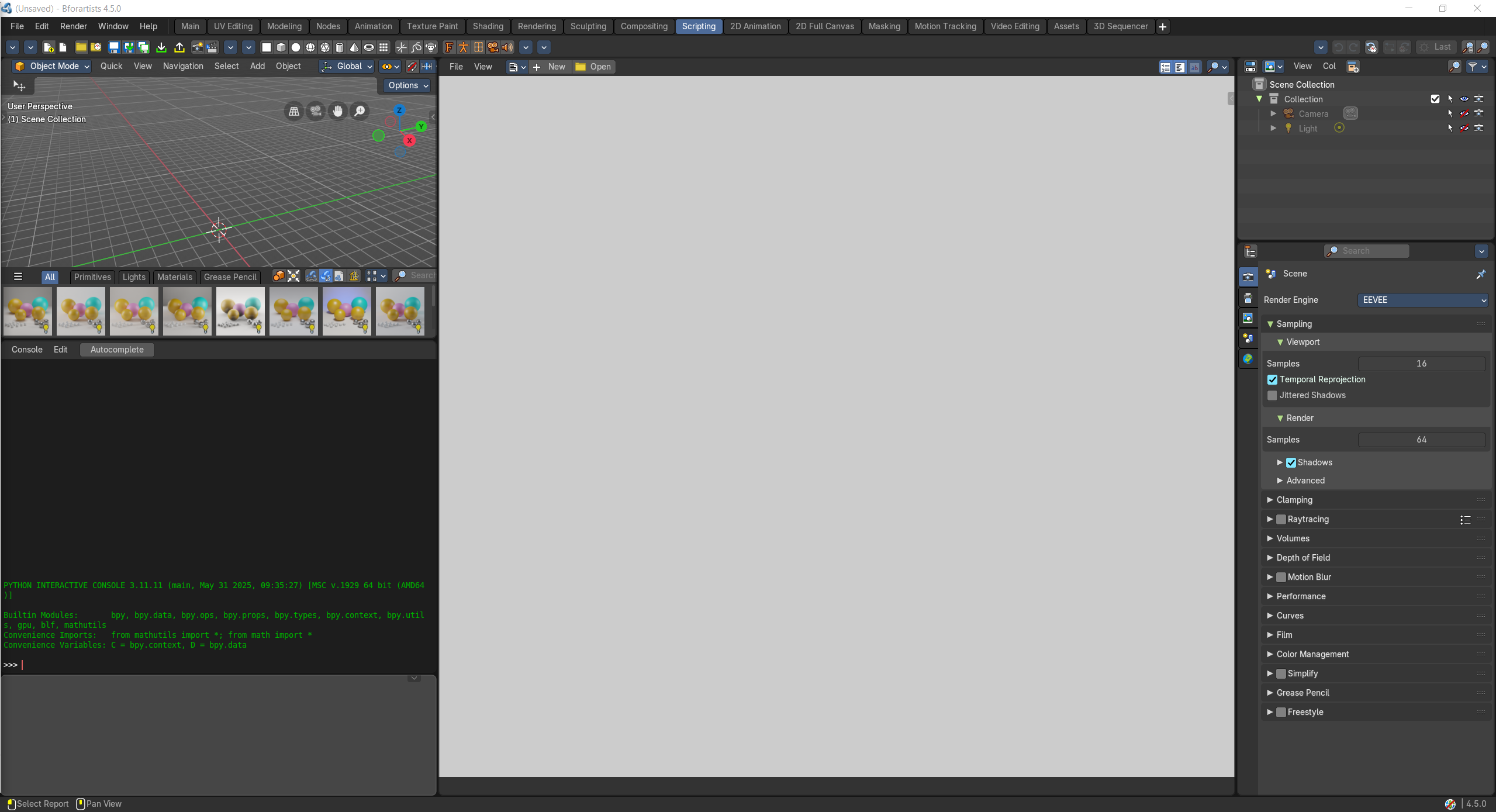
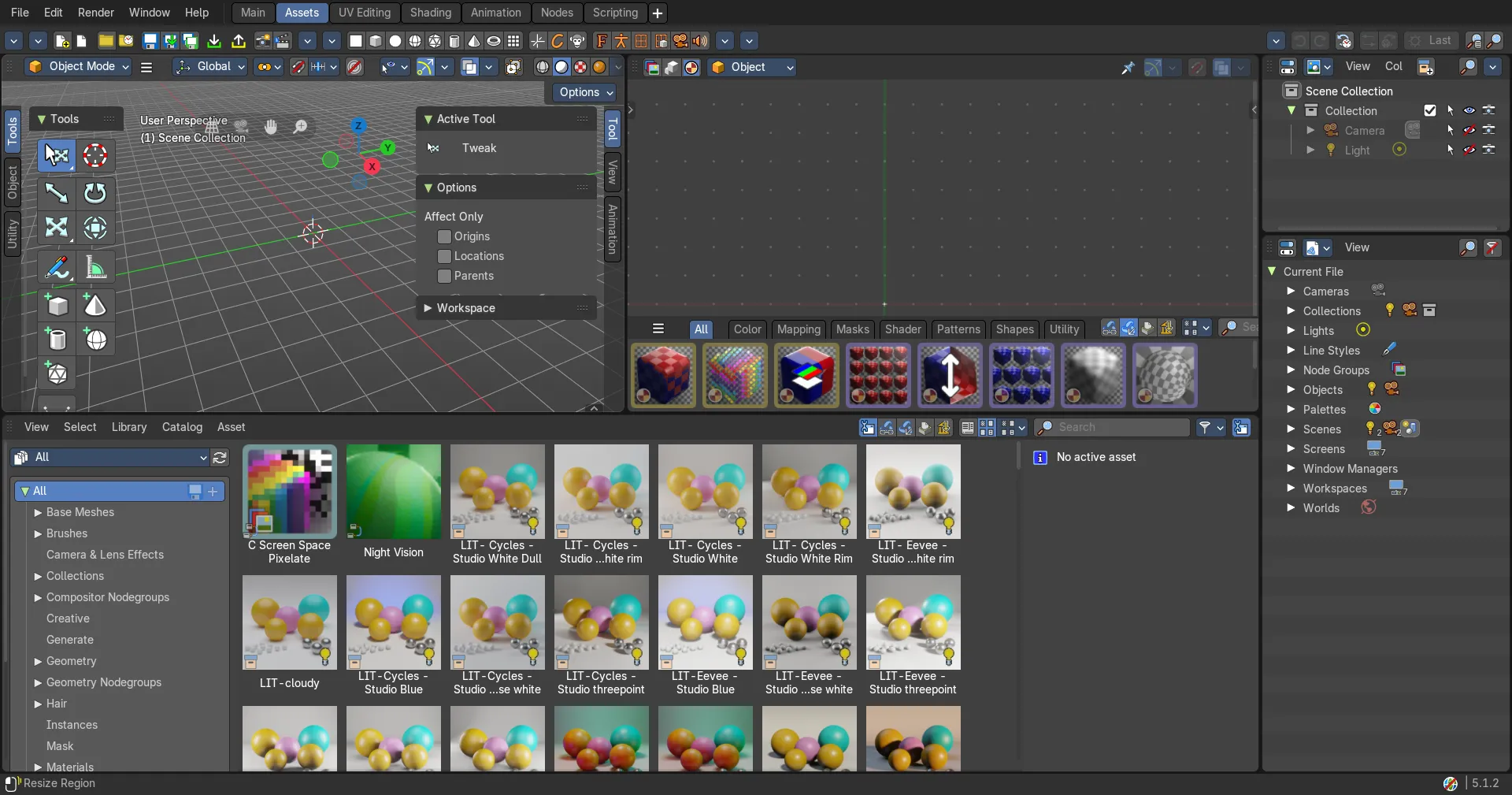
- Screenshot
- Topbar — Menus, the workspace tabs and the main toolbar.
- 3D Viewport — See what your script does to the scene.
- Python Console — Try Python one line at a time.
- Info Editor — Every action you take, as the Python line that does it; copy and reuse.
- Text Editor — Write, open and run scripts.
- Outliner — Browse the scene and its data.
- Properties Editor — Settings you can read and change from Python.
How the work flows
Scripting turns repeated work into a tool. Click through a task once and the Info Editor writes down every action as a line of Python you can copy; try those lines in the Python Console, then collect them into a script in the Text Editor and run it. The 3D Viewport shows what your code does, the Outliner lets you browse the data, and every setting in the Properties Editor can be read and changed from Python.