
































Tool Shelves
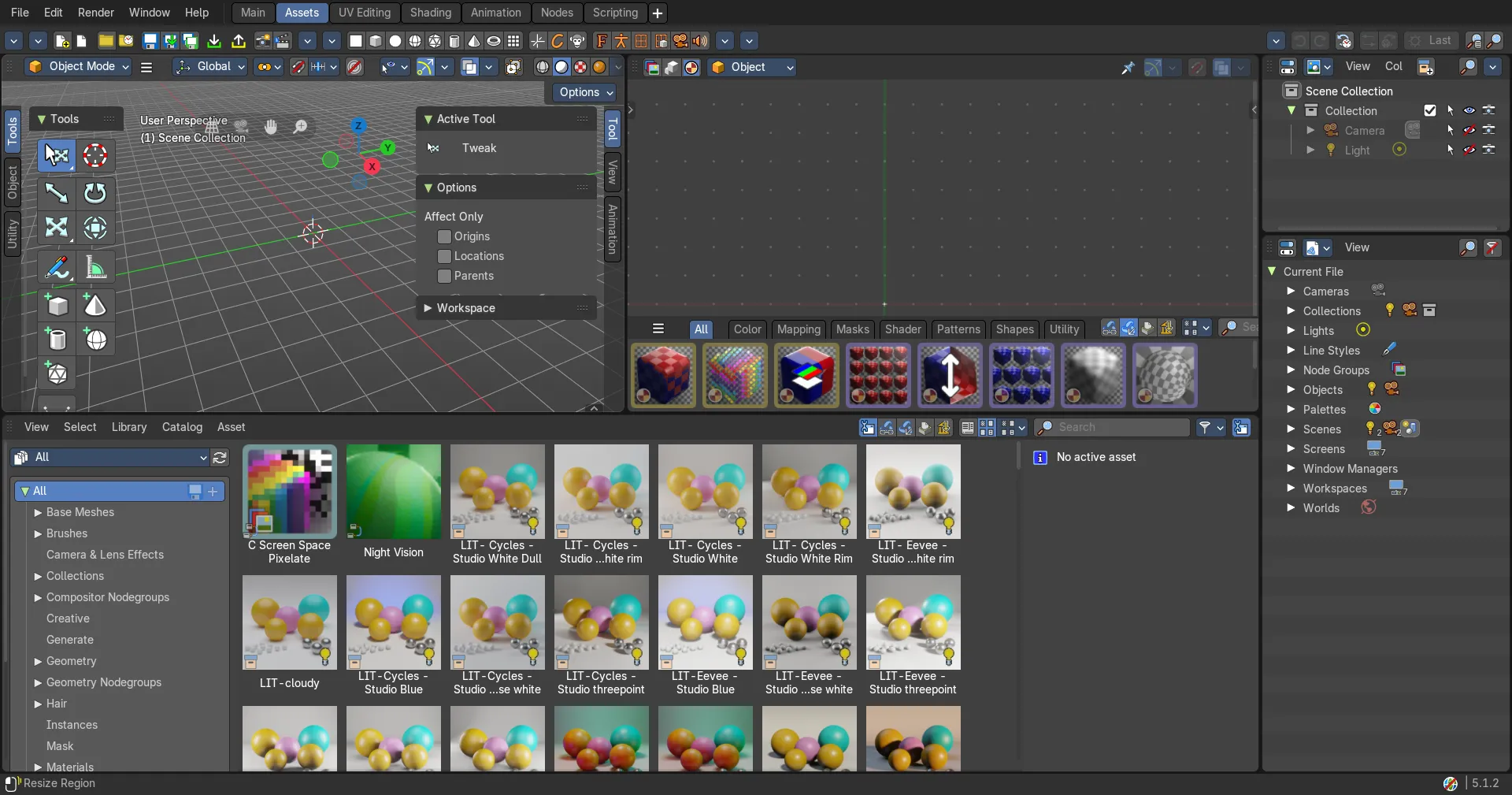
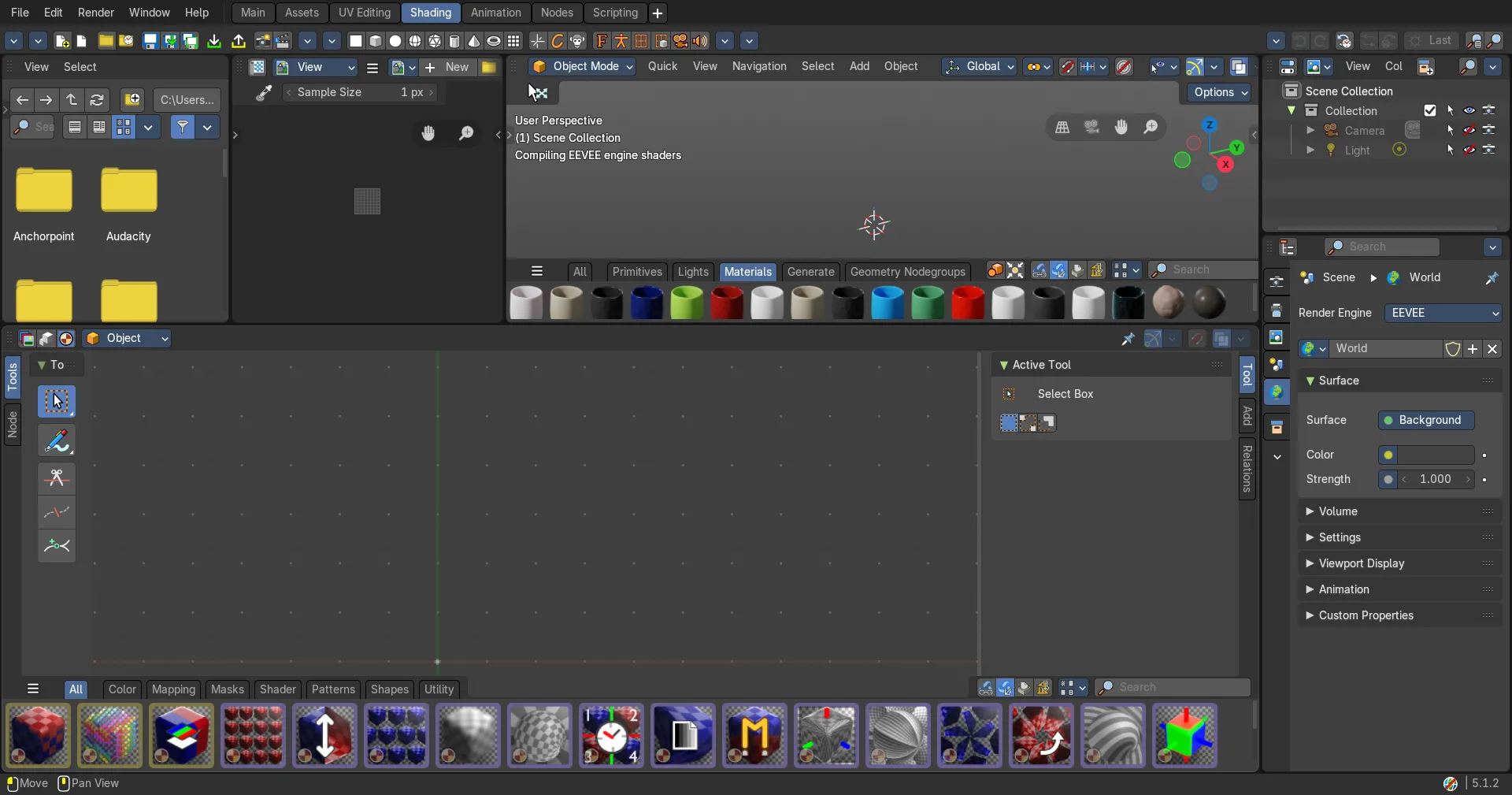
The tools on the left side of an editor: open, close, resize and zoom them.
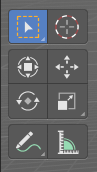
Some editors have a Tool Shelf at the left side. This tool shelf contains the tools. It can be resized by dragging. It can be closed and opened.
Opening and closing by menu and hotkey

The view menu provides you with menus to close and to open the Tool shelf.
Faster: press T over the editor. A pie menu opens where you show or hide the tool shelf, the sidebar and the other regions of that editor.
Resize
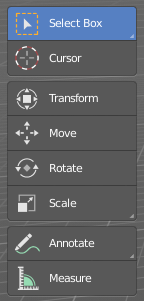
You can grab the border and drag the Tool Shelf and the Properties Sidebar to the left or to the right to expand or to close it.
The tool shelf shows a special behavior when you drag it bigger. Then the icon buttons becomes text buttons.
Open Tool Shelf by Plus Button

When a sidebar is closed then you will see a little plus button. When you click at this button then the sidebar will reappear.
Resize Tool Shelf and Properties content
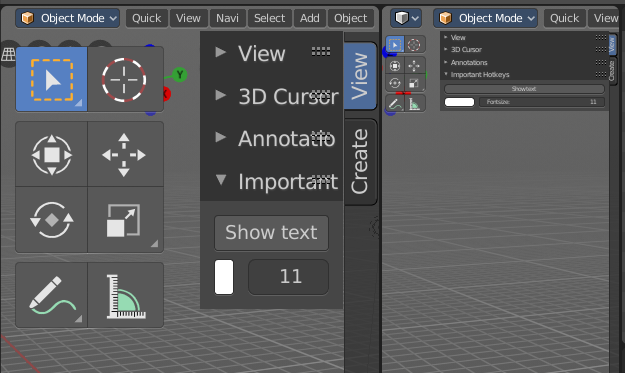
You can resize the Tool Shelf content and the Properties Sidebar content. This means that you can zoom in or out. This trick also works in the Properties Editor.
Move the mouse over the upper region of the Tool Shelf.
Hold down Ctrl key
Click with Middle Mouse button. The mouse pointer will turn into two white triangles.
Now drag up or down to resize the area content
OR
Move the mouse over the upper region of the Tool Shelf.
Simply press Numpad + or Numpad -
To reset the area content to default scale move the mouse over the area and press Home key ( german keyboard layout Pos 1)