





































Particles
A particle system is used to animate lots of small objects at once.
Introduction
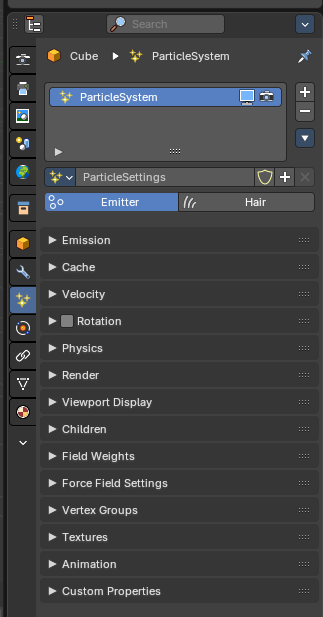
A particle system is used to animate lots of small objects at once. Particles. Each particle can be a point or a mesh, and can be joined or dynamic. They may react to different forces and influences. And they can have a life span.
There are two types of particles. Emitted particles and hair. Emitted particles are used for things like fire, smoke, mist and many other animated effects. Hair is used for hair effects, at characters for example. Some settings are the same for both types. These chapters are unioned. But each has also its own set of tools. These chapters are separated.
Particles uses a regular mesh object as the emitter. Other object types does not have the particle tab.
Particle Modifier
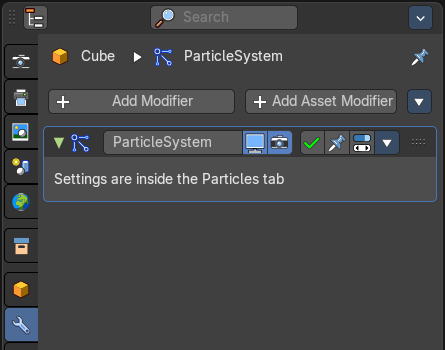
When you create a particle system then a particle modifier gets added in the Modifiers panel. This works also the other way around. You can also add a particle modifier in the modifier tab. The settings remains in the particles tab.
Workflow
Create a mesh.
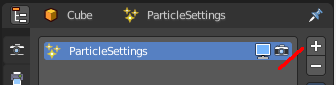
Create one or more Particle Systems to emit from the mesh.
Choose the particle system type. Emit or Hair.
Go through the particle settings to adjust the Particle System settings to achieve the desired effect.
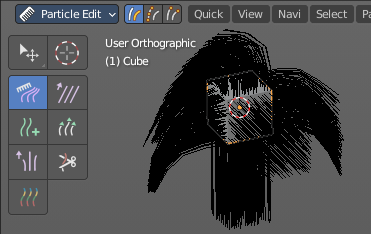
For Hair particle systems, switch to particle edit mode, and comb the emitter’s flow.
To see the effect for emitted particles press play.
Header
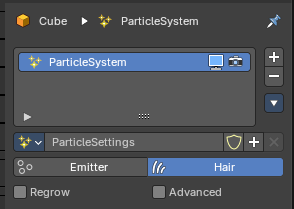
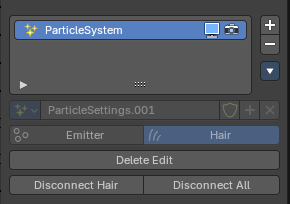
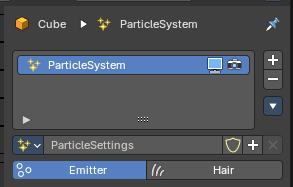
List of Particle Systems
A list of the particle systems for this object. Double clicking allows to rename it.
| Entry | What it does |
|---|---|
| Realtime | Display the particle system in the viewport. |
| Render | Display the particle system in the rendered result. |
| Drag Handler | The two vertical lines at the end is a handler with which you can expand the list. |
| Search Field | You can expand a search field at the bottom of the list. Type in your term and hit enter to filter for your term. · Invert: Exclude the search term instead of searching for it. · Sort by Name: Sort the List by name. |
| Entry | What it does |
|---|---|
| Add Particle System Slot | Adds a new particle system. |
| Remove Particle System Slot | Remove the particle system. |
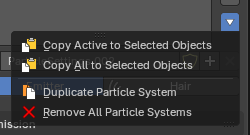
Particle Specials
| Entry | What it does |
|---|---|
| Copy Active to Selected Objects | Copies the active particle system to all selected objects. |
| Copy All to Selected Objects | Copies all particle systems from the active object to all selected objects. |
Convert to Curves
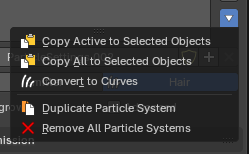
Hair mode only. Add a new curve object based of the current state of the particle system.
| Entry | What it does |
|---|---|
| Duplicate Particle Systems | Duplicates the particle system within the active object. The Duplicate Settings option (in the Adjust Last Operation panel) will duplicate settings as well, so the new particle system uses its own settings. |
| Remove all Particle Systems | Removes all particle systems. |
Particle property
Particle settings browser
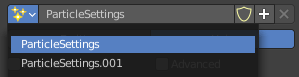
A particle settings browser with the available particle systems in the scene.
| Entry | What it does |
|---|---|
| Edit Box | The name of the currently active palette. You can also rename the palette here. A click into the edit box makes the name editable. |
| Fake User | Fake User sets the element to have a fake user. Data without a user is normally not saved. But sometimes you want to force the data to be kept even when the data block has no user. |
| Entry | What it does |
|---|---|
| New Particle Settings | Add a new particle system. |
| Remove Particle Settings | Removes the particle system as the active particle system. Note that the particle system is still in the list. |
Type

Main selector of the system type.
Note that some of the panels are identical for both particle types. But some not. Even when they have the same label.
Emitter
Emitter type. Particles are emitted from the object.
Hair
Hair type, rendered as strands.
| Entry | What it does |
|---|---|
| Regrow | Type Hair. Regrows the hair for each frame. This is useful when you are animating properties. |
| Advanced | Type Hair. Enables advanced settings, and reveals some more functionality. Which reflect the same ones as working in Emitter mode. |
Delete Edit
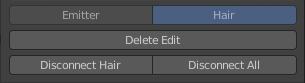
Appears when you modify the particles in particle edit mode. Resets the particle system to the default state before combing.
| Entry | What it does |
|---|---|
| Disconnect Hair | Appears when you modify the particles in particle edit mode. Disconnect the selected hair from the emitter object. |
| Disconnect All | Appears when you modify the particles in particle edit mode. Disconnect the whole hair from the emitter object. |
In this chapter
- Emitter — There are two types of particles.
- Emitter - Emission Panel — The buttons in the Emission panel control the way particles are emitted over time.
- Emitter - Cache Panel — Particle data can be cached in memory or stored on a drive.
- Emitter - Velocity panel — Emitter - Velocity panel in Properties Editor › Particle Properties Tab.
- Emitter - Rotation panel — Specify how the individual particles are rotated during their travel.
- Emitter - Physics panel — The movement of particles can be controlled and influenced in various ways.
- Emitter - Render panel — The Render Panel controls how particles appear when they are rendered.
- Emitter - Viewport Display panel — How to display the particles in the 3d viewport.
- Emitter - Children panel — Children are Hair or Emitter particles originating from individual particles.
- Emitter - Field Weights panel — The Field Weight panel allows you to control how much influence each type of external force field, or effector, has on the particle system.
- Hair - Hair Dynamics panel — Hair particles can have dynamic properties using physics.
- Emitter - Force Field Settings panel — The Force Field Settings panel allows you to make each individual act as a force field, allowing them to affect other dynamic systems, or…
- Emitter - Vertex Groups panel — The Vertex groups panel allows you to specify vertex groups to use for several child particle settings.
- Emitter - Textures panel — Particles density can be controlled by textures.
- Emitter - Animation panel — Animation panels are about the Animation Slots for scene wide animation clips.
- Emitter - Custom Properties panel — Opens a panel where you can adjust the settings for the custom property.
- Hair — There are two types of particles.
- Hair - Emission Panel — The buttons in the Emission panel control the way particles are emitted over time.
- Hair - Cache Panel — Particle data can be cached in memory or stored on a drive.
- Hair - Velocity panel — Hair - Velocity panel in Properties Editor › Particle Properties Tab.
- Hair - Rotation panel — Specify how the individual particles are rotated during their travel.
- Hair - Physics panel — The movement of particles can be controlled and influenced in various ways.
- Hair - Render panel — Hair particles can be rendered as a Path.
- Hair - Viewport Display panel — How to display the particles in the 3d viewport.
- Hair - Children panel — Children are Hair or Emitter particles originating from individual particles.
- Hair - Hair Shape panel — These settings control the shape of hair curves for rendering.
- Hair - Field Weights panel — The Field Weight panel allows you to control how much influence each type of external force field, or effector, has on the particle system.
- Hair - Force Field Settings panel — The Force Field Settings panel allows you to make each individual act as a force field, allowing them to affect other dynamic systems, or…
- Hair - Vertex Groups panel — The Vertex groups panel allows you to specify vertex groups to use for several child particle settings.
- Hair - Textures panel — Particles density can be controlled by textures.
- Hair - Animation panel — Animation panels are about the Animation Slots for scene wide animation clips.
- Hair - Custom Properties panel — Opens a panel where you can adjust the settings for the custom property.