





















































Project Settings
Projects keep the settings that a whole production shares: variables, asset libraries, color management and a splash image.
Projects
A project is a folder that holds a whole production, for example a short film with many blend files. The project stores the settings that all those files share: path variables, asset libraries, the color management configuration and a splash image. Every blend file you open from inside the project folder uses them, so the whole team works with the same setup.
Bforartists keeps the project settings in a hidden .blender_project folder in the project's root folder.
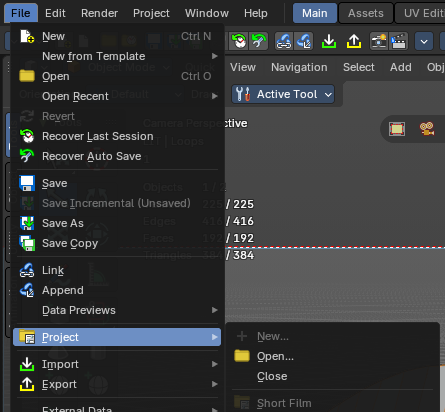
File > Project menu
New
Creates a new project. You choose a name and the root folder. Everything inside that folder belongs to the project.
Open
Opens a project and starts a new file in it.
Close
Closes the active project and starts a new file.
Recent projects
The projects you opened recently. Click one to open it.
Clear Recent Projects List
Removes all projects from the recent list. The projects themselves are not changed.
Tip: The splash screen has a Project dropdown with the same entries, and the recent files there are grouped by project.
Project menu
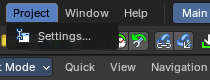
While a project is open, the top bar shows a Project menu.
Settings
Opens the Project Settings editor in its own window.
Project Settings editor
The Project Settings editor shows the settings of the active project. Like the Preferences, it has a navigation sidebar on the left with three tabs: General, Variables and Asset Libraries. You can also show it in any area: change the editor type to Project Settings.
Save & Load menu
Auto-Save Project
Saves the project settings automatically on exit, and when you save or switch blend files.
Save Project
Saves the project settings now.
General tab
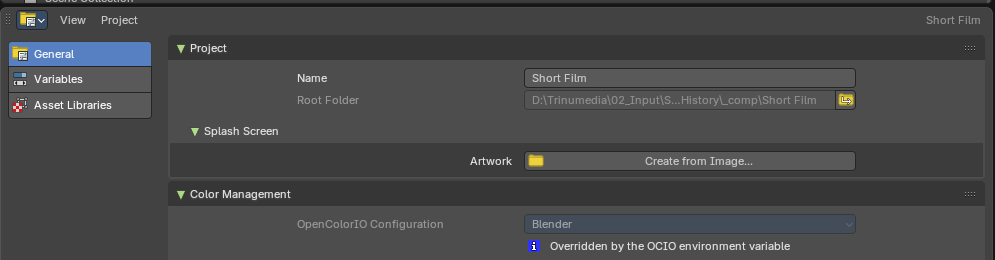
Project panel
Name
The name of the project. It shows at the top right of the editor and in the menus.
Root Folder
The folder of the project. Read only: to move a project, move its folder.
Splash Screen panel
Artwork
A custom image for the splash screen while this project is open. Create from Image picks an image file; Bforartists crops and scales it to 1000 × 500 pixels and stores it in the project folder. Use an image with a 2:1 shape for the best result. Clear removes the custom artwork again; the image file stays on disk.
Color Management panel
OpenColorIO Configuration
The color management configuration the project uses, so every file of the production shows colors the same way.
- Blender: The standard configuration that ships with Bforartists.
- ACES 2.0 Studio / ACES 1.3 Studio: The ACES configurations used in film and VFX.
- Path: A configuration file of your own. Give the path to the
config.ociofile; it can be relative to the project with{project_root}.
When the configuration changes, a message offers Reload to Apply Changes, which reloads the file with the new colors. If the configuration can't be loaded, a message says so. When the OCIO environment variable of your system sets a configuration, it wins over the project setting, and the panel tells you.
The active configuration and its path are also shown in Render Properties > Color Management > Advanced.
Variables tab
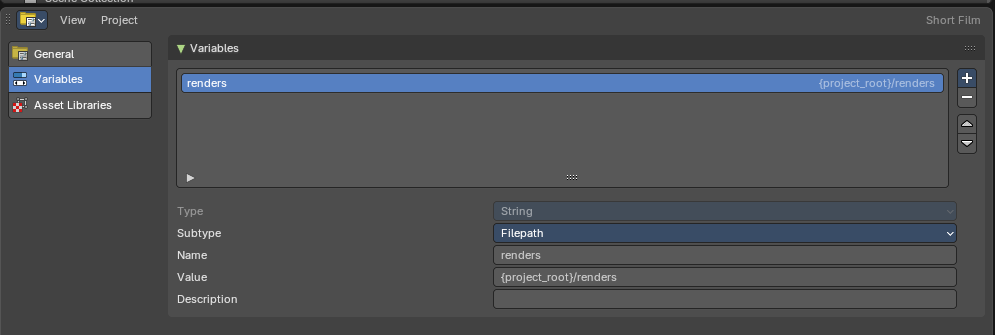
Variables are names for values that the files of the project share, mostly paths. Use them in path fields as {name}, for example {renders}/shot_010, so the whole team writes to the same folders and the files keep working when the project moves.
Variable list
The variables of the project. + adds a variable of the chosen type (String, Filepath, Integer or Float), - removes the selected one, and the arrows change the order.
Type
The kind of value the variable holds. Read only after the variable is made.
Subtype
How a String variable is used, for example Filepath for paths.
Name
The name you type in braces to use the variable.
Value
The value of the variable. {project_root} stands for the root folder of the project.
Description
A note that explains what the variable is for.
Asset Libraries tab
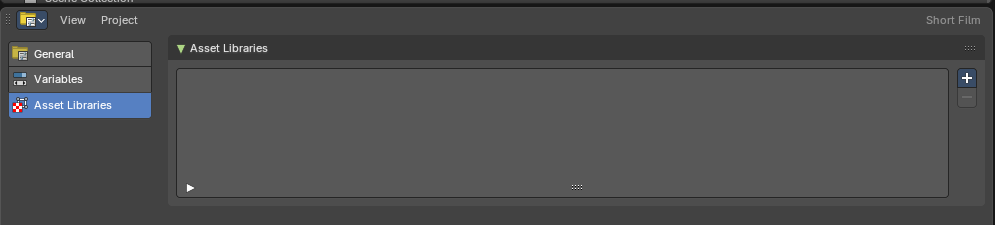
Asset libraries that belong to the project. They show in the Asset Browser under the project libraries group for every file of the project, so everyone uses the same assets. A project library can be a folder or a remote (online) library.
+ adds a library and - removes the selected one.
Tip: Libraries that you set in the Preferences are your own and work in every file; project libraries only work inside the project.