







































Sidebar
When you select a cube action without content then you will get the Animation Data panel in the sidebar.
The pages of this part are listed in the sidebar under Sidebar.
Animation Data Panel
Animation Data panel
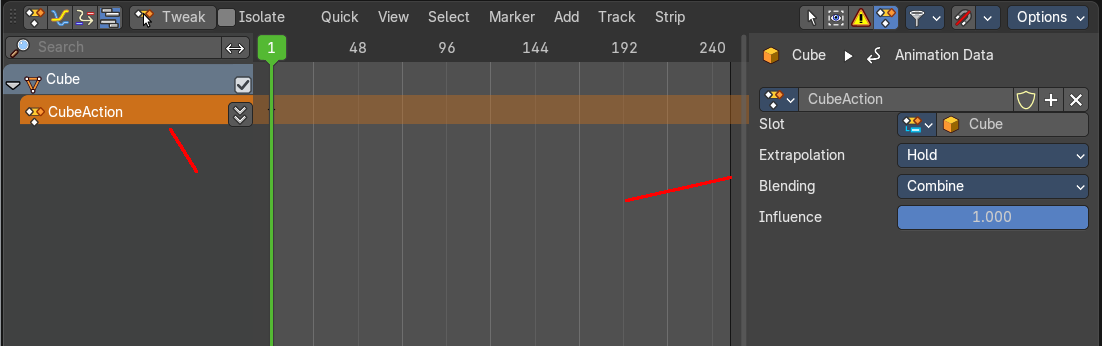
When you select a cube action without content then you will get the Animation Data panel in the sidebar.
This panel allows you to edit existing actions or add more actions. This way you can add several actions to an object. Add action, record keyframes, and then push down the action to create an action strip of it.
With selecting an action channel, with a not pushed down action, it shows the current action. When you select a track channel then it shows a New button where you can add more action channels.
Animation data property
Data Browser
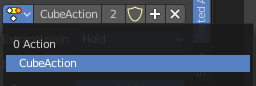
The list of available actions in the scene.
| Entry | What it does |
|---|---|
| Action Edit Box | The name of the current active action. You can rename the action here too. |
| Number of users | The number of users for this data. |
| Fake User | Has this data a fake user assigned. Fake user is a concept to keep data in the scene even when it has no users. |
| Add | Adds a new blank Action. |
| Remove Action | Removes the action from the current channel. |
Extrapolation
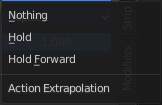
Action to take for gaps past the strip extents.
| Entry | What it does |
|---|---|
| Hold | Affects both sides of the strip. This should only be set on the very first strip. |
| Hold Forward | Affects the region after the clip, only. This can be set on any strip. |
| Nothing | Affects only the region of the strip itself. This can be set on any strip. |
Blending
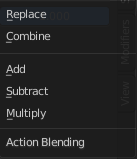
Affects how the property values directly produced by the strip are combined with the result of evaluating the stack below. The bottom-most strip is blended on top of the default values of the properties.
Replace
The top strip is linearly blended in with the accumulated result according to influence, completely overwriting it if influence is set to 100%.
Combine
Depending on the type of each property, one of the following methods is automatically chosen:
Axis/Angle Rotation
result=previous+value*influence
This results in averaging the axis and adding the amount of rotation.
Quaternion Rotation
Quaternion math is applied to all four channels of the property at once:
result=previous×valueinfluence
Proportional (Scale)
result=previous*(value/default)influence
Others
result=previous+(value-default)*influence
This allows layering actions that can also be used as a standalone. Properties keyframed at their default values remain at default.
Add, Subtract, Multiply
The result of the strip is multiplied, subtracted, or added to the accumulated results, and then blended in according to influence.
result=mix(previous,previous(+-*)value,influence)
Influence
Amount the active Action contributes to the result of the NLA stack.
Strip Tab
Strip Tab
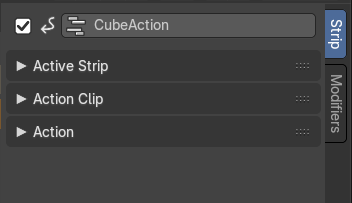
The settings for the currently selected action strip. You need to have a action strip selected to show this tab.
| Entry | What it does |
|---|---|
| Name | The name of the currently selected action strip. To rename the strip click into the edit field, change the name and press enter. |
| Mute | Disable the action strip. |
Active Strip panel
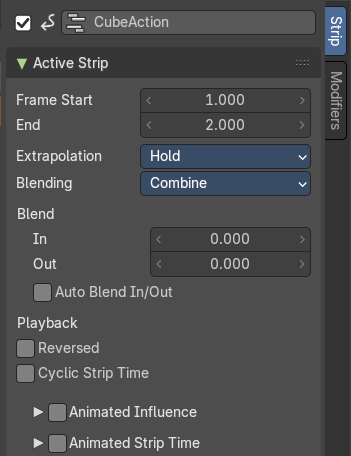
Frame Start + End
The start and end position of the strip.
Extrapolation
Action to take for gaps past the strip extents.
| Entry | What it does |
|---|---|
| Hold | Affects both sides of the strip. This should only be set on the very first strip. |
| Hold Forward | Affects the region after the clip, only. This can be set on any strip. |
| Nothing | Affects only the region of the strip itself. This can be set on any strip. |
Blending
Affects how the property values directly produced by the strip are combined with the result of evaluating the stack below. The bottom-most strip is blended on top of the default values of the properties.
Replace
The top strip is linearly blended in with the accumulated result according to influence, completely overwriting it if influence is set to 100%.
Combine
Depending on the type of each property, one of the following methods is automatically chosen:
Axis/Angle Rotation
result=previous+value*influence
This results in averaging the axis and adding the amount of rotation.
Quaternion Rotation
Quaternion math is applied to all four channels of the property at once:
result=previous×valueinfluence
Proportional (Scale)
result=previous*(value/default)influence
Others
result=previous+(value-default)*influence
This allows layering actions that can also be used as a standalone. Properties keyframed at their default values remain at default.
Add, Subtract, Multiply
The result of the strip is multiplied, subtracted, or added to the accumulated results, and then blended in according to influence.
result=mix(previous,previous(+-*)value,influence)
| Entry | What it does |
|---|---|
| Blend In + Out | Number of frames to fade in or out the action strip. |
| Auto Blend In/Out | Number of frames for blending in and out is automatically calculated from overlapping strips. |
| Playback | Reversed: The action strip is played in reversed order. This just works when timing is determined automatic. · Cyclic Strip Time: Cycle the action strip. |
Animated Influence subpanel
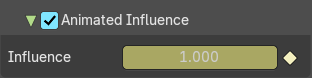
Control the influence settings by an F-Curve instead of automatically determined. The F-Curve can be edited in the Graph Editor.
| Entry | What it does |
|---|---|
| Influence | The influence value. |
| Animate Property | Set or remove a keyframe at current position. |
Animated Strip Time subpanel
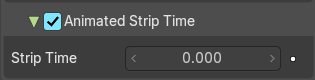
Control the Strip time settings by an F-Curve instead of automatically determined. The F-Curve can be edited in the Graph Editor.
| Entry | What it does |
|---|---|
| Influence | The influence value. |
| Animate Property | Set or remove a keyframe at current position. |
Action Clip panel
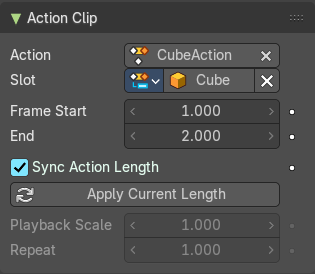
This represents the ‘object data’ of the strip. Much like the transform values of an object.
| Entry | What it does |
|---|---|
| Action | The action that is referenced in the strip. This can be changed to replace the current strip’s value with another Action in the scene. |
| Slot | Define which subset is meant for this strip. |
| Frame Start / End | The start and end frame values of the strip. Note. To loop the animation you might need to reduce the End Frame by one frame to have a loopable animation. Note. If you select values that are above or below the actual keyframe count of the Action, then the F-curve Extrapolation will be applied. |
| Sync Length | Set the Start and End Frames to the first and last keyframed frames of the Action. |
| Now | Causes the Start and End Frames, above, to be reset to the first and last keyframed frames of the Action. |
| Playback Scale | Stretches the strip. |
| Repeat | Repeats the strip by the chosen value. With a value of 1 the strip plays once. |
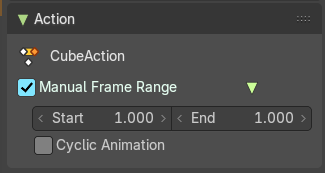
Action panel
| Entry | What it does |
|---|---|
| Manual Frame Range | Set the playback frame range manually. · Start: The start frame. · End: The end frame. |
| Cyclic Animation | Make the animation loop. |
Modifiers Tab
Modifiers Tab - Modifiers Panel
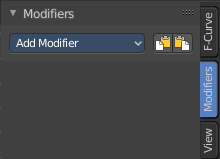
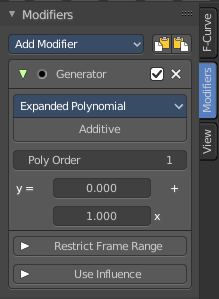
F-Curve modifiers are similar to Object modifiers. They allow to add adjustable non destructive effects. And they can be layered on top of each other.
Different to the Object modifiers you can't reorder this modifiers. You have to create it in the order that you need it.
Add Modifier
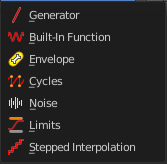
The list of modifiers. Choose by clicking.
| Entry | What it does |
|---|---|
| Copy F-Curve Modifiers | Copy the F-Curve Modifiers of the active F-Curve. |
| Paste F-Curve Modifiers | Paste copied F-Curve modifiers to the active F-Curve. |
Adjust Last Operation - Add F-Curve Modifier
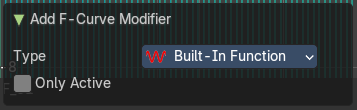
| Entry | What it does |
|---|---|
| Type | A drop down list with the Type of modifier to add. |
| Only Active | Only add a modifier to the currently active curve. |
Modifier header

Every modifier is a panel. And every panel has a header area with some general UI elements.
| Entry | What it does |
|---|---|
| Triangle button | Every modifier panel can be expanded or collapsed by clicking at this triangle button. |
| Active | This is the panel that you currently edit. When you edit a panel while it is not set to the active one, then the changes will not be applied. |
| Modifier name | The name of the modifier. Read only. |
| Muted | Enable or disable this modifier. |
| Delete F-Curve Modifier | Delete this modifier. |
Generator modifier
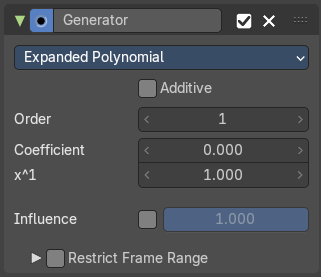
Polynomial Mode
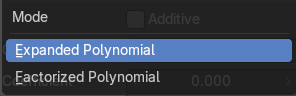
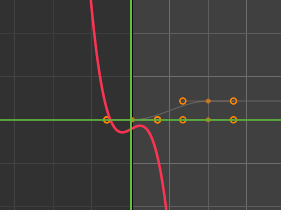
Use Expanded Polynominal or Factorized Polynominal algorithm. With these mathematical formulas you can create lines, parabolas, and other more complex curves by changing the values in the poly order field.
| Entry | What it does |
|---|---|
| Additive | Add on top of the existing curve instead of replacing the existing curve. |
| Order | The hightes value of X for this polynominal. |
| Coefficient | Coefficient for X. |
| x^1 | Coefficient for X. |
| Use Influence | Temper the F-Curve Modifier effect by a default influence factor. Expanding the Use Influence sets it to active. It reveals a value slider then. · Influence: The influence factor. |
Restrict Frame Range
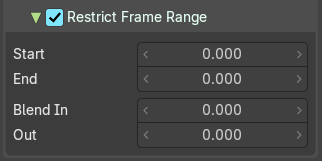
Expanding the Restrict Frame range sets it to active. It reveals some value slider then.
| Entry | What it does |
|---|---|
| Start / End | The start and end frame of the generated curve. |
| Blend In / Out | Fade the curve in or out for chosen frame numbers. |
Built- in Function modifier
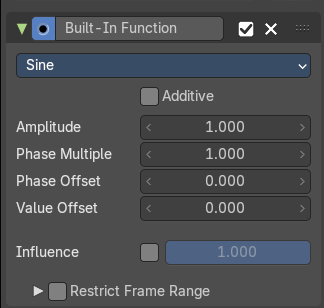
Generate a curve by built in functions.
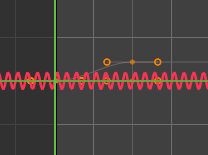
Curve Type
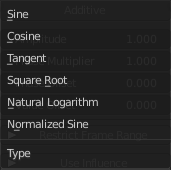
The available wave forms for the curve.
| Entry | What it does |
|---|---|
| Additive | Add on top of the existing curve instead of replacing the existing curve. |
| Amplitude | The amplitude of the curve wave. Adjusts the Y scaling. |
| Phase Multiplier | A phase multiplier for the curve wave. Adjusts the X scaling. |
| Phase Offset | A phase offset for the curve wave. Adjusts the Y scaling. |
| Value Offset | A constant value offset for the whole curve. Adjusts the X scaling. |
| Use Influence | Temper the F-Curve Modifier effect by a default influence factor. Expanding the Use Influence sets it to active. It reveals a value slider then. · Influence: The influence factor. |
Restrict Frame Range
Expanding the Restrict Frame range sets it to active. It reveals some value slider then.
| Entry | What it does |
|---|---|
| Start / End | The start and end frame of the generated curve. |
| In / Out | Fade the curve in or out for chosen frame numbers. |
Envelope modifier
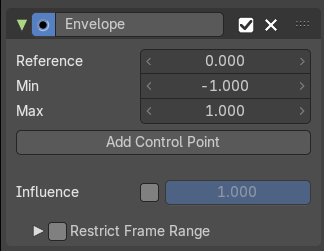
The Envelope modifier allows you to modify the overall shape of the curve by control points.
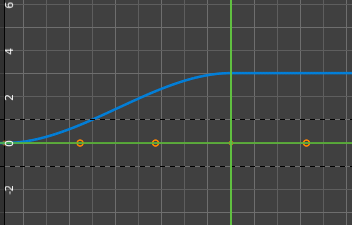
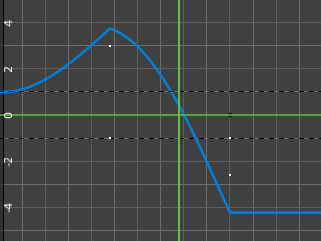
| Entry | What it does |
|---|---|
| Envelope | Reference Value: Set the Y value to center the envelope around. · Min: The lower distance from reference value for 1:1 default influence. · Max: The higher distance from reference value for 1:1 default influence. |
| Add Control Point | Add a control point. A control point has two sub points, a lower control point and a higher control point. |
Use Influence

Temper the F-Curve Modifier effect by a default influence factor.
Expanding the Use Influence sets it to active. It reveals a value slider then.
Influence
The influence factor.
Restrict Frame Range
Expanding the Restrict Frame range sets it to active. It reveals some value slider then.
| Entry | What it does |
|---|---|
| Start / End | The start and end frame of the generated curve. |
| In / Out | Fade the curve in or out for chosen frame numbers. |
Cycles modifier
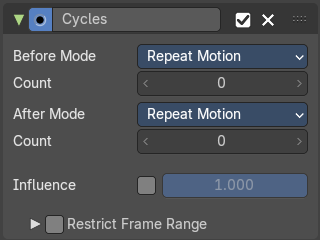
Add a cyclic motion to a curve that has two or more control points. The option can be set before or after the curve.
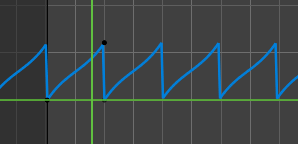
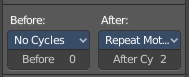
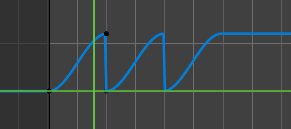
Trivially Cyclic Curves
When the Cycle Mode for both ends is set to either Repeat Motion or Repeat with Offset, and no other options of the modifier are changed from their defaults, it defines a simple infinite cycle.
This special case receives some additional support from other areas of Blender:
Automatic Bezier handle placement is aware of the cycle and adjusts to achieve a smooth transition.
The Cycle-Aware Keying option can be enabled to take the cycle into account when inserting new keyframes.
Before Mode
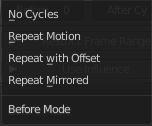
Set the cycle mode before the first keyframe.
Count
Maximum number of cycles to allow before first keyframes. A value of 0 means infinite.
After Mode
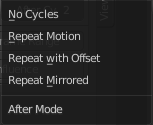
Set the cycle mode after the first keyframe.
Count
Maximum number of cycles to allow after last keyframes. A value of 0 means infinite.
Use Influence
Temper the F-Curve Modifier effect by a default influence factor.
Expanding the Use Influence sets it to active. It reveals a value slider then.
Influence
The influence factor.
Restrict Frame Range
Expanding the Restrict Frame range sets it to active. It reveals some value slider then.
| Entry | What it does |
|---|---|
| Start / End | The start and end frame of the generated curve. |
| In / Out | Fade the curve in or out for chosen frame numbers. |
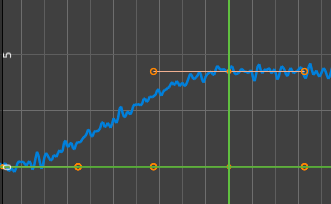
Noise modifier
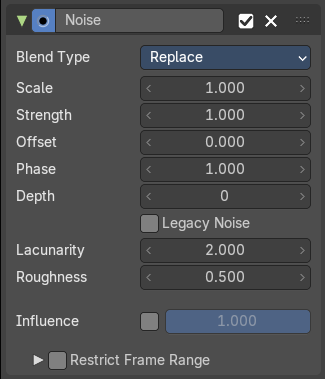
Adds noise to the curve.
Blend Type
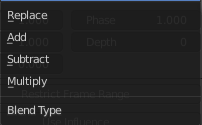
How to blend the noise with the curve.
| Entry | What it does |
|---|---|
| Scale | The overall size of the noise. The bigger the value the less frequent the noise. |
| Strength | Adjust the Y value of the noise. |
| Offset | Time offset of the noise. |
| Phase | The random seed for the noise. |
| Depth | How detailed the noise function is. |
| Legacy Noise | Use the legacy way of generating noise. |
| Lacunarity | Gap between successive frequencies. A value of 0 disables the feature. |
| Roughness | Amount of high frequency details. |
| Use Influence | Temper the F-Curve Modifier effect by a default influence factor. Expanding the Use Influence sets it to active. It reveals a value slider then. · Influence: The influence factor. |
Restrict Frame Range
Expanding the Restrict Frame range sets it to active. It reveals some value slider then.
| Entry | What it does |
|---|---|
| Start / End | The start and end frame of the generated curve. |
| In / Out | Fade the curve in or out for chosen frame numbers. |
Limits modifier
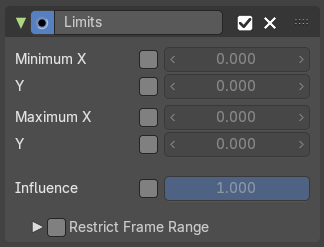
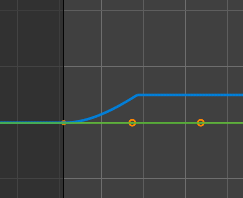
Sets limits to the curve in specified x and y range values.
| Entry | What it does |
|---|---|
| Minimum / Maximum X | Cuts the curve at these minimum and maximum frame values. |
| Minimum / Maximum Y | Clamps the curve at these minimum and maximum values. |
| Use Influence | Temper the F-Curve Modifier effect by a default influence factor. Expanding the Use Influence sets it to active. It reveals a value slider then. · Influence: The influence factor. |
Restrict Frame Range
Expanding the Restrict Frame range sets it to active. It reveals some value slider then.
| Entry | What it does |
|---|---|
| Start / End | The start and end frame of the generated curve. |
| In / Out | Fade the curve in or out for chosen frame numbers. |
Stepped Interpolation modifier
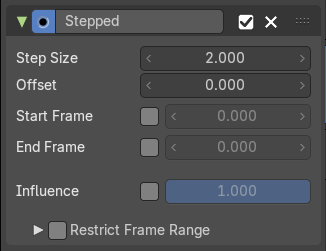
Adds steps to the curve by rounding the values.
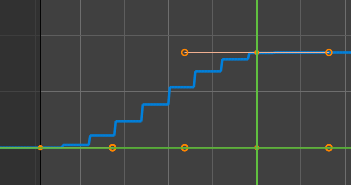
| Entry | What it does |
|---|---|
| Step Size | The number of frames to hold each frame |
| Offset | A number of offset frames before frames get held. |
| Start Frame | Restrict the modifier so that it just acts before its end frame. |
| End Frame | Restrict the modifier so that it just acts after its start frame. |
| Use Influence | Temper the F-Curve Modifier effect by a default influence factor. Expanding the Use Influence sets it to active. It reveals a value slider then. · Influence: The influence factor. |
Restrict Frame Range
Expanding the Restrict Frame range sets it to active. It reveals some value slider then.
| Entry | What it does |
|---|---|
| Start / End | The start and end frame of the generated curve. |
| In / Out | Fade the curve in or out for chosen frame numbers. |