







































Sidebar
The Movie Clip Editor is made of several areas.
Introduction
The Movie Clip Editor is made of several areas. And it is made of several modes with different editor types.
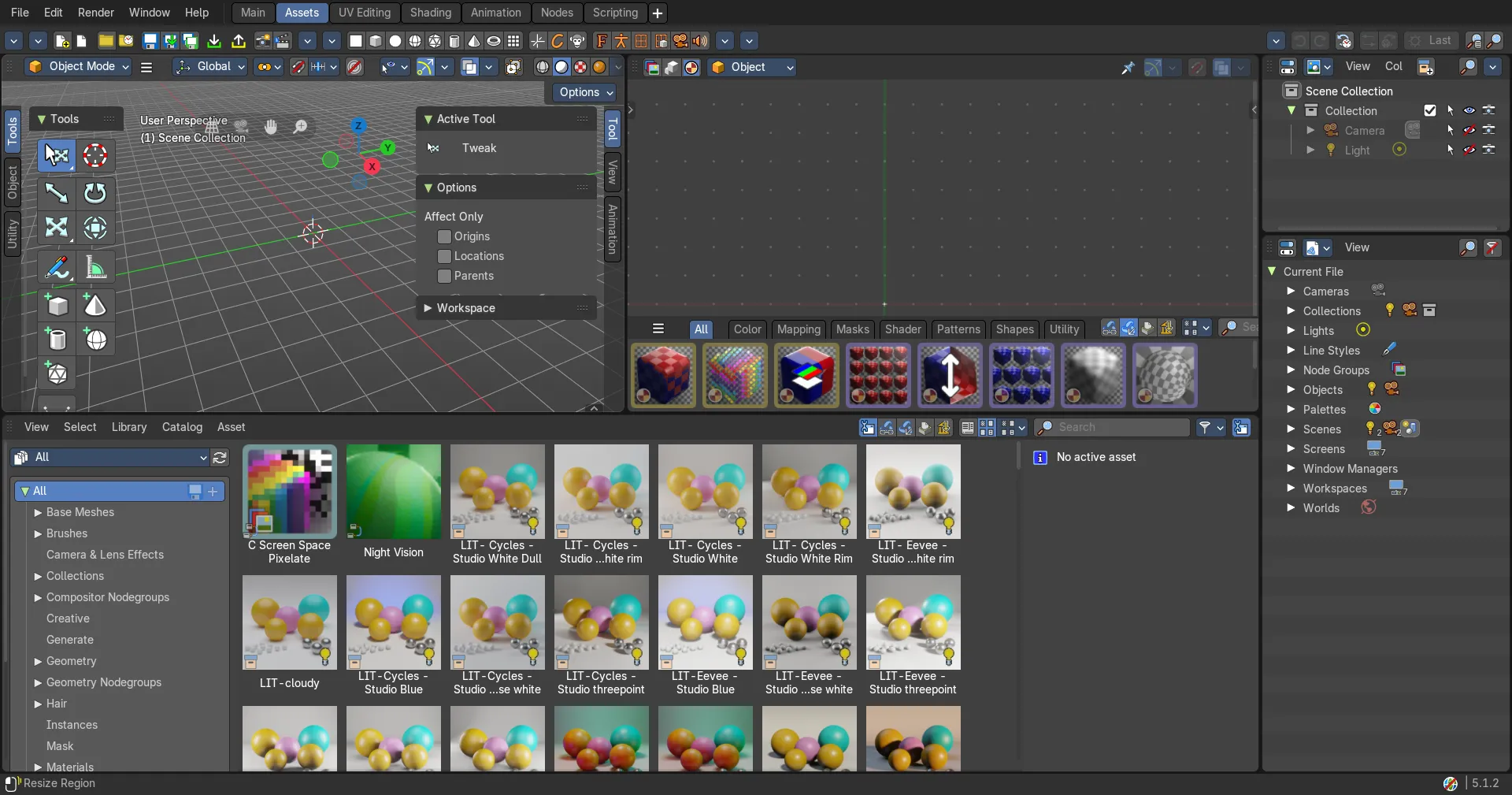
At the right side you will find the sidebar in Tracking Mode with Clip view. And in Masking mode. In the sidebar you will find further options and settings for the Movie Clip Editor and its tools.
Right Click menus
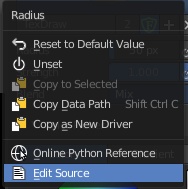
You will open the usual right click menus when clicking with the right mouse at elements in the sidebar. Its content is in big parts self explaining.
The right click menus are explained in the chapter 6 Editors Introduction.
F-Curve Tab
F-Curve Tab - Active F-Curve Panel
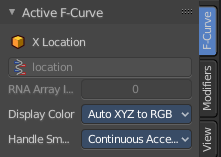
This panel displays the properties for the active F-Curve.
| Entry | What it does |
|---|---|
| Channel Name | The name of the currently active F-Curve channel. |
| RNA Path | RNA Path to property. This is a read only information. |
| RNA Array Index | The RNA Array Index to the specific property affected by the F-Curve if applicable. This is a read only information. |
Display Color
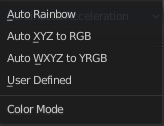

With what colors to display the curves. User defined allows you to choose a custom color for the curve. A color field appears. The other methods works random.
Handle Smoothing
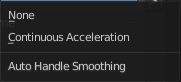
Select the method to compute automatic Bezier Handles.
| Entry | What it does |
|---|---|
| None | Only directly adjacent key values are used when computing the handles. Vector handles points directly at the adjacent keyframes. |
| Continuous Acceleration | Also keyframes behind the next or previous keyframe gets used for calculation. Which results in a smoother curve. |
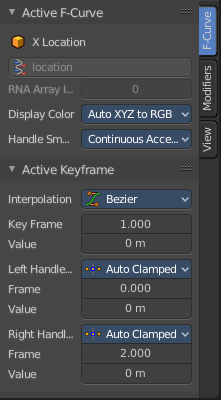
F-Curve Tab - Active Keyframe Panel
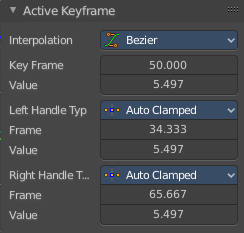
Interpolation
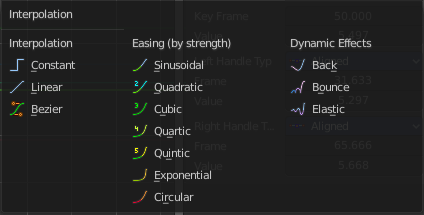
Set the interpolation type for this keyframe.
Key Frame
The current position of this keyframe.
Value
The Y value of this keyframe.
Left Handle Type / Right Handle Type
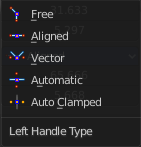
Set the handle type. The handles of a keyframe can be independent. Some constellations just works with some other constellations.
| Entry | What it does |
|---|---|
| Free | Move and adjust the handles independently. |
| Aligned | With the left handler the right handler moves too. |
| Vector | Creates a curve with straight lines. |
| Automatic | Creates a smooth curve. |
| Auto Clamped | Creates a smooth curve that only changes the direction at other curve points. It is clamped to prevent overshoots in the curve shape. |
| Entry | What it does |
|---|---|
| Frame | The current frame of this handle. |
| Value | The current Y position of this handle. |
Modifiers Tab
Modifiers Tab - Modifiers Panel
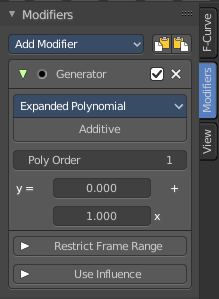
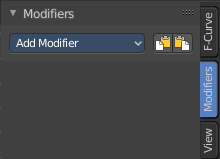
F-Curve modifiers are similar to Object modifiers. They allow to add adjustable non destructive effects. And they can be layered on top of each other.
Different to the Object modifiers you can't reorder this modifiers. You have to create it in the order that you need it.
Add Modifier
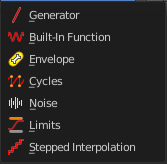
The list of modifiers. Choose by clicking.
| Entry | What it does |
|---|---|
| Copy F-Curve Modifiers | Copy the F-Curve Modifiers of the active F-Curve. |
| Paste F-Curve Modifiers | Paste copied F-Curve modifiers to the active F-Curve. |
Adjust Last Operation - Add F-Curve Modifier
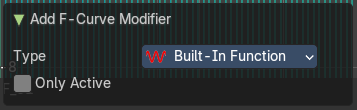
| Entry | What it does |
|---|---|
| Type | A drop down list with the Type of modifier to add. |
| Only Active | Only add a modifier to the currently active curve. |
Modifier header

Every modifier is a panel. And every panel has a header area with some general UI elements.
| Entry | What it does |
|---|---|
| Triangle button | Every modifier panel can be expanded or collapsed by clicking at this triangle button. |
| Active | This is the panel that you currently edit. When you edit a panel while it is not set to the active one, then the changes will not be applied. |
| Modifier name | The name of the modifier. Read only. |
| Muted | Enable or disable this modifier. |
| Delete F-Curve Modifier | Delete this modifier. |
Generator modifier
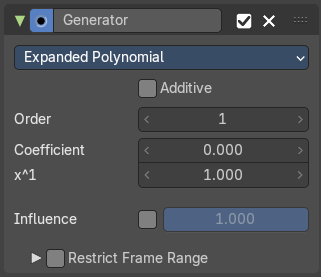
Polynomial Mode
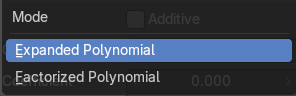
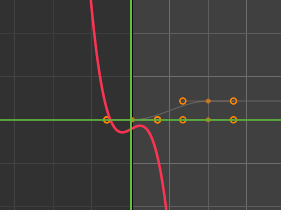
Use Expanded Polynominal or Factorized Polynominal algorithm. With these mathematical formulas you can create lines, parabolas, and other more complex curves by changing the values in the poly order field.
| Entry | What it does |
|---|---|
| Additive | Add on top of the existing curve instead of replacing the existing curve. |
| Order | The hightes value of X for this polynominal. |
| Coefficient | Coefficient for X. |
| x^1 | Coefficient for X. |
| Use Influence | Temper the F-Curve Modifier effect by a default influence factor. Expanding the Use Influence sets it to active. It reveals a value slider then. · Influence: The influence factor. |
Restrict Frame Range
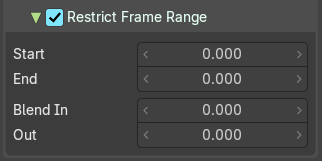
Expanding the Restrict Frame range sets it to active. It reveals some value slider then.
| Entry | What it does |
|---|---|
| Start / End | The start and end frame of the generated curve. |
| Blend In / Out | Fade the curve in or out for chosen frame numbers. |
Built- in Function modifier
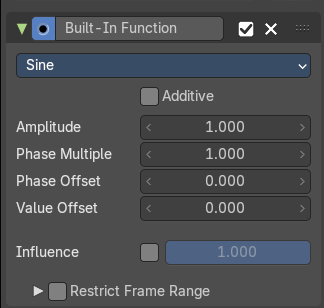
Generate a curve by built in functions.
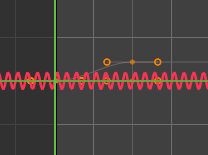
Curve Type
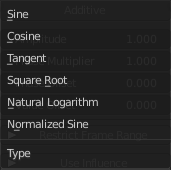
The available wave forms for the curve.
| Entry | What it does |
|---|---|
| Additive | Add on top of the existing curve instead of replacing the existing curve. |
| Amplitude | The amplitude of the curve wave. Adjusts the Y scaling. |
| Phase Multiplier | A phase multiplier for the curve wave. Adjusts the X scaling. |
| Phase Offset | A phase offset for the curve wave. Adjusts the Y scaling. |
| Value Offset | A constant value offset for the whole curve. Adjusts the X scaling. |
| Use Influence | Temper the F-Curve Modifier effect by a default influence factor. Expanding the Use Influence sets it to active. It reveals a value slider then. · Influence: The influence factor. |
Restrict Frame Range
Expanding the Restrict Frame range sets it to active. It reveals some value slider then.
| Entry | What it does |
|---|---|
| Start / End | The start and end frame of the generated curve. |
| In / Out | Fade the curve in or out for chosen frame numbers. |
Envelope modifier
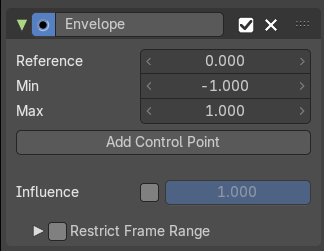
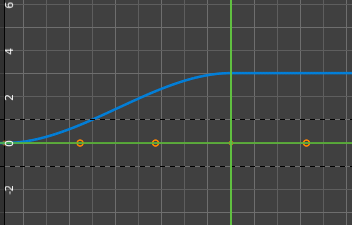
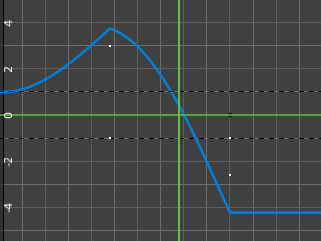
The Envelope modifier allows you to modify the overall shape of the curve by control points.
| Entry | What it does |
|---|---|
| Envelope | Reference Value: Set the Y value to center the envelope around. · Min: The lower distance from reference value for 1:1 default influence. · Max: The higher distance from reference value for 1:1 default influence. |
| Add Control Point | Add a control point. A control point has two sub points, a lower control point and a higher control point. |
Use Influence

Temper the F-Curve Modifier effect by a default influence factor.
Expanding the Use Influence sets it to active. It reveals a value slider then.
Influence
The influence factor.
Restrict Frame Range
Expanding the Restrict Frame range sets it to active. It reveals some value slider then.
| Entry | What it does |
|---|---|
| Start / End | The start and end frame of the generated curve. |
| In / Out | Fade the curve in or out for chosen frame numbers. |
Cycles modifier
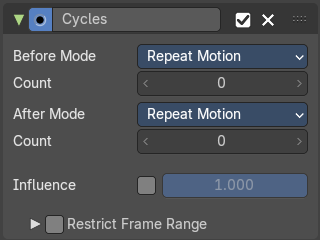
Add a cyclic motion to a curve that has two or more control points. The option can be set before or after the curve.
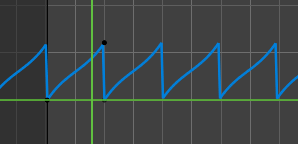
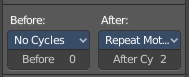
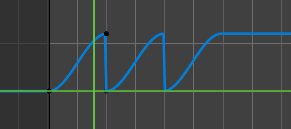
Trivially Cyclic Curves
When the Cycle Mode for both ends is set to either Repeat Motion or Repeat with Offset, and no other options of the modifier are changed from their defaults, it defines a simple infinite cycle.
This special case receives some additional support from other areas of Blender:
Automatic Bezier handle placement is aware of the cycle and adjusts to achieve a smooth transition.
The Cycle-Aware Keying option can be enabled to take the cycle into account when inserting new keyframes.
Before Mode
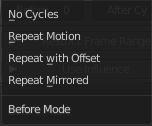
Set the cycle mode before the first keyframe.
Count
Maximum number of cycles to allow before first keyframes. A value of 0 means infinite.
After Mode
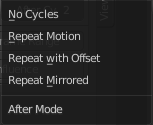
Set the cycle mode after the first keyframe.
Count
Maximum number of cycles to allow after last keyframes. A value of 0 means infinite.
Use Influence
Temper the F-Curve Modifier effect by a default influence factor.
Expanding the Use Influence sets it to active. It reveals a value slider then.
Influence
The influence factor.
Restrict Frame Range
Expanding the Restrict Frame range sets it to active. It reveals some value slider then.
| Entry | What it does |
|---|---|
| Start / End | The start and end frame of the generated curve. |
| In / Out | Fade the curve in or out for chosen frame numbers. |
Noise modifier
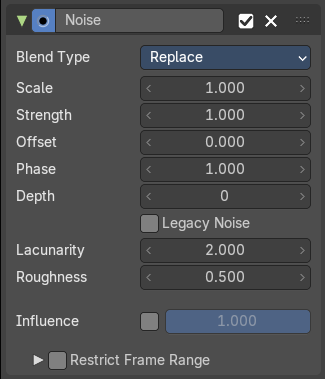
Adds noise to the curve.
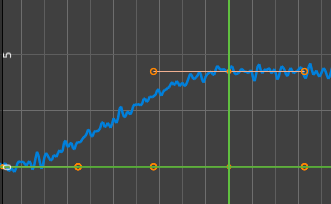
Blend Type
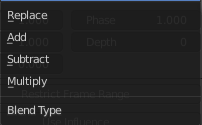
How to blend the noise with the curve.
| Entry | What it does |
|---|---|
| Scale | The overall size of the noise. The bigger the value the less frequent the noise. |
| Strength | Adjust the Y value of the noise. |
| Offset | Time offset of the noise. |
| Phase | The random seed for the noise. |
| Depth | How detailed the noise function is. |
| Legacy Noise | Use the legacy way of generating noise. |
| Lacunarity | Gap between successive frequencies. A value of 0 disables the feature. |
| Roughness | Amount of high frequency details. |
| Use Influence | Temper the F-Curve Modifier effect by a default influence factor. Expanding the Use Influence sets it to active. It reveals a value slider then. · Influence: The influence factor. |
Restrict Frame Range
Expanding the Restrict Frame range sets it to active. It reveals some value slider then.
| Entry | What it does |
|---|---|
| Start / End | The start and end frame of the generated curve. |
| In / Out | Fade the curve in or out for chosen frame numbers. |
Limits modifier
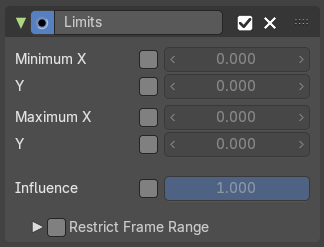
Sets limits to the curve in specified x and y range values.
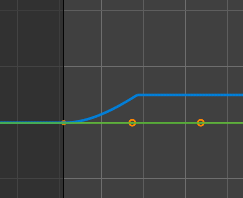
| Entry | What it does |
|---|---|
| Minimum / Maximum X | Cuts the curve at these minimum and maximum frame values. |
| Minimum / Maximum Y | Clamps the curve at these minimum and maximum values. |
| Use Influence | Temper the F-Curve Modifier effect by a default influence factor. Expanding the Use Influence sets it to active. It reveals a value slider then. · Influence: The influence factor. |
Restrict Frame Range
Expanding the Restrict Frame range sets it to active. It reveals some value slider then.
| Entry | What it does |
|---|---|
| Start / End | The start and end frame of the generated curve. |
| In / Out | Fade the curve in or out for chosen frame numbers. |
Stepped Interpolation modifier
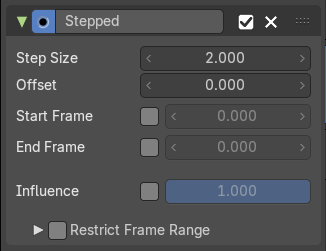
Adds steps to the curve by rounding the values.
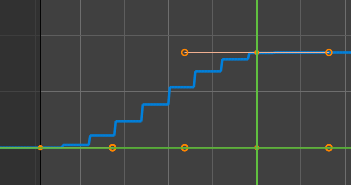
| Entry | What it does |
|---|---|
| Step Size | The number of frames to hold each frame |
| Offset | A number of offset frames before frames get held. |
| Start Frame | Restrict the modifier so that it just acts before its end frame. |
| End Frame | Restrict the modifier so that it just acts after its start frame. |
| Use Influence | Temper the F-Curve Modifier effect by a default influence factor. Expanding the Use Influence sets it to active. It reveals a value slider then. · Influence: The influence factor. |
Restrict Frame Range
Expanding the Restrict Frame range sets it to active. It reveals some value slider then.
| Entry | What it does |
|---|---|
| Start / End | The start and end frame of the generated curve. |
| In / Out | Fade the curve in or out for chosen frame numbers. |
View Tab
Show Cursor panel
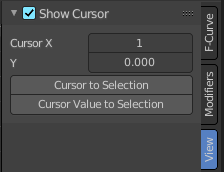
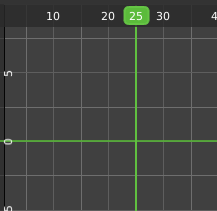
The vertical green line is the time cursor. The horizontal green line is called the cursor. Or ground line cursor. Together they are the 2d cursor.
| Entry | What it does |
|---|---|
| Show Cursor checkbox | Hides the green ground line cursor. |
| Cursor X | The frame position of the playhead cursor. |
| Cursor Y | The Y position of the ground line cursor. |
Cursor to Selection
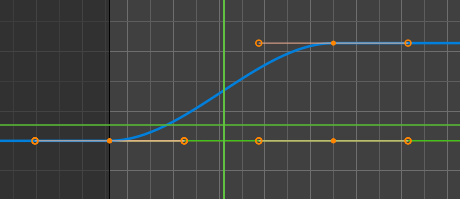
Sets both cursors to the center of the selection. This button also works when the ground line cursor is deactivated. In this case just the playhead cursor gets set to the center of the selection.
Cursor Value to Selection
Place the cursor value on the average value of selected keyframes.