

























Shader Library
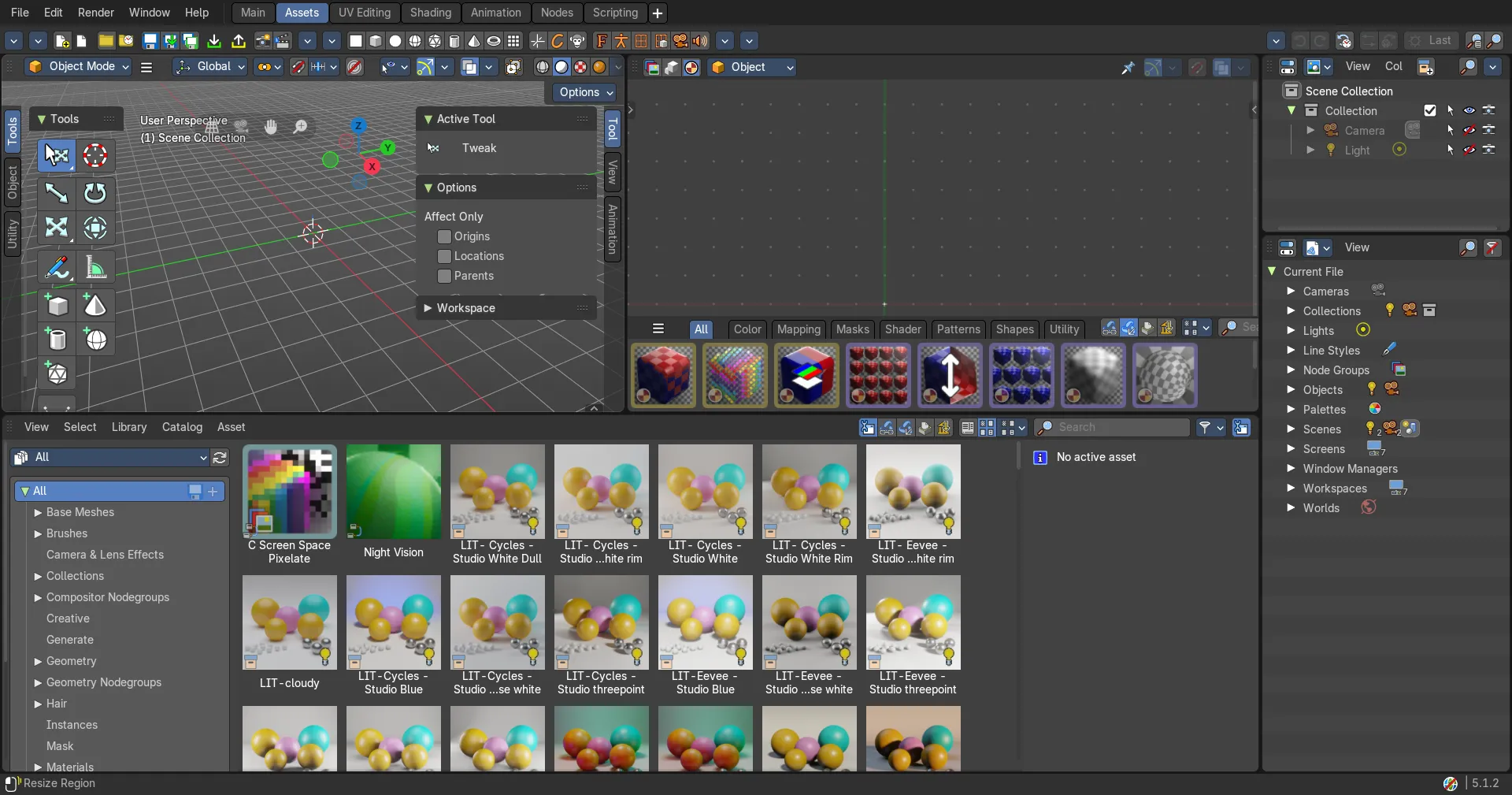
Shader node groups and materials that come with Bforartists.
Shader node groups that come with Bforartists. Each asset has a thumbnail, a picture of the node, its inputs and outputs and a short how to use. Add them from the Asset Browser or the Add menu of the Shader Editor.
Color
Assets for layering and halftone printing looks.
Halftone Color

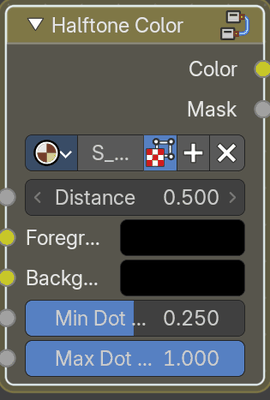
Colors a halftone pattern, sizing dots by brightness. Use with Halftone Pattern.
Inputs
Distance
Data typeFloat
Connect the Distance output of Halftone Pattern. Default: 0.5.
Foreground
Data typeColor
Image or color that sets dot color and size.
Background
Data typeColor
Color between the dots.
Min Dot Size
Data typeFloat (factor)
Dot size in the darkest areas. Default: 0.
Max Dot Size
Data typeFloat (factor)
Dot size in the brightest areas. Default: 1.
Outputs
Color
Data typeColor
The colored halftone.
Mask
Data typeFloat
Black and white dots.
How to use
Connect Distance from Halftone Pattern. Foreground and Background set the two colors, Min Dot Size and Max Dot Size set the range of the dots.
Halftone Pattern
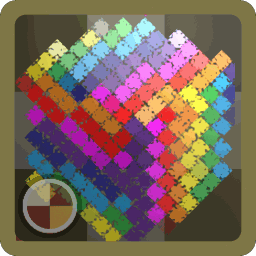
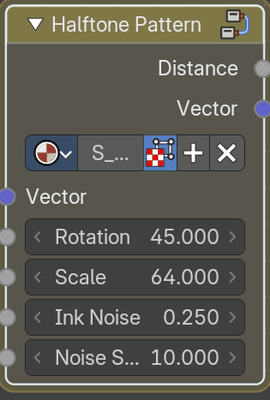
Halftone dot pattern with distance and vector outputs. Use with Halftone Color.
Inputs
Vector
Data typeVector
Coordinates to use. Leave unconnected for automatic Object coordinates.
Rotation
Data typeFloat
Rotates the dot grid. Default: 45.
Scale
Data typeFloat
Number of dots. Higher values give more, smaller dots. Default: 64.
Ink Noise
Data typeFloat
Adds roughness to the dots. Default: 0.25.
Noise Scale
Data typeFloat
Size of the roughness. Default: 10.
Outputs
Distance
Data typeFloat
Distance from each dot center. Connect to Halftone Color.
Vector
Data typeVector
The resulting vector.
How to use
Connect a vector to Vector. Rotation turns the grid, Scale sets the size of the dots, Ink Noise and Noise Scale roughen the dots like printing ink. Connect Distance to Halftone Color.
PBR-Simple Layer
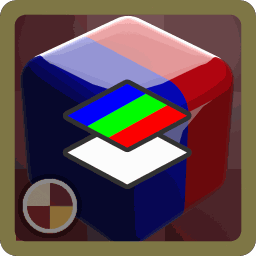
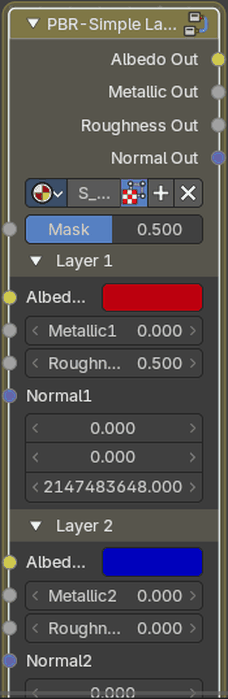
Layers a PBR material's color, roughness, metallic and normal.
Inputs
Mask
Data typeFloat (factor)
Layer Mask value input. Default: 0.5.
Layer 1
Albedo1
Data typeColor
Albedo Layer 1 color input.
Metallic1
Data typeFloat
Metallic Layer 1 value input. Default: 0.
Roughness1
Data typeFloat
Roughness layer 1 value input. Default: 0.
Normal1
Data typeVector
Normal layer 1 vector input.
Layer 2
Albedo2
Data typeColor
Albedo Layer 2 color input.
Metallic2
Data typeFloat
Metallic Layer 2 value input. Default: 0.
Roughness2
Data typeFloat
Roughness layer 2 value input. Default: 0.
Normal2
Data typeVector
Normal layer 2 vector input.
Outputs
Albedo Out
Data typeColor
Albedo color output.
Metallic Out
Data typeFloat
Metallic value output.
Roughness Out
Data typeFloat
Roughness value output.
Normal Out
Data typeVector
Normal vector output.
How to use
Connect the maps of the first material to the inputs ending in 1 and those of the second to the inputs ending in 2. Mask decides where the second one shows. The outputs are the mixed maps.
Mapping
Assets that create or change texture coordinates: projections, tiling, symmetry, warping and coordinate conversions. Connect their output to the Vector input of a texture.
Advanced Tiling
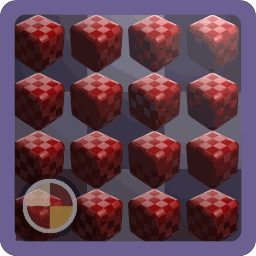
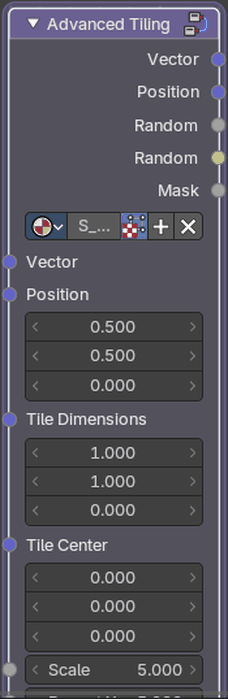
Repeats coordinates as tiles, with position, random and mask outputs.
Inputs
Vector
Data typeVector
Coordinates to use. Leave unconnected for automatic Object coordinates.
Position
Data typeVector
Offset for the whole tile grid. Default: (0.5, 0.5, 0).
Tile Dimensions
Data typeVector
Width and height of each tile. Default: (1, 1, 0).
Tile Center
Data typeVector
Center point inside each tile.
Scale
Data typeFloat
Overall size of the tiles. Default: 5.
Repeat X
Data typeFloat
Number of tiles across. Default: 5.
Repeat Y
Data typeFloat
Number of tiles down. Default: 5.
Quincunx Flip
Data typeFloat (factor)
Offset every other row, like a five on a die. Default: 0.
Outputs
Vector
Data typeVector
The resulting vector.
Position
Data typeVector
Position of each tile.
Random
Data typeFloat
Random color for each item.
Random
Data typeColor
Random color for each item.
Mask
Data typeFloat
White inside tiles, black outside.
How to use
Repeats coordinates as tiles. Tile Dimensions and Tile Center set the tile, Repeat X and Repeat Y how often, Quincunx Flip flips every second tile. Vector is the new coordinate and Position, Random and Mask describe each tile.
Axis Symmetry
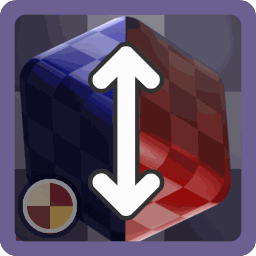

Mirrors coordinates across the X, Y or Z axis.
Inputs
Vector
Data typeVector
Coordinates to use. Leave unconnected for automatic Object coordinates.
Origin
Data typeVector
Center of the mirror. Default: (0.5, 0.5, 0).
X
Data typeFloat (factor)
Mirror across X. Default: 1.
Y
Data typeFloat (factor)
Mirror across Y. Default: 1.
Z
Data typeFloat (factor)
Mirror across Z. Default: 0.
Invert
Data typeFloat (factor)
Swap which side is mirrored. Default: 1.
Outputs
Vector
Data typeVector
The resulting vector.
How to use
The coordinates are mirrored across the X, Y or Z axis: Origin sets the center, X, Y and Z choose the axes and Invert swaps the sides.
Brick Mapping
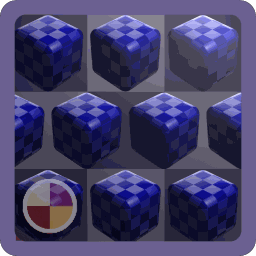
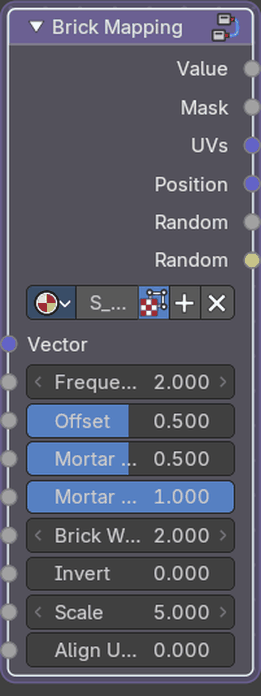
Brick layout with mask, UV, position and random outputs.
Inputs
Vector
Data typeVector
Coordinates to use. Leave unconnected for automatic Object coordinates.
Frequency
Data typeFloat
How often rows are offset. Default: 2.
Offset
Data typeFloat (factor)
How far each offset row shifts. Default: 0.5.
Mortar Size
Data typeFloat (factor)
Width of the gaps between bricks. Default: 0.5.
Mortar Smooth
Data typeFloat (factor)
Softness of the brick edges. Default: 1.
Brick Width
Data typeFloat
Width of each brick. Default: 2.
Invert
Data typeFloat (factor)
Swap bricks and mortar. Default: 0.
Scale
Data typeFloat
Overall size of the bricks. Default: 5.
Align UVs to Brick Border
Data typeFloat (factor)
Start each brick's UVs at its edge instead of its center. Default: 0.
Outputs
Value
Data typeFloat
Smooth height of each brick.
Mask
Data typeFloat
White bricks with black mortar.
UVs
Data typeVector
UV coordinates inside each brick.
Position
Data typeVector
Position of each brick.
Random
Data typeFloat
Random color for each item.
Random
Data typeColor
Random color for each item.
How to use
A brick layout. Frequency and Brick Width set the rows, Offset shifts every second row, Mortar Size and Mortar Smooth set the joints. Value, Mask, UVs, Position and Random give shading, a sharp mask, a coordinate for each brick and random values.
Distortion Blur
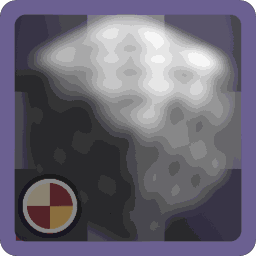
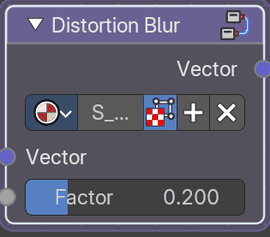
Blurs coordinates with random noise, for a grainy blur.
Inputs
Vector
Data typeVector
Coordinates to use. Leave unconnected for automatic Object coordinates.
Factor
Data typeFloat (factor)
Amount of blur. Default: 0.2.
Outputs
Vector
Data typeVector
The resulting vector.
How to use
Connect a vector to Vector. The coordinates are shaken with random noise, Factor sets how much. Use the result as the vector of a texture for a grainy blur.
Equirectangular
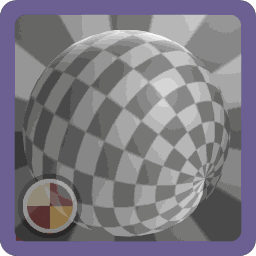
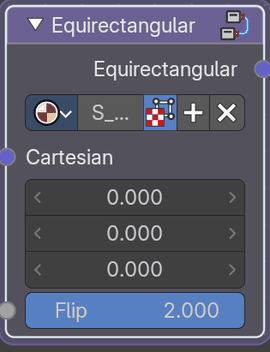
Converts 3D directions to equirectangular coordinates.
Inputs
Cartesian
Data typeVector
Direction to convert, as X, Y and Z.
Flip
Data typeFloat (factor)
Flip the result. Default: 1.
Outputs
Equirectangular
Data typeVector
Equirectangular coordinates.
How to use
Connect a 3D direction to Cartesian. The output is the matching position on an equirectangular (360° panorama) image. Flip mirrors the result.
Flipbook
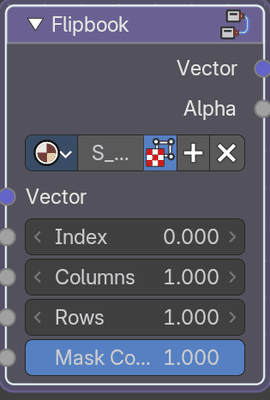
Plays frames from an image grid. Animate Index to play it.
Inputs
Vector
Data typeVector
Coordinates to use. Leave unconnected for automatic Object coordinates.
Index
Data typeFloat
Which frame to show. Default: 0.
Columns
Data typeFloat
Number of columns in the image grid. Default: 1.
Rows
Data typeFloat
Number of rows in the image grid. Default: 1.
Mask Coordinates
Data typeFloat (factor)
Hide everything outside the selected frame. Default: 1.
Outputs
Vector
Data typeVector
A vector output, plug this into your Spritesheet.
Alpha
Data typeFloat
Mask of the selected frame.
How to use
Connect an image sheet with frames in a grid. Columns and Rows set the grid and Index picks the frame, connect Scene Time to Index to animate it. Vector is the coordinate inside the frame and Alpha masks it.
Gradient Warp Approx
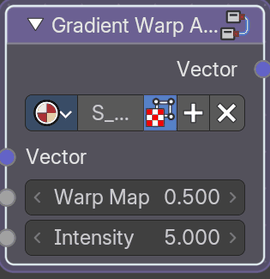
Warps coordinates with a map, as a fast approximation of a gradient warp.
Inputs
Vector
Data typeVector
Coordinates to warp.
Warp Map
Data typeFloat
Grayscale map whose slopes push the coordinates. Default: 0.5.
Intensity
Data typeFloat
How strongly the map warps the coordinates. Default: 0.1.
Outputs
Vector
Data typeVector
The warped coordinates.
How to use
Connect a vector to Vector and a map to Warp Map. Intensity sets how strongly the map moves the coordinates.
Mirror
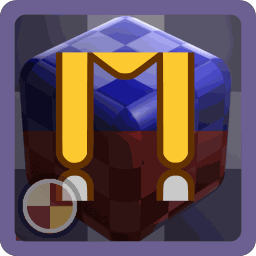
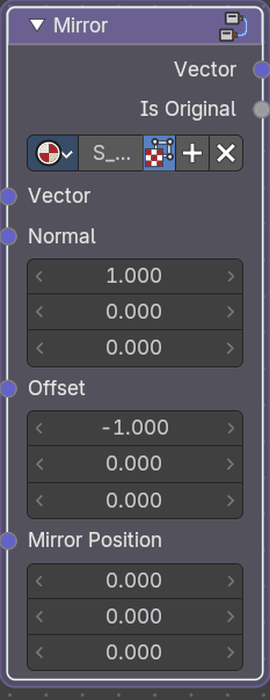
Mirrors coordinates across a line.
Inputs
Vector
Data typeVector
Coordinates to use. Leave unconnected for automatic Object coordinates.
Normal
Data typeVector
Direction the mirror line faces. Default: (1, 0, 0).
Offset
Data typeVector
Moves the mirror line along its direction. Default: (-1, 0, 0).
Mirror Position
Data typeVector
A point the mirror line passes through.
Outputs
Vector
Data typeVector
The resulting vector.
Is Original
Data typeFloat
White on the original side of the mirror, black on the mirrored side.
How to use
Connect a vector to Vector. The coordinates are mirrored across a line: Normal is the direction of the line, Offset moves it and Mirror Position sets what is mirrored. Is Original is white on the side that was not mirrored.
Object-World Normal
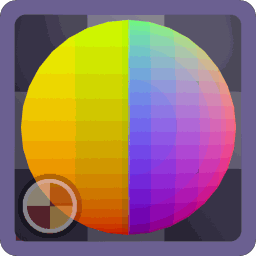
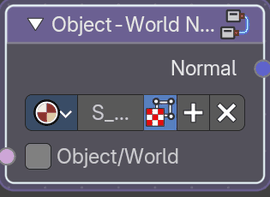
World and Object normals.
Inputs
Object/World
Data typeBoolean
Switches between object space and world space normals. Default: Off.
Outputs
Normal
Data typeVector
The resulting normal.
How to use
Object/World chooses the space. Connect the output to the Normal of a node that needs it.
Parallax Mapping
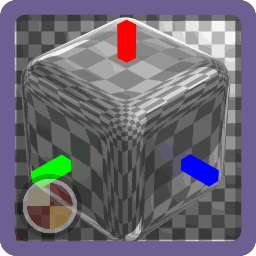
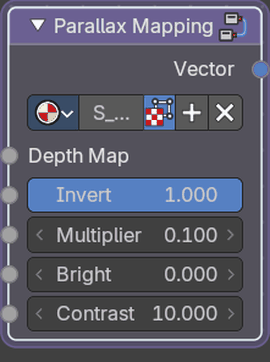
Fakes depth with a height map, by shifting the texture coordinates.
Inputs
Depth Map
Data typeFloat
The depth of the parrallax set by a value input. Default: 1.
Invert
Data typeFloat (factor)
Invert the parrallax efect. Default: 1.
Multiplier
Data typeFloat
Depth multiplier. Default: 0.1.
Bright
Data typeFloat
The brightness of the depth map. Default: 0.
Contrast
Data typeFloat
The copntrast of the depth map. Default: 10.
Outputs
Vector
Data typeVector
A vector output, plug this into the vector input of an image.
How to use
Connect a height image to Depth Map. Multiplier sets how deep it looks, Bright and Contrast adjust the map, Invert flips it. Use the output as the Vector of your textures.
Polar-Cylindrical
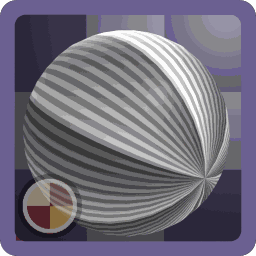

Converts X, Y, Z coordinates to polar coordinates, keeping Z.
Inputs
Cartesian
Data typeVector
Coordinates to convert.
Outputs
Cylindrical
Data typeVector
Radius, angle and height.
How to use
Connect cartesian coordinates (X, Y, Z) to Cartesian. The output is the same position as polar coordinates in the XY plane, and Z stays as it is.
Radial Symmetry 1


Repeats coordinates around a center, like a kaleidoscope.
Inputs
Vector
Data typeVector
Coordinates to use. Leave unconnected for automatic Object coordinates.
Center Axis
Data typeVector
Center point of the repeat. Default: (0.5, 0.5, 0).
Number of Repetitions
Data typeFloat
How many times the image repeats around the center. Default: 3.
Scale
Data typeFloat
Scales the result. Default: 1.
Outputs
UV
Data typeVector
The changed coordinates.
How to use
Connect a vector to Vector. Space is repeated around Center Axis like a kaleidoscope, Number of Repetitions sets how often and Scale the size. UV is the result.
Radial Symmetry 2


Repeats coordinates around a center, with phase and rotation.
Inputs
Vector
Data typeVector
Coordinates to use. Leave unconnected for automatic Object coordinates.
Center Axis
Data typeVector
Center point of the repeat.
Number of Repetitions
Data typeFloat
How many times the image repeats around the center. Default: 5.
Phase
Data typeFloat
Shifts where the repeats begin. Default: 0.
Rotate
Data typeFloat
Rotates the whole result. Default: 0.
Scale
Data typeFloat
Scales the result. Default: 1.
Outputs
Vector
Data typeVector
The resulting vector.
How to use
Connect a vector to Vector. Space is repeated around Center Axis, Number of Repetitions sets how often, Phase and Rotate turn the copies and Scale sets the size. It is like Radial Symmetry 1 with more control.
Spherical
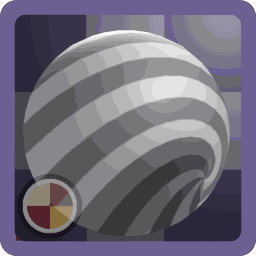
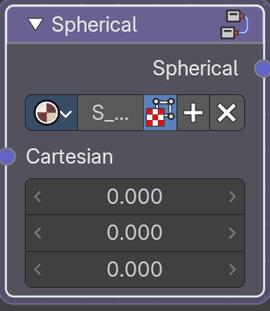
Converts X, Y, Z coordinates to spherical coordinates.
Inputs
Cartesian
Data typeVector
Coordinates to convert.
Outputs
Spherical
Data typeVector
Radius and the two angles.
How to use
Connect cartesian coordinates (X, Y, Z) to Cartesian. The output is the same position as spherical coordinates: radius and two angles.
Triplanar
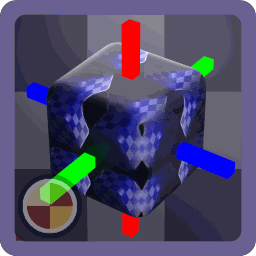
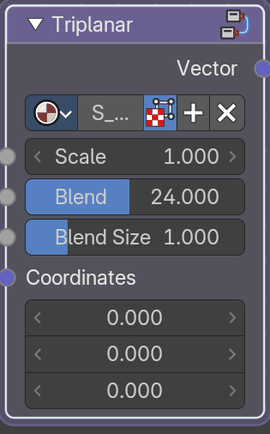
Projects a texture from three directions, so it needs no UV map.
Inputs
Scale
Data typeFloat
Size of the projection. Default: 1.
Blend
Data typeFloat (factor)
How much the projections blend where they meet. Default: 0.
Blend Size
Data typeFloat (factor)
Width of the blend between projections. Default: 1.
Coordinates
Data typeVector
Coordinates to project. Use Object or Generated coordinates.
Outputs
Vector
Data typeVector
Projected coordinates, for connecting to an image texture.
How to use
Scale sets the size of the projection, Blend and Blend Size set how the three directions mix. Use the output as the Vector of a texture, or use Triplanar Coordinates and Triplanar Blend for more control.
Triplanar Blend
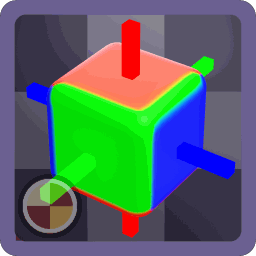
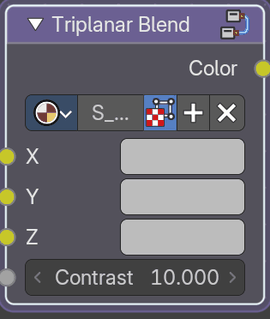
Mixes the three textures of a triplanar projection.
Inputs
X
Data typeColor
Color input of the X axis of the triplanar.
Y
Data typeColor
Color input of the Y axis of the triplanar.
Z
Data typeColor
Color input of the Z axis of the triplanar.
Contrast
Data typeFloat
Contrast of the triplanar blend. Default: 10.
Outputs
Color
Data typeColor
A colour output.
How to use
Connect the three textures to X, Y and Z. Contrast sets how sharp the transition between the directions is.
Triplanar Coordinates
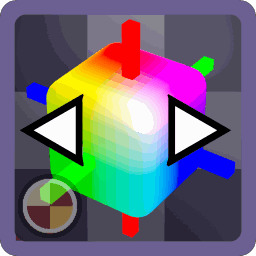
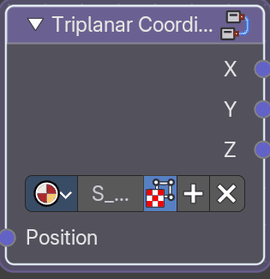
Makes the three coordinate sets (X, Y, Z) of a triplanar projection.
Inputs
Position
Data typeVector
A vector position input.
Outputs
X
Data typeVector
A planar X axis vector output.
Y
Data typeVector
A planar Y axis vector output.
Z
Data typeVector
A planar Z axis vector output.
How to use
Connect Position to the object position. Use X, Y and Z as the vectors of three textures, then mix them with Triplanar Blend.
Vector Pan

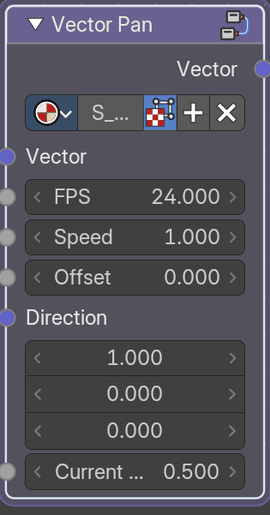
Scrolls coordinates over time.
Inputs
Vector
Data typeVector
Coordinates to use. Leave unconnected for automatic Object coordinates.
FPS
Data typeFloat
Frames per second. Match the scene frame rate. Default: 24.
Speed
Data typeFloat
How fast the coordinates scroll. Default: 1.
Offset
Data typeFloat
Starting position of the scroll. Default: 0.
Direction
Data typeVector
Direction of the scroll. Default: (1, 0, 0).
Current Frame
Data typeFloat
Current frame. Animate it with keyframes or a driver. Default: 0.5.
Outputs
Vector
Data typeVector
The resulting vector.
How to use
Connect a vector to Vector. The coordinates scroll over time: Speed and Direction set the movement, FPS and Current Frame the timing, Offset a start position.
Vector Pixelate
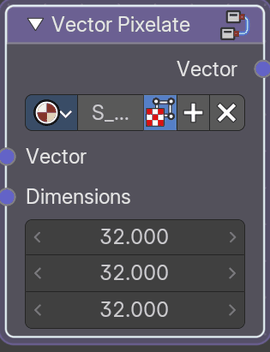
Snaps coordinates to a grid, for a pixelated look.
Inputs
Vector
Data typeVector
Coordinates to use. Leave unconnected for automatic Object coordinates.
Dimensions
Data typeVector
Number of pixels across X and Y. Default: (32, 32, 32).
Outputs
Vector
Data typeVector
The resulting vector.
How to use
Connect a vector to Vector. The coordinates snap to a grid, Dimensions sets the number of cells, so what is drawn with this vector looks pixelated.
Vector Skew
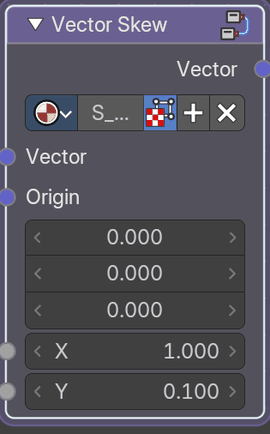
Slants coordinates along X and Y.
Inputs
Vector
Data typeVector
Coordinates to use. Leave unconnected for automatic Object coordinates.
Origin
Data typeVector
Point that stays in place. Default: (0.5, 0.5, 0).
X
Data typeFloat
Amount of slant along X. Default: 0.
Y
Data typeFloat
Amount of slant along Y. Default: 0.
Outputs
Vector
Data typeVector
The resulting vector.
How to use
Connect a vector to Vector. The coordinates are slanted around Origin, X and Y set how far along each axis.
Vector Whirl
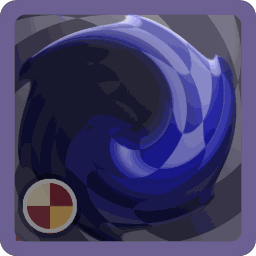
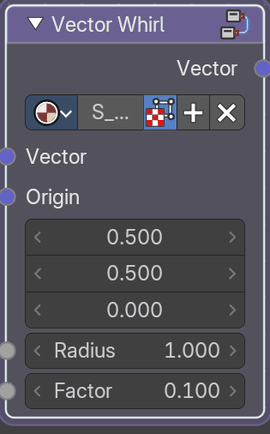
Twists coordinates around a point.
Inputs
Vector
Data typeVector
Coordinates to use. Leave unconnected for automatic Object coordinates.
Origin
Data typeVector
Center of the whirl. Default: (0.5, 0.5, 0).
Radius
Data typeFloat
Size of the whirl. Default: 1.
Factor
Data typeFloat
Strength of the twist. Default: 0.1.
Outputs
Vector
Data typeVector
The resulting vector.
How to use
Connect a vector to Vector. The coordinates are twisted around Origin inside Radius, and Factor sets how strong the twist is. Use the result as the vector of a texture or pattern.
Vector Zoom

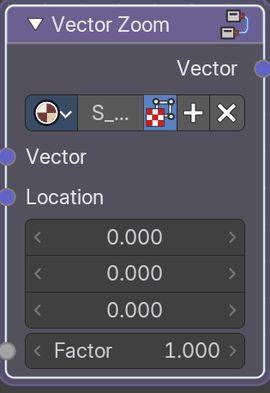
Zooms coordinates in or out around a point.
Inputs
Vector
Data typeVector
Coordinates to use. Leave unconnected for automatic Object coordinates.
Location
Data typeVector
Point to zoom around.
Factor
Data typeFloat
Amount of zoom. Default: 1.
Outputs
Vector
Data typeVector
The resulting vector.
How to use
Connect a vector to Vector. Location is the point the zoom comes from and Factor is how far it zooms in or out. Use the result as the vector of a texture or pattern.
Voronoi Distribute
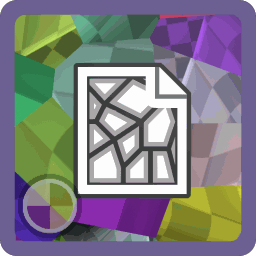

Scatters coordinates at random cell points, to place copies of an image.
Inputs
Vector
Data typeVector
Coordinates to use. Leave unconnected for automatic Object coordinates.
Spawn Threshold (Mask)
Data typeFloat (factor)
Hides some copies. Higher values hide more. Default: 0.5.
Rotation Limit
Data typeFloat (factor)
Maximum random rotation. Default: 1.
Randomness
Data typeFloat (factor)
How far copies move from a regular grid. Default: 1.
Scale Distribution
Data typeFloat
How much copy sizes vary. Default: 0.
Seed
Data typeFloat
Changes the random layout. Default: 11.
Scale
Data typeFloat
Overall size of the layout. Default: 1.
Outputs
Vector
Data typeVector
The resulting vector.
Random
Data typeFloat
Random color for each item.
Random
Data typeColor
Random color for each item.
How to use
Space is cut into random cells and each cell gets its own coordinate, so a texture or image placed with this vector is repeated in different places. Spawn Threshold (Mask) leaves some cells empty, Rotation Limit and Scale Distribution vary the copies, Seed changes the layout.
World Space
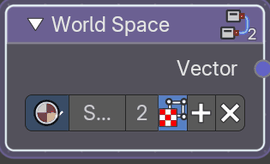
Gives the world space position as a vector.
Outputs
Vector
Data typeVector
World Space vector output.
How to use
Use the output as the Vector of a texture. The texture then stays fixed in the world and does not move with the object.
Masks
Assets that make a mask from the shape of the object: edges, curvature and ambient occlusion. Use the mask to mix materials, for example to add wear on the edges.
Beveled Edge - CYCLES
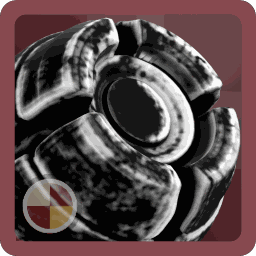
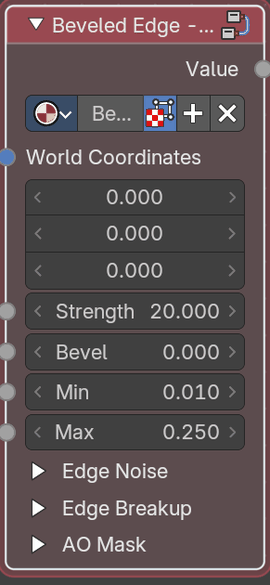
Procedural mask from Beveled Edges.
Inputs
World Coordinates
Data typeVector
World Coordinates Vector for worldspace edge noise, vector input.
Strength
Data typeFloat
Overall strength of the mask. Default: 20.
Bevel
Data typeFloat
Radius of the bevel used to find edges. Default: 0.14.
Min
Data typeFloat
Darkest value of the mask. Default: 0.01.
Max
Data typeFloat
Brightest value of the mask. Default: 0.25.
Edge Noise
Factor
Data typeFloat
Amount of noise along the edges. Default: 1.
Scale
Data typeFloat
Size of the noise along the edges. Default: 20.
Roughness
Data typeFloat
Roughness of the noise along the edges. Default: 1.
Detail
Data typeFloat
Fine detail in the noise along the edges. Default: 2.
Edge Breakup
Factor
Data typeFloat
Amount of breakup of the edges. Default: 0.9.
Scale
Data typeFloat
Size of the breakup of the edges. Default: 1.
Roughness
Data typeFloat
Roughness of the breakup of the edges. Default: 0.
Detail
Data typeFloat
Fine detail in the breakup of the edges. Default: 0.
AO Mask
Factor
Data typeFloat
How much ambient occlusion reduces the mask. Default: 1.
Strength
Data typeFloat
Strength of the ambient occlusion. Default: 2.
Distance
Data typeFloat
How far ambient occlusion reaches. Default: 1.
Samples
Data typeFloat
Enter the nodegroup to change the samples. Default: 16.
Outputs
Value
Data typeFloat
Smooth value of the pattern.
How to use
Bevel sets the radius of the bevel. Strength, Min and Max shape the mask. World Coordinates switches the space, and the noise panels break it up. Value is the mask.
Mask AO
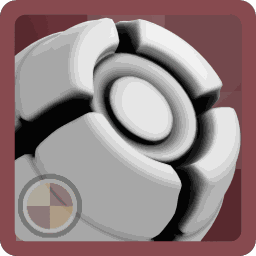
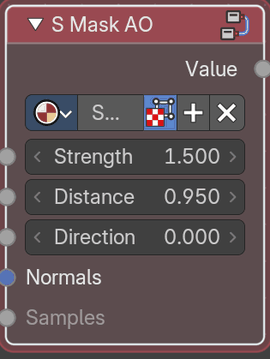
Procedural mask from ambient occlusion.
Inputs
Strength
Data typeFloat
Ambient occlusion streength factor. Default: 1.5.
Distance
Data typeFloat
Ambient occlusion distance factor. Default: 1.
Direction
Data typeFloat
Ambient occlusion direction factor, switches to inverse direction. Default: 0.
Normals
Data typeVector
Custom normals vector input.
Samples
Data typeFloat
Enter the nodegroup to change the samplesEnter the nodegroup to change the samples. Default: 0.
Outputs
Value
Data typeFloat
Mask value output.
How to use
Strength sets the effect, Distance how far it looks, Direction chooses inside or outside, Normals and Samples set the quality. Use it to darken or color the corners.
Mask Curvature - CYCLES


Procedural mask from curvature, Cycles only.
Inputs
In / Out
Data typeBoolean
Direction of the curvature + pointiness. Inverts the direction. Default: Off.
Strength
Data typeFloat
Overall strength of the curvature. Default: 20.
Bevel
Data typeFloat
Strength of the bevel factor. Default: 0.02.
Curvature
Data typeFloat
Maximum strength of the pointiness factor. Default: 0.5.
World Coordinates
Data typeVector
World coordinates for the edge breakup noise, vector input.
Edge Break
Factor
Data typeFloat
Edge break factor. Default: 0.4.
Scale
Data typeFloat
Edge break scale factor. Default: 2.
Roughness
Data typeFloat
Edge break noise factor. Default: 0.
Detail
Data typeFloat
Edge detail factor. Default: 0.
AO Mask
Factor
Data typeFloat
Ambient occlusion mask factor. Default: 1.
Strength
Data typeFloat
Ambient occlusion mask strength factor. Default: 0.
Distance
Data typeFloat
Ambient occlusion mask distance factor. Default: 1.
Samples
Data typeFloat
Enter the nodegroup to change samples. Default: 16.
Outputs
Value
Data typeFloat
Smooth value of the pattern.
How to use
In / Out chooses inside or outside corners, Strength, Bevel and Curvature shape the mask, and the noise panels break it up. Value is the mask.
Mask Hard Edge
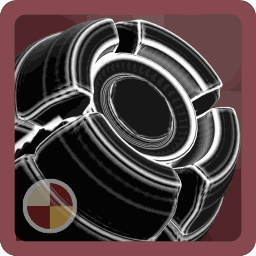
Procedural mask from hard normal edges, works both in EEVEE and Cycles.
Inputs
Strength
Data typeFloat
Strength of the hard edges value factor. Default: 50.
Min
Data typeFloat
Minimum hard edge value factor. Default: 0.05.
Max
Data typeFloat
Maximum hard edge value factor. Default: 0.5.
World Coordinates
Data typeVector
World coordinates for the edge breakup noise, vector input.
Edge Noise
Factor
Data typeFloat
Edge noise value factor. Default: 0.
Scale
Data typeFloat
Edge noise scale value factor. Default: 50.
Detail
Data typeFloat
Edge noise detail value factor. Default: 2.
Roughness
Data typeFloat (factor)
Edge noise roughness value factor. Default: 1.
Edge Break
Factor
Data typeFloat
Edge break value factor. Default: 0.3.
Scale
Data typeFloat
Edge break noise scale value factor. Default: 20.
Roughness
Data typeFloat (factor)
Edge break noise roughness value factor. Default: 0.
Detail
Data typeFloat
Edge break noise detail value factor. Default: 0.
AO Mask
Factor
Data typeFloat
Ambient occlusion mask value factor. Default: 0.
Strength
Data typeFloat
Ambient occlusion mask strength value factor. Default: 0.
Distance
Data typeFloat
Ambient occlusion mask distance value factor. Default: 1.
Samples
Data typeFloat
Enter the nodegroup to change the samples. Default: 16.
Outputs
Value
Data typeFloat
Smooth value of the pattern.
How to use
Strength, Min and Max shape the mask. World Coordinates switches the space, and the noise panels break up the edge. Value is the mask.
Mask Local AO


Procedural mask from only local ambient occlusion.
Inputs
Strength
Data typeFloat
Ambient occlusion streength factor. Default: 1.5.
Distance
Data typeFloat
Ambient occlusion distance factor. Default: 1.
Direction
Data typeFloat
Ambient occlusion direction factor, switches to inverse direction. Default: 0.
Normals
Data typeVector
Custom normals vector input.
Samples
Data typeFloat
Enter the nodegroup to change the samplesEnter the nodegroup to change the samples. Default: 16.
Outputs
Value
Data typeFloat
Mask value output.
How to use
Strength sets the effect, Distance how far it looks, Direction chooses inside or outside, Normals and Samples set the quality. Use it to darken or color the corners of one object.
Mask Soft Edge - CYCLES


Procedural mask from soft edges, Cycles only.
Inputs
Strength
Data typeFloat
Soft edge strength value factor. Default: 10.
Direction
Data typeFloat
Soft edge direction value factor. Inverts the direction. Default: 0.
Min
Data typeFloat
Soft edge minimum value factor. Default: 0.5.
Max
Data typeFloat
Soft edge maximum value factor. Default: 0.95.
World Coordinates
Data typeVector
World coordinates for the edge breakup noise, vector input.
Edge Noise
Factor
Data typeFloat
Edge noise value factor. Default: 1.
Scale
Data typeFloat
Edge noise scale value factor. Default: 10.
Roughness
Data typeFloat
Edge noise rougness value factor. Defines the noise detail. Higher values renders slower. Default: 1.
Detail
Data typeFloat
Edge noise detail value factor. Defines the noise detail. Higher values renders slower. Default: 2.
Edge Break
Factor
Data typeFloat
Edge break value factor. Default: 0.3.
Scale
Data typeFloat
Edge break noise scale value factor. Default: 3.
Roughness
Data typeFloat
Edge break noise rougness value factor. Defines the noise detail. Higher values renders slower. Default: 0.
Detail
Data typeFloat
Edge break noise detail value factor. Defines the noise detail. Higher values renders slower. Default: 0.
AO Mask
Factor
Data typeFloat
Ambient occlusion mask value factor. Default: 1.
Strength
Data typeFloat
Ambient occlusion mask strength value factor. Default: 2.
Distance
Data typeFloat
Ambient occlusion mask distance value factor. Default: 1.
Outputs
Value
Data typeFloat
Smooth value of the pattern.
How to use
Strength, Direction, Min and Max shape the mask. World Coordinates switches the space, and the noise panels break up the edge. Value is the mask.
Raycast Edges
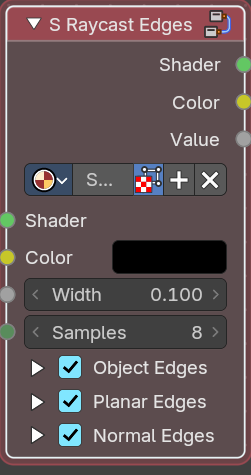
Procedural edge mask from Raycast Edges by using object, co-planar and normal edges.
Inputs
Shader
Data typeShader
Optional. Overlays colored edges onto any shader. Place after your shader tree before the Material Output node.
Color
Data typeColor
The color of the Shader edges overlay.
Width
Data typeFloat
General width of all the edges. If you want to change each individual edge type, use the width controls below. Default: 0.1.
Samples
Data typeInteger
The amount of iterations to run the Ray Cast detection. Default: 8.
Object Edges
Object Edges
Data typeBoolean
Include edges between different objects. Default: On.
Width
Data typeFloat
Width of the object intersection and silhouette edges. Default: 0.1.
Planar Edges
Planar Edges
Data typeBoolean
Include edges between surfaces at different depths. Default: On.
Width
Data typeFloat
Width of the Planar Edges. Default: 0.1.
Threshold
Data typeFloat
Facomg angle threshold of the co-planar edges. Default: 0.5.
Normal Edges
Normal Edges
Data typeBoolean
Include edges where the surface direction changes. Default: On.
Width
Data typeFloat
Width of the normal edges. Default: 0.1.
Threshold
Data typeFloat
Neighboring normal angle threshold of the normal edges. Default: 0.2.
Outputs
Shader
Data typeShader
Optional. The output of the overlayed edges onto the shader. Place after your shader tree before the Material Output node.
Color
Data typeColor
The color output of the edges mixed over black.
Value
Data typeFloat
Combined edges output value that can be used as a mask.
Object Edges
Data typeFloat
Object edges output value.
Planar Edges
Data typeFloat
Planar edges output value.
Normal Edges
Data typeFloat
Normal edges output value.
How to use
Connect a shader to Shader and a color to Color. Each of Object Edges, Planar Edges and Normal Edges has its own width and threshold. Samples sets the quality. Value is the combined mask.
Shader
Assets that choose between shaders.
Select Shader
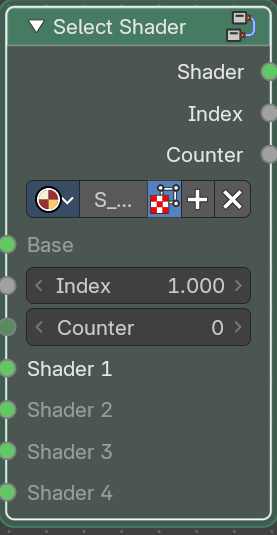
Picks one of four shaders by index.
Inputs
Base
Data typeShader
The base shader input.
Index
Data typeFloat
The shader selection index, best used as integers. Default: 1.
Counter
Data typeInteger
The counter offset of the shader index. Default: 0.
Shader 1
Data typeShader
First shader selection.
Shader 2
Data typeShader
Second shader selection.
Shader 3
Data typeShader
Third shader selection.
Shader 4
Data typeShader
Fourth shader selection.
Outputs
Shader
Data typeShader
A shader output.
Index
Data typeFloat
An index output passthrough, best used as integers.
Counter
Data typeFloat
A counter offset passthrough output, best used as integers.
How to use
Connect an integer to Index. The shader with that number (1 to 4) is the output, and every other index gives Base. Counter keeps count of the steps.
Select Shader (ID Map)
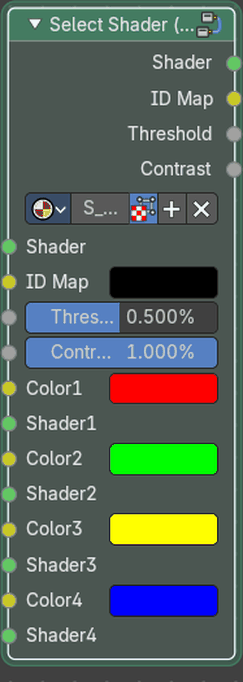
Picks one of four shaders from an ID map.
Inputs
Shader
Data typeShader
The base Shader input.
ID Map
Data typeColor
The ID Map input to select the shader by color.
Threshold
Data typeFloat (percentage)
The color threshold for the ID Map. Default: 0.5.
Contrast
Data typeFloat (percentage)
The color contrast for the ID Map. Default: 1.
Color1
Data typeColor
ID Color 1 input to mask Shader 1.
Shader1
Data typeShader
Shader 1 input.
Color2
Data typeColor
ID Color 2 input to mask Shader 2.
Shader2
Data typeShader
Shader 2 input.
Color3
Data typeColor
ID Color 3 input to mask Shader 3.
Shader3
Data typeShader
Shader 3 input.
Color4
Data typeColor
ID Color 4 input to mask Shader 4.
Shader4
Data typeShader
Shader 4 input.
Outputs
Shader
Data typeShader
A shader output.
ID Map
Data typeColor
The ID Map passthrough output.
Threshold
Data typeFloat (factor)
The threshold float passthrough output.
Contrast
Data typeFloat (factor)
The contrast float passthrough output.
How to use
Connect a base to Shader and an ID map to ID Map. Color1 to Color4 are the colors in the map and Shader1 to Shader4 the shaders for them. Threshold and Contrast set how exact the colors must match.
Texture / Patterns
Assets that make procedural patterns from a vector. Connect the UV output of a Texture Coordinate node to Vector.
Cross Wave
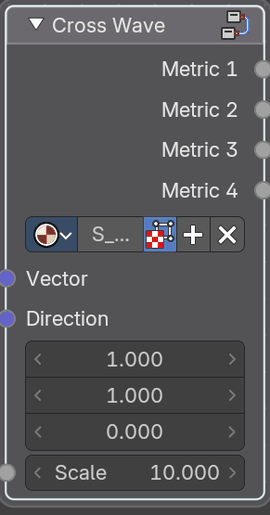
Creates a pattern with vector coordinates and settings with multiple outputs.
Inputs
Vector
Data typeVector
Coordinates to use. Leave unconnected for automatic Object coordinates.
Direction
Data typeVector
Direction of the pattern. Default: (1, 1, 0).
Scale
Data typeFloat
The scale of the pattern. Default: 10.
Outputs
Metric 1
Data typeFloat
Wave pattern using distance metric 1.
Metric 2
Data typeFloat
Wave pattern using distance metric 2.
Metric 3
Data typeFloat
Wave pattern using distance metric 3.
Metric 4
Data typeFloat
Wave pattern using distance metric 4.
How to use
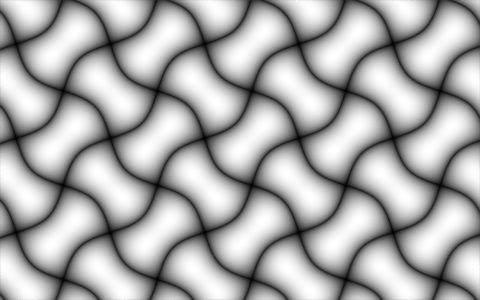
Connect a vector, for example the UV output of a Texture Coordinate node, to Vector. Crossing waves in a pattern. Direction rotates them and Scale sets their size. The four Metric outputs give different shapes of the same pattern.
The asset with default values on a plane, with the UV coordinates of the plane mapped from -1.6 to 1.6 in X and -1 to 1 in Y:
Generalized Checker
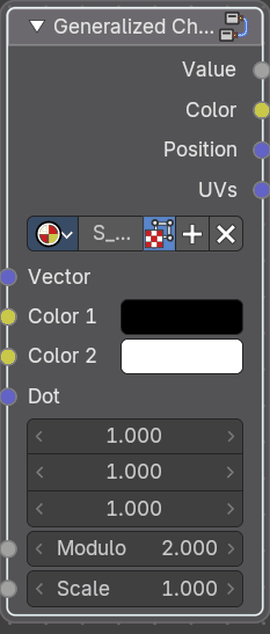
Creates a pattern with vector coordinates and settings with multiple outputs.
Inputs
Vector
Data typeVector
Coordinates to use. Leave unconnected for automatic Object coordinates.
Color 1
Data typeColor
First pattern color.
Color 2
Data typeColor
Second pattern color.
Dot
Data typeVector
The randomization values of the checker pattern defined by vector input. Default: (1, 1, 1).
Modulo
Data typeFloat
The modulo diagonal distance of the colour of the checker pattern defined by float input. Default: 2.
Scale
Data typeFloat
The scale of the checker pattern. Default: 1.
Outputs
Value
Data typeFloat
Smooth value of the pattern.
Color
Data typeColor
A colour output.
Position
Data typeVector
Position vector output.
UVs
Data typeVector
The UVs per checker vector output.
How to use
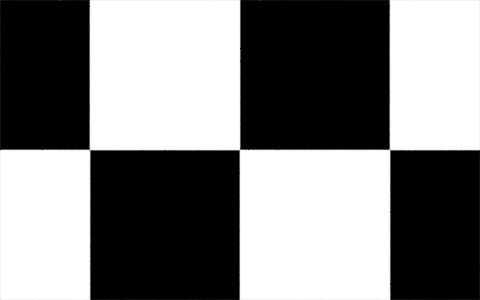
Connect a vector, for example the UV output of a Texture Coordinate node, to Vector. A checkerboard with any two colors. Color 1 and Color 2 set the colors, Modulo the number of steps and Dot a dot variant. Scale sets the size of the squares.
The asset with default values on a plane, with the UV coordinates of the plane mapped from -1.6 to 1.6 in X and -1 to 1 in Y:
Grid
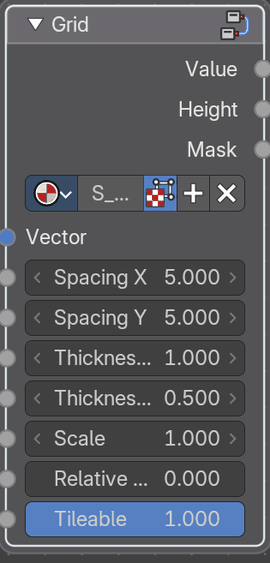
Creates a pattern with vector coordinates and settings with multiple outputs.
Inputs
Vector
Data typeVector
Coordinates to use. Leave unconnected for automatic Object coordinates.
Spacing X
Data typeFloat
Spacing of the grid pattern in the X axis, best used as integers. Default: 5.
Spacing Y
Data typeFloat
Spacing of the grid pattern in the Y axis, best used as integers. Default: 5.
Thickness X
Data typeFloat
Thickness of the grid pattern in the X axis. Default: 0.5.
Thickness Y
Data typeFloat
Thickness of the grid pattern in the Y axis. Default: 0.5.
Scale
Data typeFloat
Scale of the grid pattern. Default: 1.
Relative Thickness
Data typeFloat (factor)
Relative thickness of the grid pattern. Default: 0.
Tileable
Data typeFloat (factor)
Makes the pattern tileable. Default: 1.
Outputs
Value
Data typeFloat
Smooth value of the pattern.
Height
Data typeFloat
A hight value output.
Mask
Data typeFloat
A mask float output.
How to use
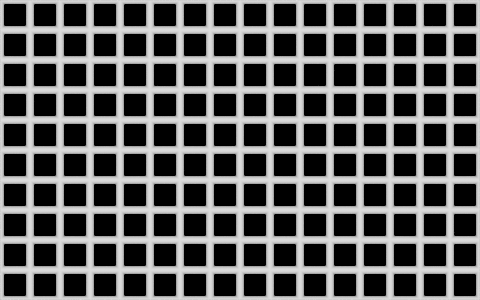
Connect a vector, for example the UV output of a Texture Coordinate node, to Vector. A grid of lines. Spacing X and Spacing Y set the cells, Thickness X and Thickness Y the lines. Relative Thickness scales the lines with the spacing. With Tileable on, the grid repeats without seams.
The asset with default values on a plane, with the UV coordinates of the plane mapped from -1.6 to 1.6 in X and -1 to 1 in Y:
Hexagon Tiles
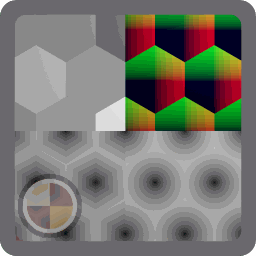

Creates a pattern with vector coordinates and settings with multiple outputs.
Inputs
Vector
Data typeVector
Coordinates to use. Leave unconnected for automatic Object coordinates.
Scale
Data typeFloat
Scale of the hexagon pattern. Default: 1.
Outputs
UVs
Data typeVector
UVs per hexagon vector output.
Position
Data typeVector
Position vector output.
Random
Data typeFloat
Random color output.
Random
Data typeColor
Random color output.
Hexagonal
Data typeFloat
Sharp Hexagonal float output.
Distance
Data typeFloat
Smooth Distance float output.
How to use
Connect a vector, for example the UV output of a Texture Coordinate node, to Vector. A honeycomb pattern. Scale sets the number of cells. Distance is the distance to the cell center, Hexagonal the hexagon shape, and UVs and Position give a coordinate for each cell.
The asset with default values on a plane, with the UV coordinates of the plane mapped from -1.6 to 1.6 in X and -1 to 1 in Y:

Knurling
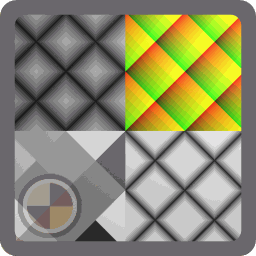
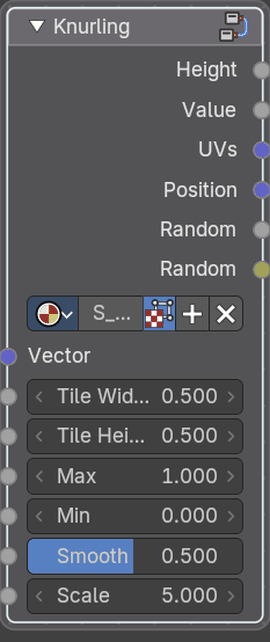
Creates a pattern with vector coordinates and settings with multiple outputs.
Inputs
Vector
Data typeVector
Coordinates to use. Leave unconnected for automatic Object coordinates.
Tile Width
Data typeFloat
Knurling tile width. Default: 0.5.
Tile Height
Data typeFloat
Knurling tile height. Default: 0.5.
Max
Data typeFloat
Knurling maximum depth. Default: 1.
Min
Data typeFloat
Knurling minimum depth. Default: 0.
Smooth
Data typeFloat (factor)
Knurling smoothness. Default: 0.5.
Scale
Data typeFloat
Knurling pattern scale. Default: 5.
Outputs
Height
Data typeFloat
Height float output.
Value
Data typeFloat
Height float output.
UVs
Data typeVector
The UV vector output.
Position
Data typeVector
Position vector output.
Random
Data typeFloat
Random color output.
Random
Data typeColor
Random color output.
How to use
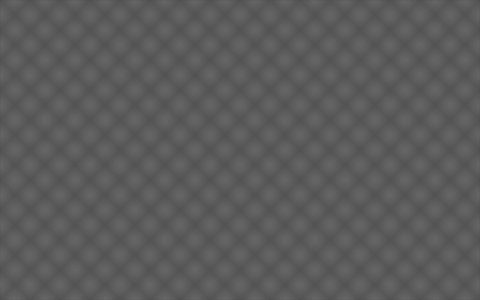
Connect a vector, for example the UV output of a Texture Coordinate node, to Vector. A diamond pattern like the grip on a metal tool. Tile Width and Tile Height set the diamonds, Max and Min the height, Smooth the rounding and Scale the number of tiles. Height can be used as a displacement.
The asset with default values on a plane, with the UV coordinates of the plane mapped from -1.6 to 1.6 in X and -1 to 1 in Y:
Linear Gradient Advanced
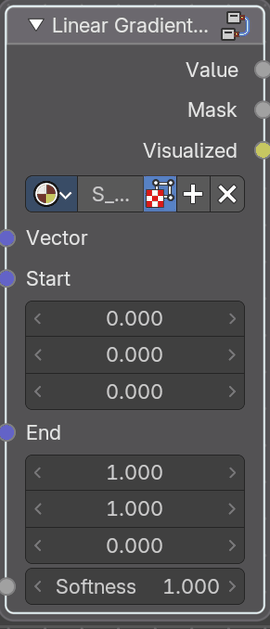
Creates a pattern with vector coordinates and settings with multiple outputs.
Inputs
Vector
Data typeVector
Coordinates to use. Leave unconnected for automatic Object coordinates.
Start
Data typeVector
Start of the gradient with a vector input.
End
Data typeVector
End of the gradient with a vector input. Default: (1, 1, 0).
Softness
Data typeFloat
The softness of the gradient curve. Default: 1.
Outputs
Value
Data typeFloat
Smooth value of the pattern.
Mask
Data typeFloat
Black and white mask of the pattern.
Visualized
Data typeColor
A visualized version of the gradient with a color output.
How to use
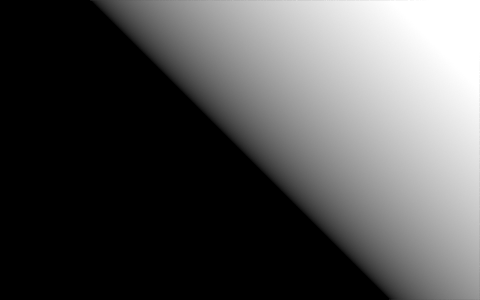
Connect a vector, for example the UV output of a Texture Coordinate node, to Vector. A gradient between two points. Start and End place the points and Softness sets how smooth the transition is. Value is the gradient and Mask a sharp version. Visualized shows the points.
The asset with default values on a plane, with the UV coordinates of the plane mapped from -1.6 to 1.6 in X and -1 to 1 in Y:
Polka Dots
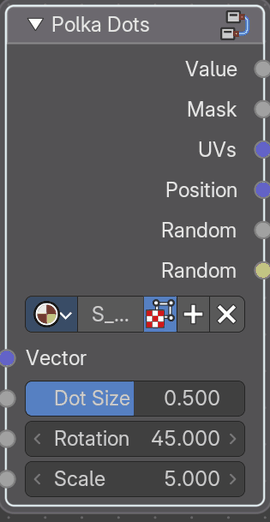
Creates a pattern with vector coordinates and settings with multiple outputs.
Inputs
Vector
Data typeVector
Coordinates to use. Leave unconnected for automatic Object coordinates.
Dot Size
Data typeFloat (factor)
The size of the polkadots. Default: 0.5.
Rotation
Data typeFloat
The rotation angle of the polkadots. Default: 45.
Scale
Data typeFloat
The scale of the polkadots pattern. Default: 5.
Outputs
Value
Data typeFloat
Smooth value of the pattern.
Mask
Data typeFloat
Black and white mask of the pattern.
UVs
Data typeVector
The UVs of the polkadots vector output.
Position
Data typeVector
Position vector output.
Random
Data typeFloat
Random colour output.
Random
Data typeColor
Random colour output.
How to use
Connect a vector, for example the UV output of a Texture Coordinate node, to Vector. A pattern of round dots. Dot Size sets their size, Rotation turns the grid and Scale sets how many there are. Value is the shading and Mask the sharp dot.
The asset with default values on a plane, with the UV coordinates of the plane mapped from -1.6 to 1.6 in X and -1 to 1 in Y:

Simplex Grid
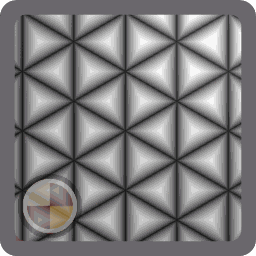
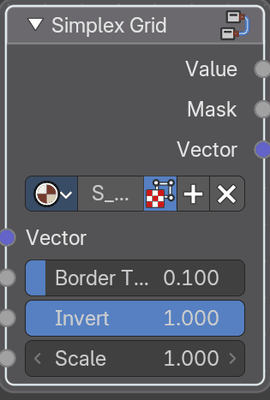
A triangle grid, with value, mask and vector outputs.
Inputs
Vector
Data typeVector
Coordinates to use. Leave unconnected for automatic Object coordinates. Default: (0, 0, 100000).
Border Thickness
Data typeFloat (factor)
Thickness of the borders between triangles. Default: 0.1.
Invert
Data typeFloat (factor)
Swap the light and dark areas of the pattern. Default: 1.
Scale
Data typeFloat
Overall size of the pattern. Default: 1.
Outputs
Value
Data typeFloat
Smooth distance across each triangle.
Mask
Data typeFloat
Black and white triangles.
Vector
Data typeVector
The resulting vector.
How to use
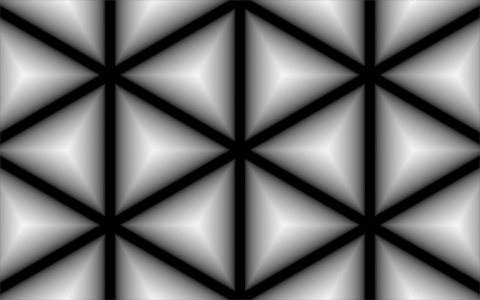
Connect a vector, for example the UV output of a Texture Coordinate node, to Vector. A grid of triangles. Scale sets the size and Border Thickness the width of the lines, Invert swaps lines and fills. Value is the shading, Mask the sharp grid and Vector the position inside each triangle.
The asset with default values on a plane, with the UV coordinates of the plane mapped from -1.6 to 1.6 in X and -1 to 1 in Y:
Simplex Noise 3D
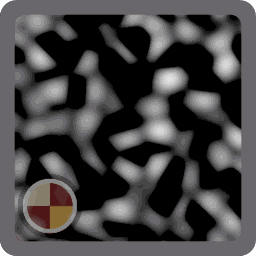
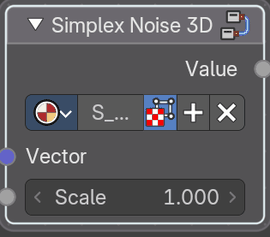
Smooth procedural noise with no visible grid pattern.
Inputs
Vector
Data typeVector
Coordinates to use. Leave unconnected for automatic Object coordinates.
Scale
Data typeFloat
Size of the noise. Higher values give finer detail. Default: 1.
Outputs
Value
Data typeFloat
Noise value.
How to use
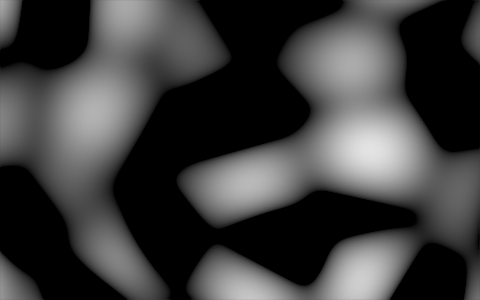
Connect a vector, for example the UV output of a Texture Coordinate node, to Vector. Smooth noise without the grid look of a Perlin noise. Scale sets the size of the features. Use Value as a mask, a displacement or to vary a color.
The asset with default values on a plane, with the UV coordinates of the plane mapped from -1.6 to 1.6 in X and -1 to 1 in Y:
Smooth Tiles
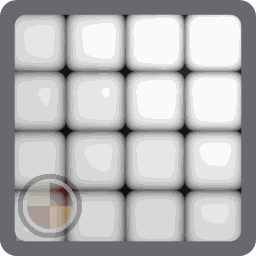
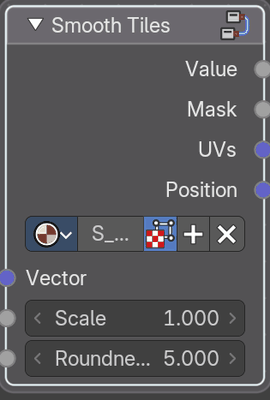
Rounded square tiles with value, mask, UV and position outputs.
Inputs
Vector
Data typeVector
Coordinates to use. Leave unconnected for automatic Object coordinates.
Scale
Data typeFloat
Overall size of the pattern. Higher values give more, smaller tiles. Default: 2.
Roundness
Data typeFloat
Shape of the tiles. Low values are rounder, high values are squarer. Default: 5.
Outputs
Value
Data typeFloat
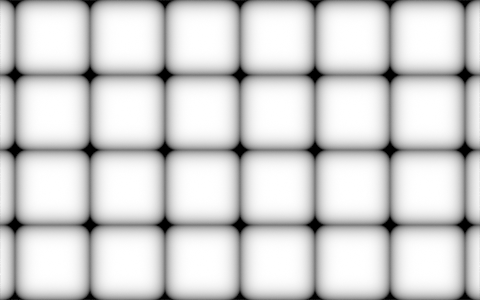
Smooth height of each tile.
Mask
Data typeFloat
Black and white tile shapes.
UVs
Data typeVector
UV coordinates inside each tile.
Position
Data typeVector
Position of each tile.
How to use
Connect a vector, for example the UV output of a Texture Coordinate node, to Vector. Rounded square tiles. Scale sets the number of tiles and Roundness how round the corners are. Value is the shading, Mask the sharp tile, and UVs and Position give a coordinate for each tile.
The asset with default values on a plane, with the UV coordinates of the plane mapped from -1.6 to 1.6 in X and -1 to 1 in Y:
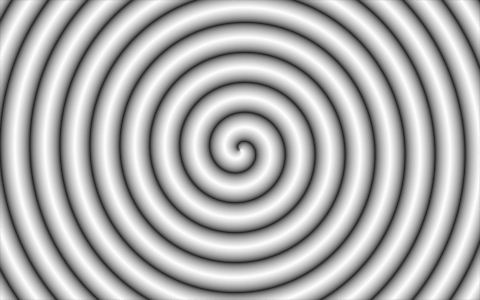
Spiral
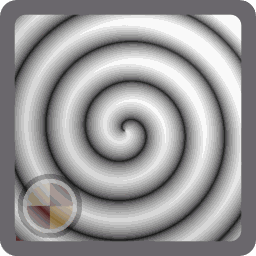
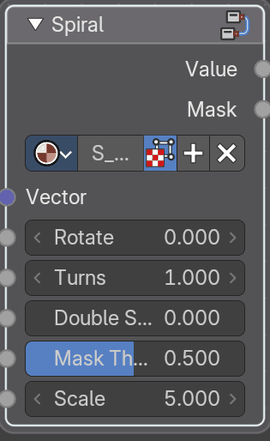
A spiral, with a smooth value and a sharp mask output.
Inputs
Vector
Data typeVector
Coordinates to use. Leave unconnected for automatic Object coordinates.
Rotate
Data typeFloat
Rotates the spiral around its center. Default: 0.
Turns
Data typeFloat
How many times the spiral winds around its center. Default: 1.
Double Spiral
Data typeFloat (factor)
Use two spiral arms instead of one. Default: 0.
Mask Threshold
Data typeFloat (factor)
Where the Mask output switches from black to white. Default: 0.5.
Scale
Data typeFloat
Overall size of the spiral. Default: 5.
Outputs
Value
Data typeFloat
Smooth ramp along the spiral arm.
Mask
Data typeFloat
Black and white spiral.
How to use
Connect a vector, for example the UV output of a Texture Coordinate node, to Vector. Set Turns to the number of windings and Rotate to turn the spiral. Double Spiral adds a second arm. Value is smooth and Mask is sharp, with Mask Threshold deciding how wide it is.
The asset with default values on a plane, with the UV coordinates of the plane mapped from -1.6 to 1.6 in X and -1 to 1 in Y:
Stripes
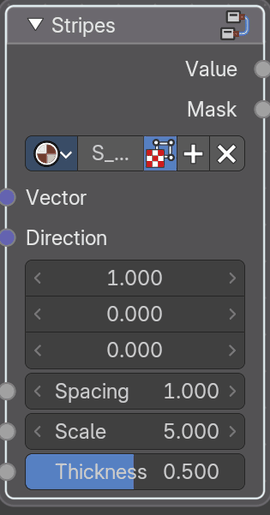
Stripes in any direction, with a smooth ramp and a sharp mask output.
Inputs
Vector
Data typeVector
Coordinates to use. Leave unconnected for automatic Object coordinates.
Direction
Data typeVector
Direction the stripes run across, as a vector. Only its direction matters. Default: (1, 0, 0).
Spacing
Data typeFloat
Distance between stripes. Default: 1.
Scale
Data typeFloat
Overall size of the pattern. Higher values give more, thinner stripes. Default: 5.
Thickness
Data typeFloat (factor)
Width of each stripe compared to the spacing. Default: 0.5.
Outputs
Value
Data typeFloat
Smooth ramp across each stripe, from 0 to 1.
Mask
Data typeFloat
Sharp black and white stripes.
How to use
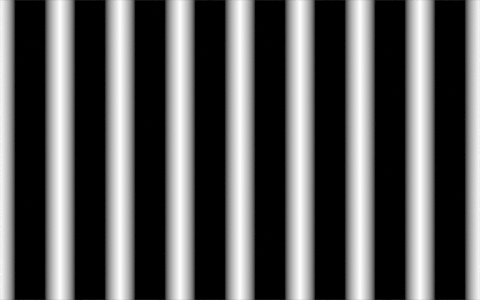
Connect a vector, for example the UV output of a Texture Coordinate node, to Vector. Set Direction to the angle of the stripes, Spacing to the distance between them and Thickness to their width. Value is a smooth ramp and Mask is the sharp stripe.
The asset with default values on a plane, with the UV coordinates of the plane mapped from -1.6 to 1.6 in X and -1 to 1 in Y:
Threads 1
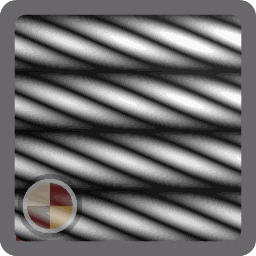
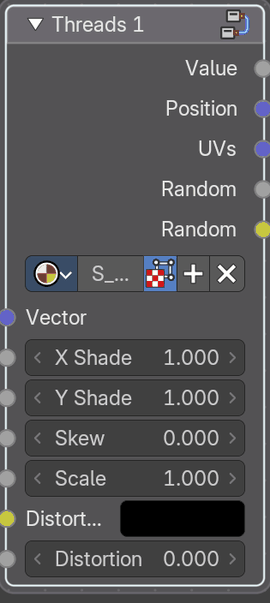
Woven thread pattern with shading, position, UV and random outputs.
Inputs
Vector
Data typeVector
Coordinates to use. Leave unconnected for automatic Object coordinates.
X Shade
Data typeFloat
Brightness of the threads running along X. Default: 1.
Y Shade
Data typeFloat
Brightness of the threads running along Y. Default: 1.
Skew
Data typeFloat
Slants the weave. Default: 0.
Scale
Data typeFloat
Overall size of the weave. Default: 1.
Distortion Map
Data typeColor
Color or vector used to warp the threads.
Distortion
Data typeFloat
How strongly the Distortion Map warps the threads. Default: 0.
Outputs
Value
Data typeFloat
Height of the threads.
Position
Data typeVector
Position of each thread.
UVs
Data typeVector
UV coordinates along each thread.
Random
Data typeFloat
Random color for each thread.
Random
Data typeColor
Random color for each thread.
How to use
Connect a vector, for example the UV output of a Texture Coordinate node, to Vector. A woven fabric pattern. X Shade and Y Shade set the brightness of the two thread directions, Skew shears the weave, Scale sets its size and Distortion with Distortion Map wobbles it. Value is the shading and Random gives each thread its own value.
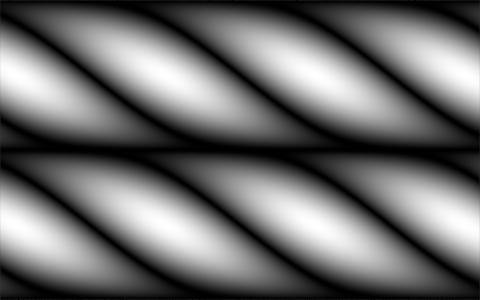
The asset with default values on a plane, with the UV coordinates of the plane mapped from -1.6 to 1.6 in X and -1 to 1 in Y:
Threads 2
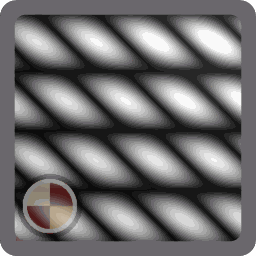
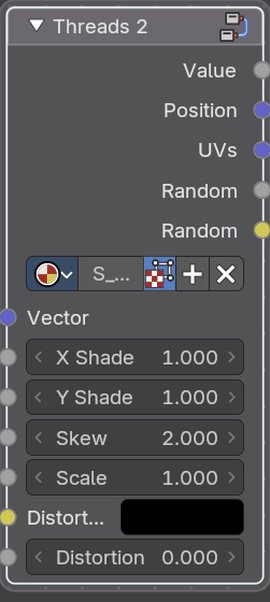
Woven thread pattern with shading, position, UV and random outputs.
Inputs
Vector
Data typeVector
Coordinates to use. Leave unconnected for automatic Object coordinates.
X Shade
Data typeFloat
Brightness of the threads running along X. Default: 1.
Y Shade
Data typeFloat
Brightness of the threads running along Y. Default: 1.
Skew
Data typeFloat
Slants the weave. Default: 2.
Scale
Data typeFloat
Overall size of the weave. Default: 1.
Distortion Map
Data typeColor
Color or vector used to warp the threads.
Distortion
Data typeFloat
How strongly the Distortion Map warps the threads. Default: 0.
Outputs
Value
Data typeFloat
Height of the threads.
Position
Data typeVector
Position of each thread.
UVs
Data typeVector
UV coordinates along each thread.
Random
Data typeFloat
Random color for each thread.
Random
Data typeColor
Random color for each thread.
How to use
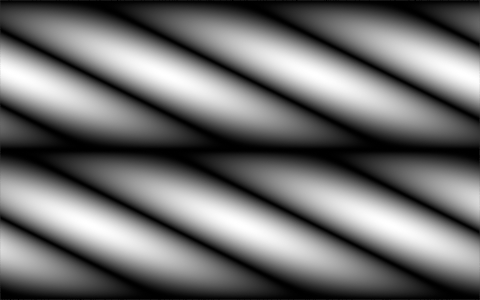
Connect a vector, for example the UV output of a Texture Coordinate node, to Vector. A woven fabric pattern. X Shade and Y Shade set the brightness of the two thread directions, Skew shears the weave, Scale sets its size and Distortion with Distortion Map wobbles it. Value is the shading and Random gives each thread its own value.
The asset with default values on a plane, with the UV coordinates of the plane mapped from -1.6 to 1.6 in X and -1 to 1 in Y:
Tileable Perlin 2D
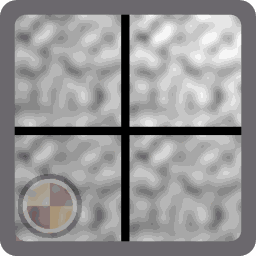
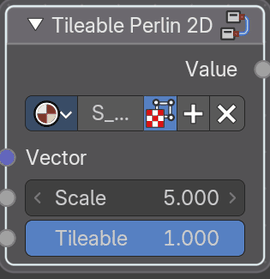
Perlin noise that can tile seamlessly.
Inputs
Vector
Data typeVector
Coordinates to use. Leave unconnected for automatic Object coordinates.
Scale
Data typeFloat
Size of the noise. Whole numbers are used when Tileable is on. Default: 5.
Tileable
Data typeFloat (factor)
Make the noise repeat seamlessly. Default: 1.
Outputs
Value
Data typeFloat
Noise value.
How to use
Connect a vector, for example the UV output of a Texture Coordinate node, to Vector. Set Scale for the size of the noise. With Tileable on, the pattern repeats without visible seams.
The asset with default values on a plane, with the UV coordinates of the plane mapped from -1.6 to 1.6 in X and -1 to 1 in Y:
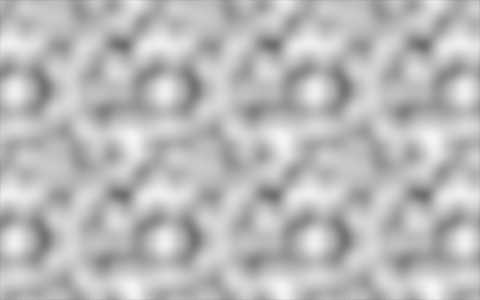
Tileable Voronoi 2D
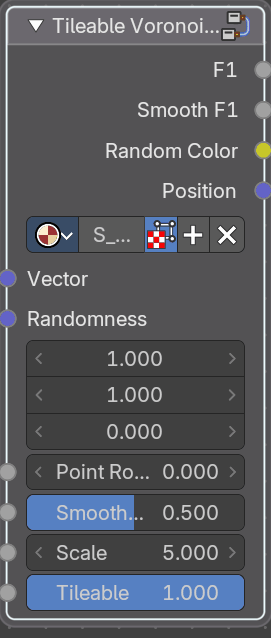
Voronoi cells that can tile seamlessly, with distance, color and position outputs.
Inputs
Vector
Data typeVector
Coordinates to use. Leave unconnected for automatic Object coordinates.
Randomness
Data typeVector
How far cell points can move from a regular grid, in X and Y. Default: (1, 1, 0).
Point Rotation
Data typeFloat
Rotates each cell point around its cell center. Animate it for a swirling effect. Default: 0.
Smoothness
Data typeFloat (factor)
How much Smooth F1 rounds off the edges between cells. 0 matches F1. Default: 0.5.
Scale
Data typeFloat
Number of cells across. Whole numbers are used when Tileable is on. Default: 5.
Tileable
Data typeFloat (factor)
Make the pattern repeat seamlessly. Default: 1.
Outputs
F1
Data typeFloat
Distance to the nearest cell point.
Smooth F1
Data typeFloat
Distance to the nearest cell point, with soft blending between cells.
Random Color
Data typeColor
Random color for each cell.
Position
Data typeVector
Position of the nearest cell point.
How to use
Connect a vector, for example the UV output of a Texture Coordinate node, to Vector. Set Scale to the number of cells. With Tileable on, the pattern repeats without visible seams, so it can be used as a texture tile. Randomness, Point Rotation and Smoothness shape the cells. F1 is the distance to the nearest point and Random Color gives each cell a color.
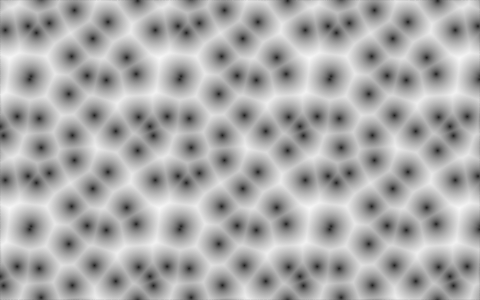
The asset with default values on a plane, with the UV coordinates of the plane mapped from -1.6 to 1.6 in X and -1 to 1 in Y:
Truchet
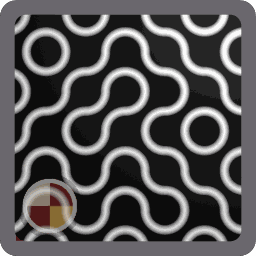
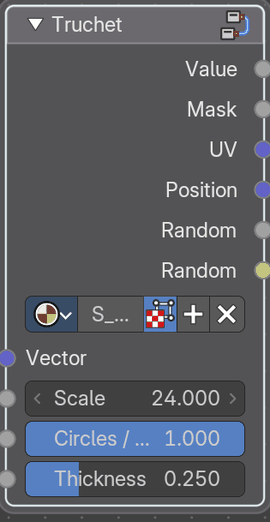
Randomly rotated tiles that join into winding curves or lines.
Inputs
Vector
Data typeVector
Coordinates to use. Leave unconnected for automatic Object coordinates.
Scale
Data typeFloat
Overall size of the pattern. Default: 5.
Circles / Lines
Data typeFloat (factor)
Use straight lines instead of curves. Default: 0.
Thickness
Data typeFloat (factor)
Thickness of the lines. Default: 0.25.
Outputs
Value
Data typeFloat
Smooth distance from the pattern.
Mask
Data typeFloat
Black and white pattern.
UV
Data typeVector
UV coordinates inside each tile.
Position
Data typeVector
Position of each tile.
Random
Data typeFloat
Random color for each tile.
Random
Data typeColor
Random color for each tile.
How to use
Connect a vector, for example the UV output of a Texture Coordinate node, to Vector. Set Scale to the size of the tiles and switch Circles / Lines to choose the curve style. Thickness sets the line width. Value is the pattern and Mask its sharp version.
The asset with default values on a plane, with the UV coordinates of the plane mapped from -1.6 to 1.6 in X and -1 to 1 in Y:

Texture / Shapes
Assets that draw a vector shape: curves, flowers, hearts and polygons. Value is the smooth shape and Mask is the sharp one.
Ampersand Curve


Draws a vector shape with controls. Value is the smooth shape and Mask the sharp one.
Inputs
Vector
Data typeVector
Coordinates to use. Leave unconnected for automatic Object coordinates.
Scale
Data typeFloat
The scale of the shape. Default: 2.
Outputs
Value
Data typeFloat
A gradient output of the shape.
Mask
Data typeFloat
A black and white mask of the shape.
How to use
A vector shape. Connect a vector, for example the UV output of a Texture Coordinate node, to Vector. Scale sets its size. Value is the smooth shape, Mask is the sharp version of it.
The asset with default values on a plane, with the UV coordinates of the plane mapped from -1.6 to 1.6 in X and -1 to 1 in Y:

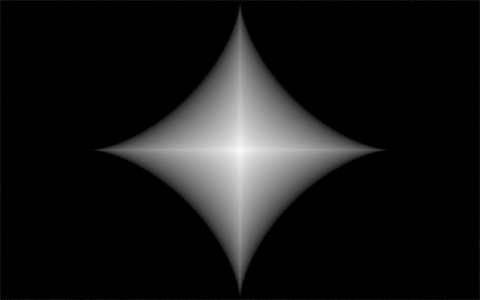
Astroid
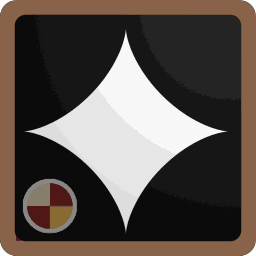
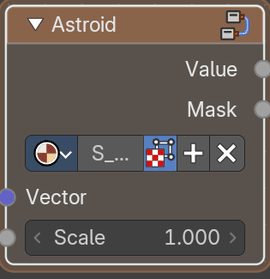
Draws a vector shape with controls. Value is the smooth shape and Mask the sharp one.
Inputs
Vector
Data typeVector
Coordinates to use. Leave unconnected for automatic Object coordinates.
Scale
Data typeFloat
The scale of the shape. Default: 1.
Outputs
Value
Data typeFloat
A gradient output of the shape.
Mask
Data typeFloat
A black and white mask of the shape.
How to use
A vector shape. Connect a vector, for example the UV output of a Texture Coordinate node, to Vector. Scale sets its size. Value is the smooth shape, Mask is the sharp version of it.
The asset with default values on a plane, with the UV coordinates of the plane mapped from -1.6 to 1.6 in X and -1 to 1 in Y:
Bean
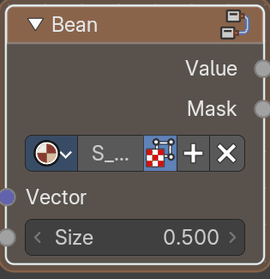
Draws a vector shape with controls. Value is the smooth shape and Mask the sharp one.
Inputs
Vector
Data typeVector
Coordinates to use. Leave unconnected for automatic Object coordinates.
Size
Data typeFloat
The scale of the shape. Default: 0.5.
Outputs
Value
Data typeFloat
A gradient output of the shape.
Mask
Data typeFloat
A black and white mask of the shape.
How to use
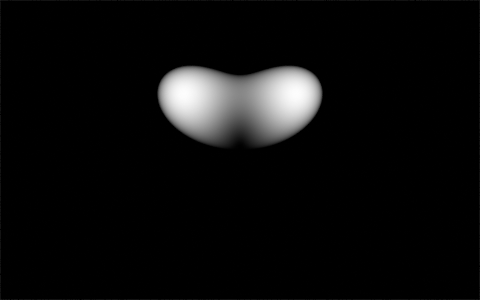
A vector shape. Connect a vector, for example the UV output of a Texture Coordinate node, to Vector. Size sets its size. Value is the smooth shape, Mask is the sharp version of it.
The asset with default values on a plane, with the UV coordinates of the plane mapped from -1.6 to 1.6 in X and -1 to 1 in Y:
Bicorn
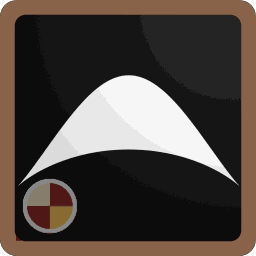
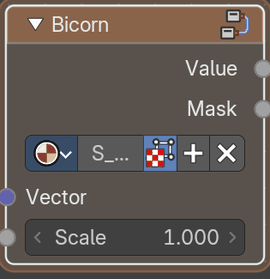
Draws a vector shape with controls. Value is the smooth shape and Mask the sharp one.
Inputs
Vector
Data typeVector
Coordinates to use. Leave unconnected for automatic Object coordinates.
Scale
Data typeFloat
The scale of the shape. Default: 1.
Outputs
Value
Data typeFloat
A gradient output of the shape.
Mask
Data typeFloat
A black and white mask of the shape.
How to use
A vector shape. Connect a vector, for example the UV output of a Texture Coordinate node, to Vector. Scale sets its size. Value is the smooth shape, Mask is the sharp version of it.
The asset with default values on a plane, with the UV coordinates of the plane mapped from -1.6 to 1.6 in X and -1 to 1 in Y:

Bicuspid Curve


Draws a vector shape with controls. Value is the smooth shape and Mask the sharp one.
Inputs
Vector
Data typeVector
Coordinates to use. Leave unconnected for automatic Object coordinates.
Scale
Data typeFloat
The scale of the shape. Default: 1.
Outputs
Value
Data typeFloat
A gradient output of the shape.
Mask
Data typeFloat
A black and white mask of the shape.
How to use
A vector shape. Connect a vector, for example the UV output of a Texture Coordinate node, to Vector. Scale sets its size. Value is the smooth shape, Mask is the sharp version of it.
The asset with default values on a plane, with the UV coordinates of the plane mapped from -1.6 to 1.6 in X and -1 to 1 in Y:

Boat Propeller
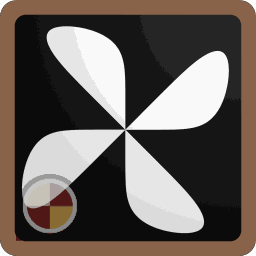
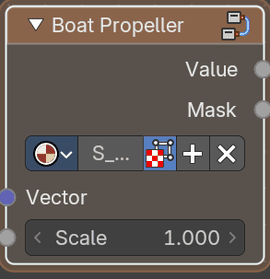
Draws a vector shape with controls. Value is the smooth shape and Mask the sharp one.
Inputs
Vector
Data typeVector
Coordinates to use. Leave unconnected for automatic Object coordinates.
Scale
Data typeFloat
The scale of the shape. Default: 1.
Outputs
Value
Data typeFloat
A gradient output of the shape.
Mask
Data typeFloat
A black and white mask of the shape.
How to use
A vector shape. Connect a vector, for example the UV output of a Texture Coordinate node, to Vector. Scale sets its size. Value is the smooth shape, Mask is the sharp version of it.
The asset with default values on a plane, with the UV coordinates of the plane mapped from -1.6 to 1.6 in X and -1 to 1 in Y:
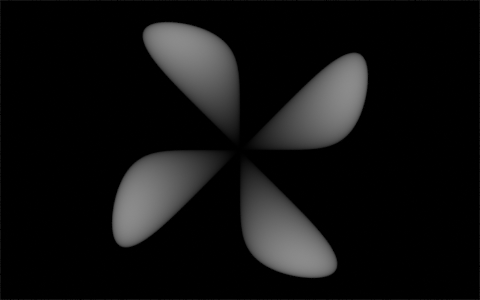
Brush Tip
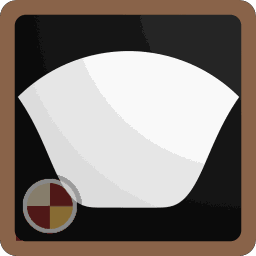
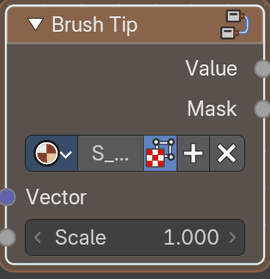
Draws a vector shape with controls. Value is the smooth shape and Mask the sharp one.
Inputs
Vector
Data typeVector
Coordinates to use. Leave unconnected for automatic Object coordinates.
Scale
Data typeFloat
The scale of the shape. Default: 1.
Outputs
Value
Data typeFloat
A gradient output of the shape.
Mask
Data typeFloat
A black and white mask of the shape.
How to use
A vector shape. Connect a vector, for example the UV output of a Texture Coordinate node, to Vector. Scale sets its size. Value is the smooth shape, Mask is the sharp version of it.
The asset with default values on a plane, with the UV coordinates of the plane mapped from -1.6 to 1.6 in X and -1 to 1 in Y:
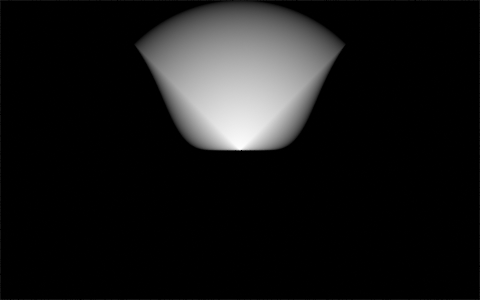
Bullet Nose
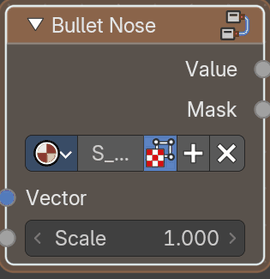
Draws a vector shape with controls. Value is the smooth shape and Mask the sharp one.
Inputs
Vector
Data typeVector
Coordinates to use. Leave unconnected for automatic Object coordinates.
Scale
Data typeFloat
The scale of the shape. Default: 1.
Outputs
Value
Data typeFloat
A gradient output of the shape.
Mask
Data typeFloat
A black and white mask of the shape.
How to use
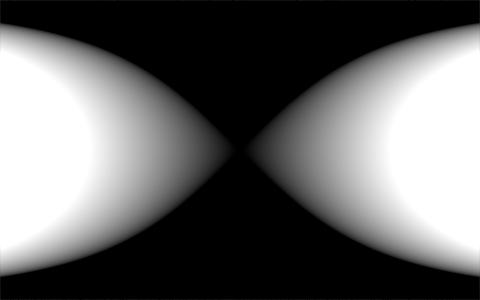
A vector shape. Connect a vector, for example the UV output of a Texture Coordinate node, to Vector. Scale sets its size. Value is the smooth shape, Mask is the sharp version of it.
The asset with default values on a plane, with the UV coordinates of the plane mapped from -1.6 to 1.6 in X and -1 to 1 in Y:
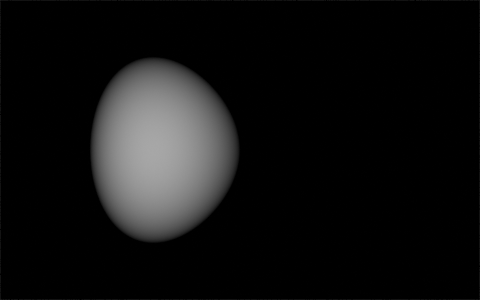
Burnside Curve
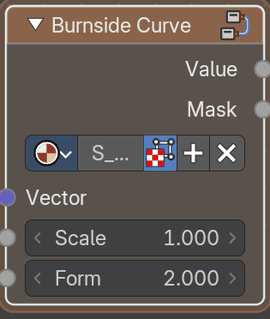
Draws a vector shape with controls. Value is the smooth shape and Mask the sharp one.
Inputs
Vector
Data typeVector
Coordinates to use. Leave unconnected for automatic Object coordinates.
Scale
Data typeFloat
The scale of the shape. Default: 1.
Form
Data typeFloat
Modifies the shape procedurally. Default: 2.
Outputs
Value
Data typeFloat
A gradient output of the shape.
Mask
Data typeFloat
A black and white mask of the shape.
How to use
A vector shape. Connect a vector, for example the UV output of a Texture Coordinate node, to Vector. Scale sets its size. Form changes the shape of the curve. Value is the smooth shape, Mask is the sharp version of it.
The asset with default values on a plane, with the UV coordinates of the plane mapped from -1.6 to 1.6 in X and -1 to 1 in Y:
Butterfly 1
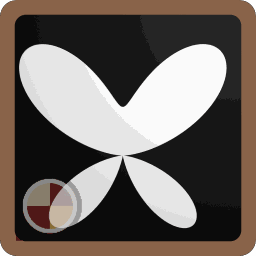
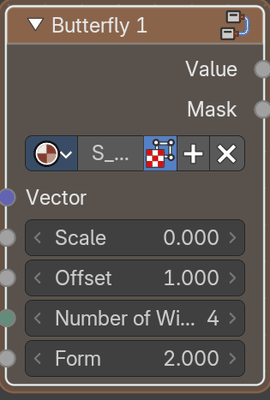
Draws a vector shape with controls. Value is the smooth shape and Mask the sharp one.
Inputs
Vector
Data typeVector
Coordinates to use. Leave unconnected for automatic Object coordinates.
Scale
Data typeFloat
The scale of the shape. Default: 3.
Offset
Data typeFloat
The offset of the shape. Default: 1.
Number of Wings
Data typeInteger
The number of wings the shape will have. Default: 4.
Form
Data typeFloat
Modifies the shape procedurallyModifies the shape procedurally. Default: 2.
Outputs
Value
Data typeFloat
A gradient output of the shape.
Mask
Data typeFloat
A black and white mask of the shape.
How to use
A vector shape. Connect a vector, for example the UV output of a Texture Coordinate node, to Vector. Scale sets its size. Offset moves it. Number of Wings sets the wings. Form changes the shape of the curve. Value is the smooth shape, Mask is the sharp version of it.
The asset with default values on a plane, with the UV coordinates of the plane mapped from -1.6 to 1.6 in X and -1 to 1 in Y:
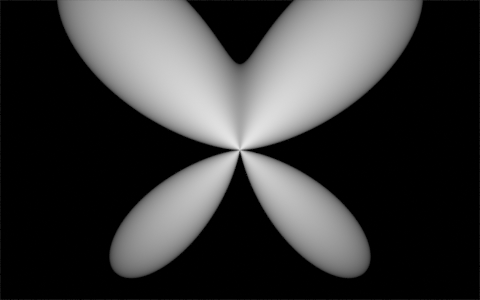
Butterfly 2
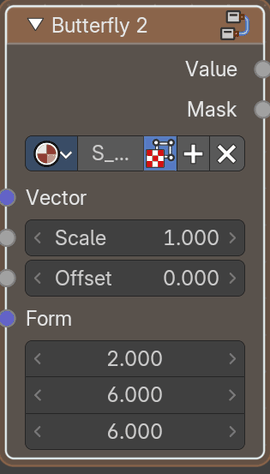
Draws a vector shape with controls. Value is the smooth shape and Mask the sharp one.
Inputs
Vector
Data typeVector
Coordinates to use. Leave unconnected for automatic Object coordinates.
Scale
Data typeFloat
The scale of the shape. Default: 1.
Offset
Data typeFloat
The offset of the shape. Default: 0.
Form
Data typeVector
Modifies the shape procedurallyModifies the shape procedurally. Default: (2, 6, 6).
Outputs
Value
Data typeFloat
A gradient output of the shape.
Mask
Data typeFloat
A black and white mask of the shape.
How to use
A vector shape. Connect a vector, for example the UV output of a Texture Coordinate node, to Vector. Scale sets its size. Offset moves it. Form changes the shape of the curve. Value is the smooth shape, Mask is the sharp version of it.
The asset with default values on a plane, with the UV coordinates of the plane mapped from -1.6 to 1.6 in X and -1 to 1 in Y:
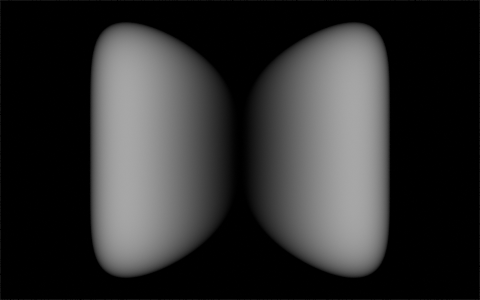
Capsule
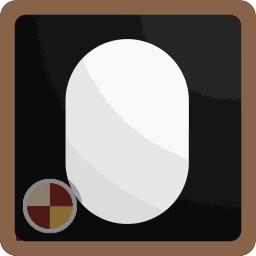
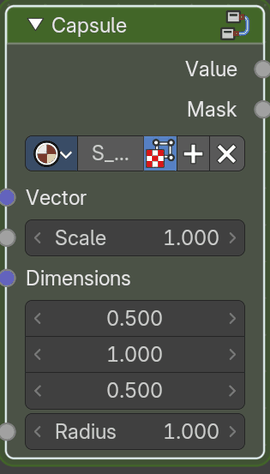
Draws a vector shape with controls. Value is the smooth shape and Mask the sharp one.
Inputs
Vector
Data typeVector
Coordinates to use. Leave unconnected for automatic Object coordinates.
Scale
Data typeFloat
The scale of the shape. Default: 1.
Dimensions
Data typeVector
Modifies the shape procedurallyModifies the shape procedurally. Default: (0.5, 1, 0.5).
Radius
Data typeFloat
The offset of the shape. Default: 0.5.
Outputs
Value
Data typeFloat
A gradient output of the shape.
Mask
Data typeFloat
A black and white mask of the shape.
How to use
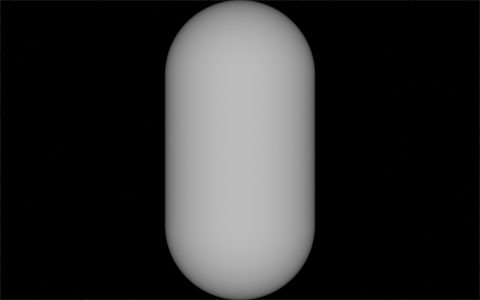
A vector shape. Connect a vector, for example the UV output of a Texture Coordinate node, to Vector. Scale sets its size. Dimensions set its width and height. Radius sets its roundness. Value is the smooth shape, Mask is the sharp version of it.
The asset with default values on a plane, with the UV coordinates of the plane mapped from -1.6 to 1.6 in X and -1 to 1 in Y:
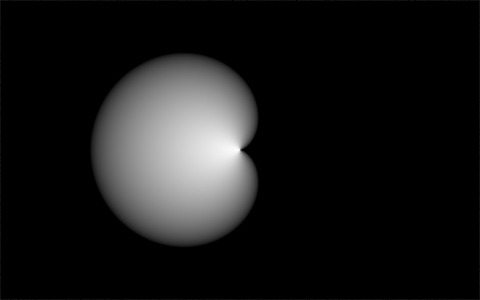
Cardioid
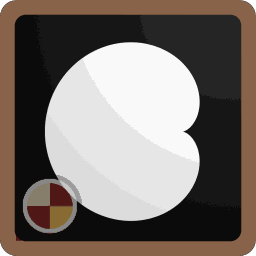
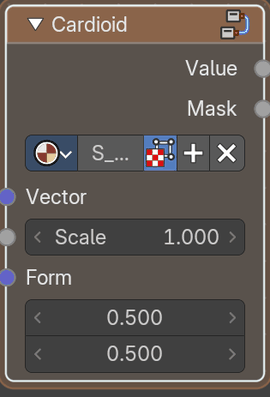
Draws a vector shape with controls. Value is the smooth shape and Mask the sharp one.
Inputs
Vector
Data typeVector
Coordinates to use. Leave unconnected for automatic Object coordinates.
Scale
Data typeFloat
The scale of the shape. Default: 1.
Form
Data typeVector
Modifies the shape procedurallyModifies the shape procedurally. Default: (0.5, 0.5).
Outputs
Value
Data typeFloat
A gradient output of the shape.
Mask
Data typeFloat
A black and white mask of the shape.
How to use
A vector shape. Connect a vector, for example the UV output of a Texture Coordinate node, to Vector. Scale sets its size. Form changes the shape of the curve. Value is the smooth shape, Mask is the sharp version of it.
The asset with default values on a plane, with the UV coordinates of the plane mapped from -1.6 to 1.6 in X and -1 to 1 in Y:
Circumcircle
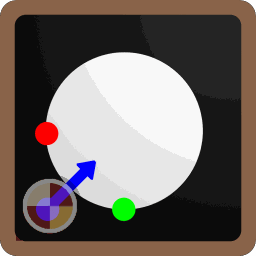
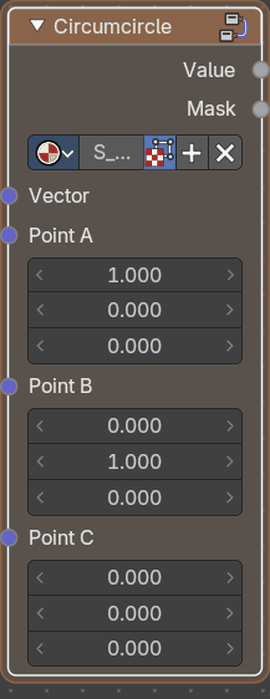
Draws a vector shape with controls. Value is the smooth shape and Mask the sharp one.
Inputs
Vector
Data typeVector
Coordinates to use. Leave unconnected for automatic Object coordinates.
Point A
Data typeVector
Vector of point A, modifies the shape procedurally. Default: (1, 0, 0).
Point B
Data typeVector
Vector of point B, modifies the shape procedurally. Default: (0, 1, 0).
Point C
Data typeVector
Vector of point B, modifies the shape procedurally.
Outputs
Value
Data typeFloat
A gradient output of the shape.
Mask
Data typeFloat
A black and white mask of the shape.
How to use
A vector shape. Connect a vector, for example the UV output of a Texture Coordinate node, to Vector. Point A, Point B and Point C set the corners. Value is the smooth shape, Mask is the sharp version of it.
The asset with default values on a plane, with the UV coordinates of the plane mapped from -1.6 to 1.6 in X and -1 to 1 in Y:
Dumbbell Curve
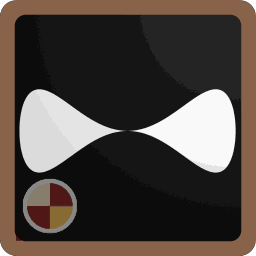

Draws a vector shape with controls. Value is the smooth shape and Mask the sharp one.
Inputs
Vector
Data typeVector
Coordinates to use. Leave unconnected for automatic Object coordinates.
Scale
Data typeFloat
The scale of the shape. Default: 1.
Form
Data typeFloat
Modifies the shape procedurally. Default: 1.
Outputs
Value
Data typeFloat
A gradient output of the shape.
Mask
Data typeFloat
A black and white mask of the shape.
How to use
A vector shape. Connect a vector, for example the UV output of a Texture Coordinate node, to Vector. Scale sets its size. Form changes the shape of the curve. Value is the smooth shape, Mask is the sharp version of it.
The asset with default values on a plane, with the UV coordinates of the plane mapped from -1.6 to 1.6 in X and -1 to 1 in Y:

Ellipsoid
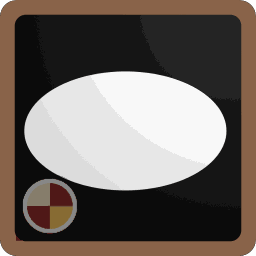
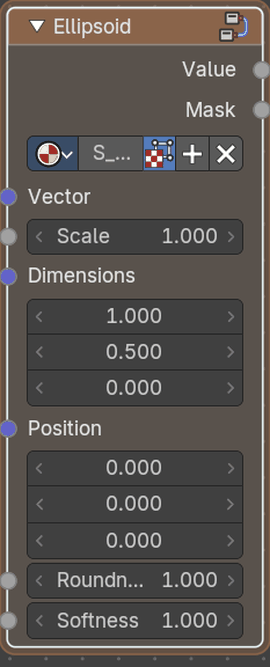
Draws a vector shape with controls. Value is the smooth shape and Mask the sharp one.
Inputs
Vector
Data typeVector
Coordinates to use. Leave unconnected for automatic Object coordinates.
Scale
Data typeFloat
The scale of the shape. Default: 1.
Dimensions
Data typeVector
The Dimensions of the shape. Default: (1, 0.5, 0).
Position
Data typeVector
The position of the shape.
Roundness
Data typeFloat
The rounndness order of the shape. Default: 1.
Softness
Data typeFloat
The rounndness order of the shape. Default: 1.
Outputs
Value
Data typeFloat
A gradient output of the shape.
Mask
Data typeFloat
A black and white mask of the shape.
How to use
A vector shape. Connect a vector, for example the UV output of a Texture Coordinate node, to Vector. Scale sets its size. Dimensions set its width and height. Position moves it. Roundness rounds the corners. Softness blurs its edge. Value is the smooth shape, Mask is the sharp version of it.
The asset with default values on a plane, with the UV coordinates of the plane mapped from -1.6 to 1.6 in X and -1 to 1 in Y:
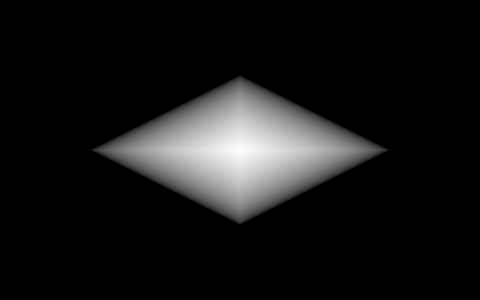
Epispiral
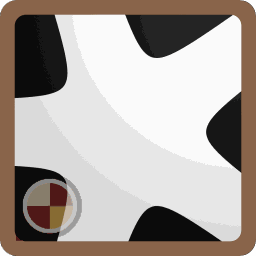
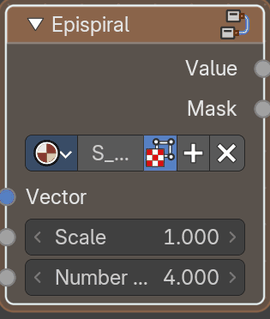
Draws a vector shape with controls. Value is the smooth shape and Mask the sharp one.
Inputs
Vector
Data typeVector
Coordinates to use. Leave unconnected for automatic Object coordinates.
Scale
Data typeFloat
The scale of the shape. Default: 1.
Number of lines
Data typeFloat
Modifies the shape procedurally. Default: 4.
Outputs
Value
Data typeFloat
A gradient output of the shape.
Mask
Data typeFloat
A black and white mask of the shape.
How to use
A vector shape. Connect a vector, for example the UV output of a Texture Coordinate node, to Vector. Scale sets its size. Number of lines sets how many lines it draws. Value is the smooth shape, Mask is the sharp version of it.
The asset with default values on a plane, with the UV coordinates of the plane mapped from -1.6 to 1.6 in X and -1 to 1 in Y:

Equilateral Triangle
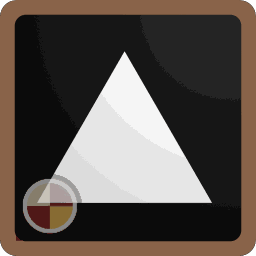
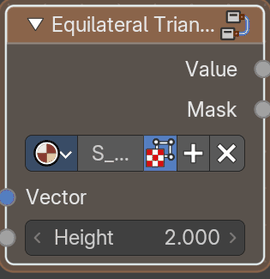
Draws a vector shape with controls. Value is the smooth shape and Mask the sharp one.
Inputs
Vector
Data typeVector
Coordinates to use. Leave unconnected for automatic Object coordinates.
Height
Data typeFloat
The scale/height of the shape. Default: 1.
Outputs
Value
Data typeFloat
A gradient output of the shape.
Mask
Data typeFloat
A black and white mask of the shape.
How to use
A vector shape. Connect a vector, for example the UV output of a Texture Coordinate node, to Vector. Height sets its size. Value is the smooth shape, Mask is the sharp version of it.
The asset with default values on a plane, with the UV coordinates of the plane mapped from -1.6 to 1.6 in X and -1 to 1 in Y:
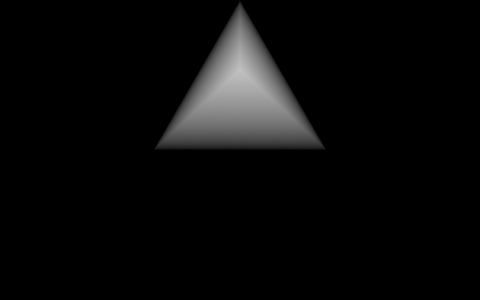
Figure Eight
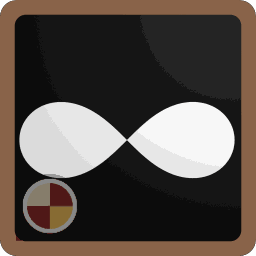
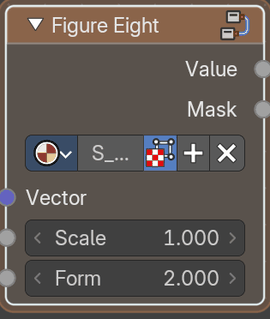
Draws a vector shape with controls. Value is the smooth shape and Mask the sharp one.
Inputs
Vector
Data typeVector
Coordinates to use. Leave unconnected for automatic Object coordinates.
Scale
Data typeFloat
The scale of the shape. Default: 1.
Form
Data typeFloat
Modifies the shape procedurally. Default: 2.
Outputs
Value
Data typeFloat
A gradient output of the shape.
Mask
Data typeFloat
A black and white mask of the shape.
How to use
A vector shape. Connect a vector, for example the UV output of a Texture Coordinate node, to Vector. Scale sets its size. Form changes the shape of the curve. Value is the smooth shape, Mask is the sharp version of it.
The asset with default values on a plane, with the UV coordinates of the plane mapped from -1.6 to 1.6 in X and -1 to 1 in Y:
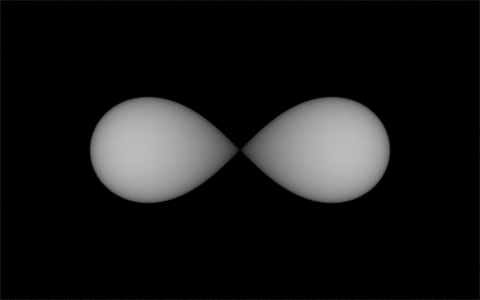
Habenicht Trefoil


Draws a vector shape with controls. Value is the smooth shape and Mask the sharp one.
Inputs
Vector
Data typeVector
Coordinates to use. Leave unconnected for automatic Object coordinates.
Scale
Data typeFloat
The scale of the shape. Default: 1.
Form
Data typeVector
Modifies the shape procedurallyModifies the shape procedurally. Default: (3, 2, 0.25).
Outputs
Value
Data typeFloat
A gradient output of the shape.
Mask
Data typeFloat
A black and white mask of the shape.
How to use
A vector shape. Connect a vector, for example the UV output of a Texture Coordinate node, to Vector. Scale sets its size. Form changes the shape of the curve. Value is the smooth shape, Mask is the sharp version of it.
The asset with default values on a plane, with the UV coordinates of the plane mapped from -1.6 to 1.6 in X and -1 to 1 in Y:

Heart 1
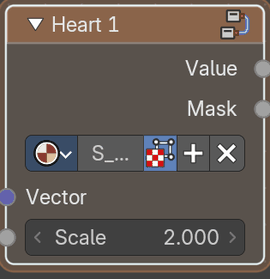
Draws a vector shape with controls. Value is the smooth shape and Mask the sharp one.
Inputs
Vector
Data typeVector
Coordinates to use. Leave unconnected for automatic Object coordinates.
Scale
Data typeFloat
The scale of the shape. Default: 2.
Outputs
Value
Data typeFloat
A gradient output of the shape.
Mask
Data typeFloat
A black and white mask of the shape.
How to use
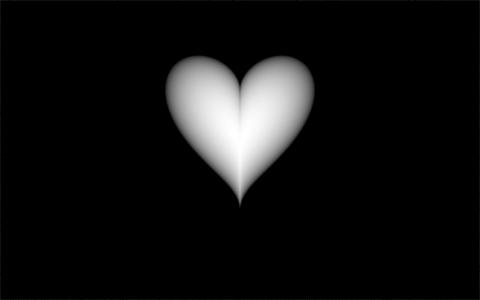
A vector shape. Connect a vector, for example the UV output of a Texture Coordinate node, to Vector. Scale sets its size. Value is the smooth shape, Mask is the sharp version of it.
The asset with default values on a plane, with the UV coordinates of the plane mapped from -1.6 to 1.6 in X and -1 to 1 in Y:
Heart 2
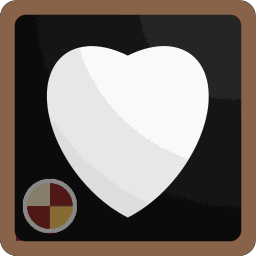
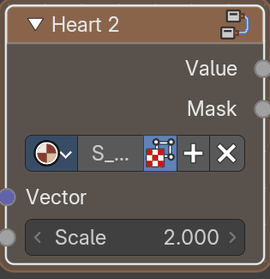
Draws a vector shape with controls. Value is the smooth shape and Mask the sharp one.
Inputs
Vector
Data typeVector
Coordinates to use. Leave unconnected for automatic Object coordinates.
Scale
Data typeFloat
The scale of the shape. Default: 2.
Outputs
Value
Data typeFloat
A gradient output of the shape.
Mask
Data typeFloat
A black and white mask of the shape.
How to use
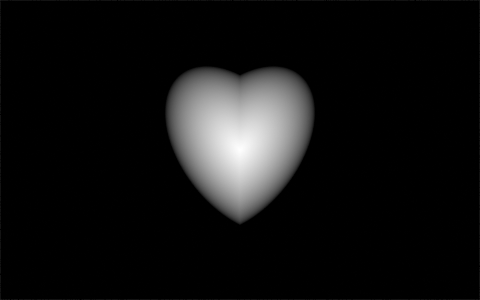
A vector shape. Connect a vector, for example the UV output of a Texture Coordinate node, to Vector. Scale sets its size. Value is the smooth shape, Mask is the sharp version of it.
The asset with default values on a plane, with the UV coordinates of the plane mapped from -1.6 to 1.6 in X and -1 to 1 in Y:
Heart 3
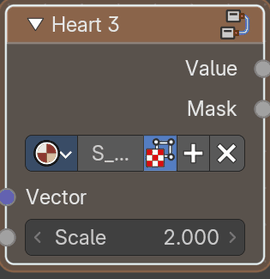
Draws a vector shape with controls. Value is the smooth shape and Mask the sharp one.
Inputs
Vector
Data typeVector
Coordinates to use. Leave unconnected for automatic Object coordinates.
Scale
Data typeFloat
The scale of the shape. Default: 2.
Outputs
Value
Data typeFloat
A gradient output of the shape.
Mask
Data typeFloat
A black and white mask of the shape.
How to use
A vector shape. Connect a vector, for example the UV output of a Texture Coordinate node, to Vector. Scale sets its size. Value is the smooth shape, Mask is the sharp version of it.
The asset with default values on a plane, with the UV coordinates of the plane mapped from -1.6 to 1.6 in X and -1 to 1 in Y:

Hexagon
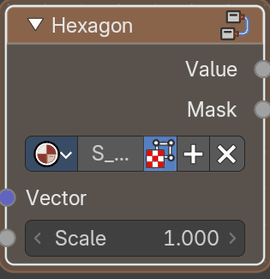
Draws a vector shape with controls. Value is the smooth shape and Mask the sharp one.
Inputs
Vector
Data typeVector
Coordinates to use. Leave unconnected for automatic Object coordinates.
Scale
Data typeFloat
The scale of the shape. Default: 1.
Outputs
Value
Data typeFloat
A gradient output of the shape.
Mask
Data typeFloat
A black and white mask of the shape.
How to use
A vector shape. Connect a vector, for example the UV output of a Texture Coordinate node, to Vector. Scale sets its size. Value is the smooth shape, Mask is the sharp version of it.
The asset with default values on a plane, with the UV coordinates of the plane mapped from -1.6 to 1.6 in X and -1 to 1 in Y:
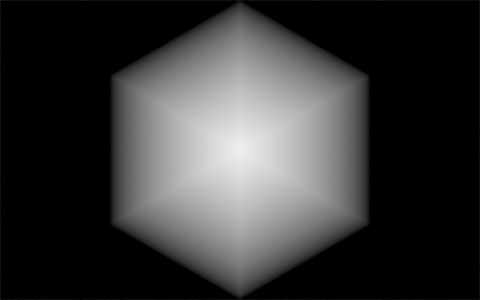
Links Curve
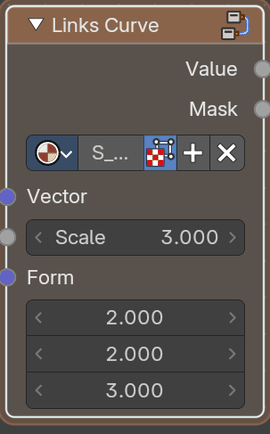
Draws a vector shape with controls. Value is the smooth shape and Mask the sharp one.
Inputs
Vector
Data typeVector
Coordinates to use. Leave unconnected for automatic Object coordinates.
Scale
Data typeFloat
The scale of the shape. Default: 3.
Form
Data typeVector
Modifies the shape procedurallyModifies the shape procedurally. Default: (2, 2, 3).
Outputs
Value
Data typeFloat
A gradient output of the shape.
Mask
Data typeFloat
A black and white mask of the shape.
How to use
A vector shape. Connect a vector, for example the UV output of a Texture Coordinate node, to Vector. Scale sets its size. Form changes the shape of the curve. Value is the smooth shape, Mask is the sharp version of it.
The asset with default values on a plane, with the UV coordinates of the plane mapped from -1.6 to 1.6 in X and -1 to 1 in Y:

Petal 2
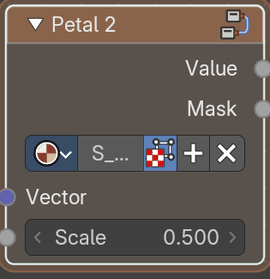
Draws a vector shape with controls. Value is the smooth shape and Mask the sharp one.
Inputs
Vector
Data typeVector
Coordinates to use. Leave unconnected for automatic Object coordinates.
Scale
Data typeFloat
The scale of the shape. Default: 0.75.
Outputs
Value
Data typeFloat
A gradient output of the shape.
Mask
Data typeFloat
A black and white mask of the shape.
How to use
A vector shape. Connect a vector, for example the UV output of a Texture Coordinate node, to Vector. Scale sets its size. Value is the smooth shape, Mask is the sharp version of it.
The asset with default values on a plane, with the UV coordinates of the plane mapped from -1.6 to 1.6 in X and -1 to 1 in Y:

Petal 4
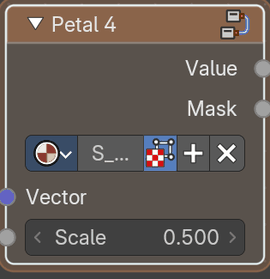
Draws a vector shape with controls. Value is the smooth shape and Mask the sharp one.
Inputs
Vector
Data typeVector
Coordinates to use. Leave unconnected for automatic Object coordinates.
Scale
Data typeFloat
The scale of the shape. Default: 0.5.
Outputs
Value
Data typeFloat
A gradient output of the shape.
Mask
Data typeFloat
A black and white mask of the shape.
How to use
A vector shape. Connect a vector, for example the UV output of a Texture Coordinate node, to Vector. Scale sets its size. Value is the smooth shape, Mask is the sharp version of it.
The asset with default values on a plane, with the UV coordinates of the plane mapped from -1.6 to 1.6 in X and -1 to 1 in Y:
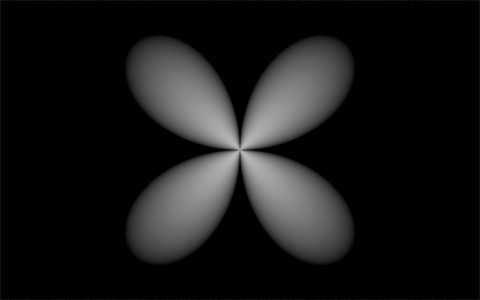
Regular Polygon
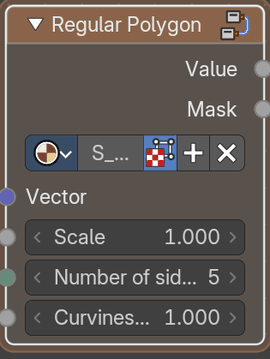
Draws a vector shape with controls. Value is the smooth shape and Mask the sharp one.
Inputs
Vector
Data typeVector
Coordinates to use. Leave unconnected for automatic Object coordinates.
Scale
Data typeFloat
The scale of the shape. Default: 1.
Number of sides
Data typeInteger
The number of sides of the shape. Default: 5.
Curviness Exponent
Data typeFloat
The edge curviness exponent of the shape. Default: 1.
Outputs
Value
Data typeFloat
A gradient output of the shape.
Mask
Data typeFloat
A black and white mask of the shape.
How to use
A vector shape. Connect a vector, for example the UV output of a Texture Coordinate node, to Vector. Scale sets its size. Number of sides sets the corners. Curviness Exponent rounds the sides. Value is the smooth shape, Mask is the sharp version of it.
The asset with default values on a plane, with the UV coordinates of the plane mapped from -1.6 to 1.6 in X and -1 to 1 in Y:
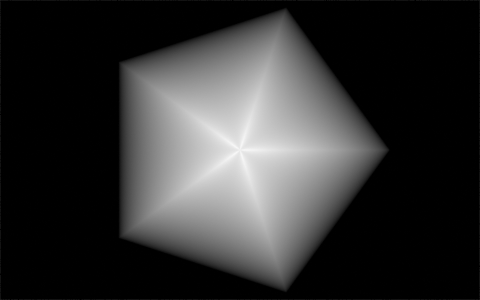
Ring
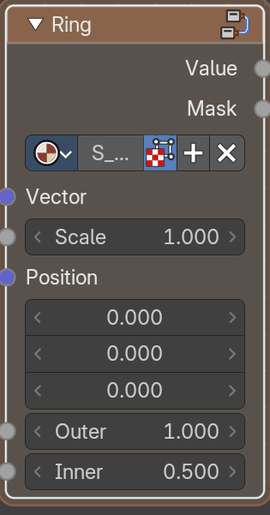
Draws a vector shape with controls. Value is the smooth shape and Mask the sharp one.
Inputs
Vector
Data typeVector
Coordinates to use. Leave unconnected for automatic Object coordinates.
Scale
Data typeFloat
The scale of the shape. Default: 1.
Position
Data typeVector
The position of the shape.
Outer
Data typeFloat
The outer edge of the shape. Default: 1.
Inner
Data typeFloat
The inner edge of the shape. Default: 0.5.
Outputs
Value
Data typeFloat
A gradient output of the shape.
Mask
Data typeFloat
A black and white mask of the shape.
How to use
A vector shape. Connect a vector, for example the UV output of a Texture Coordinate node, to Vector. Scale sets its size. Position moves it. Outer and Inner set the two radii. Value is the smooth shape, Mask is the sharp version of it.
The asset with default values on a plane, with the UV coordinates of the plane mapped from -1.6 to 1.6 in X and -1 to 1 in Y:
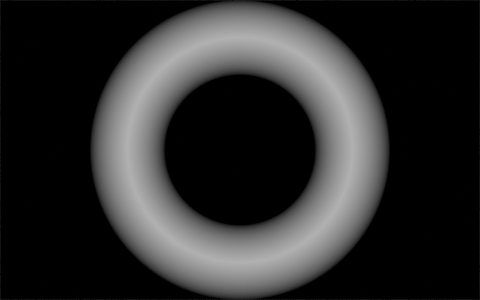
Rose
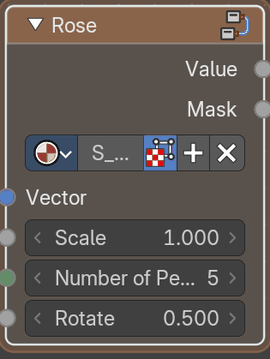
Draws a vector shape with controls. Value is the smooth shape and Mask the sharp one.
Inputs
Vector
Data typeVector
Coordinates to use. Leave unconnected for automatic Object coordinates.
Scale
Data typeFloat
The scale of the shape. Default: 1.
Number of Petals
Data typeInteger
The offset of the shape. Default: 5.
Rotate
Data typeFloat
Rotates the shape. Default: 0.
Outputs
Value
Data typeFloat
A gradient output of the shape.
Mask
Data typeFloat
A black and white mask of the shape.
How to use
A vector shape. Connect a vector, for example the UV output of a Texture Coordinate node, to Vector. Scale sets its size. Number of Petals sets how many petals it has. Rotate turns it. Value is the smooth shape, Mask is the sharp version of it.
The asset with default values on a plane, with the UV coordinates of the plane mapped from -1.6 to 1.6 in X and -1 to 1 in Y:
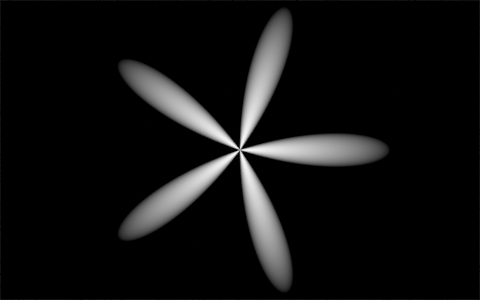
Rounded Rectangle
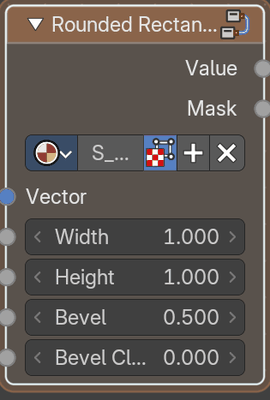
Draws a vector shape with controls. Value is the smooth shape and Mask the sharp one.
Inputs
Vector
Data typeVector
Coordinates to use. Leave unconnected for automatic Object coordinates.
Width
Data typeFloat
The width of the shape. Default: 1.
Height
Data typeFloat
The height of the shape. Default: 1.
Bevel
Data typeFloat
The bevel of the shape. Default: 0.5.
Bevel Clamp
Data typeFloat
The bevel clamp of the shape. Default: 0.
Outputs
Value
Data typeFloat
A gradient output of the shape.
Mask
Data typeFloat
A black and white mask of the shape.
How to use
A vector shape. Connect a vector, for example the UV output of a Texture Coordinate node, to Vector. Width and Height set its size. Height sets its size. Bevel rounds the corners. Value is the smooth shape, Mask is the sharp version of it.
The asset with default values on a plane, with the UV coordinates of the plane mapped from -1.6 to 1.6 in X and -1 to 1 in Y:
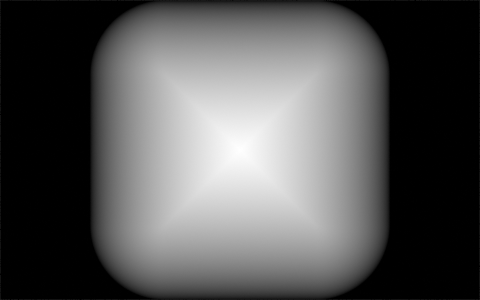
Sphere-Circle
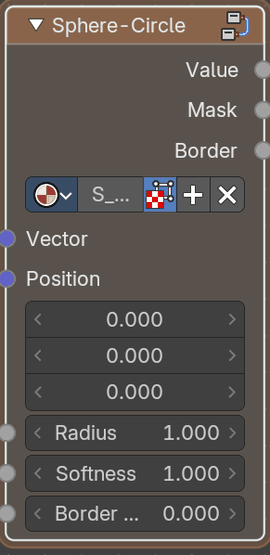
Draws a vector shape with controls. Value is the smooth shape and Mask the sharp one.
Inputs
Vector
Data typeVector
Coordinates to use. Leave unconnected for automatic Object coordinates.
Position
Data typeVector
The position of the shape.
Radius
Data typeFloat
The radius of the shape. Default: 1.
Softness
Data typeFloat
The softness of the shape. Default: 1.
Border Thickness
Data typeFloat
The border thickness of the shape. Default: 0.
Outputs
Value
Data typeFloat
A gradient output of the shape.
Mask
Data typeFloat
A black and white mask of the shape.
Border
Data typeFloat
The border of the shape.
How to use
A vector shape. Connect a vector, for example the UV output of a Texture Coordinate node, to Vector. Position moves it. Radius sets its roundness. Softness blurs its edge. Border Thickness sets the width of the border. Value is the smooth shape, Mask is the sharp version of it.
The asset with default values on a plane, with the UV coordinates of the plane mapped from -1.6 to 1.6 in X and -1 to 1 in Y:
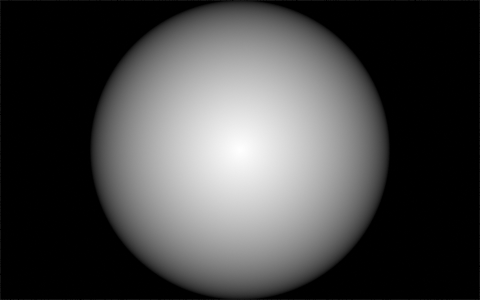
Superellipse
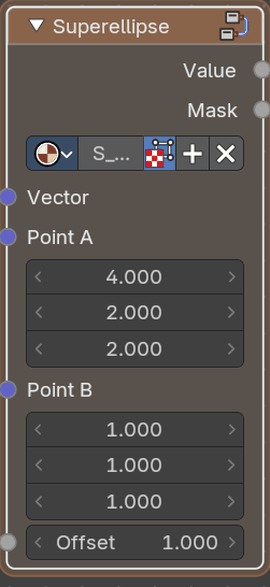
Draws a vector shape with controls. Value is the smooth shape and Mask the sharp one.
Inputs
Vector
Data typeVector
Coordinates to use. Leave unconnected for automatic Object coordinates.
Point A
Data typeVector
The Dimensions of the shape. Default: (4, 2, 2).
Point B
Data typeVector
The position of the shape. Default: (1, 1, 1).
Offset
Data typeFloat
The rounndness order of the shape. Default: 1.
Outputs
Value
Data typeFloat
A gradient output of the shape.
Mask
Data typeFloat
A black and white mask of the shape.
How to use
A vector shape. Connect a vector, for example the UV output of a Texture Coordinate node, to Vector. Point A, Point B and Point C set the corners. Offset moves it. Value is the smooth shape, Mask is the sharp version of it.
The asset with default values on a plane, with the UV coordinates of the plane mapped from -1.6 to 1.6 in X and -1 to 1 in Y:
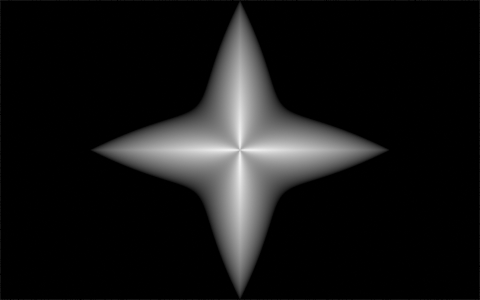
Triangle
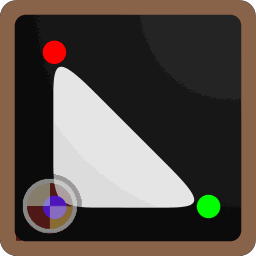
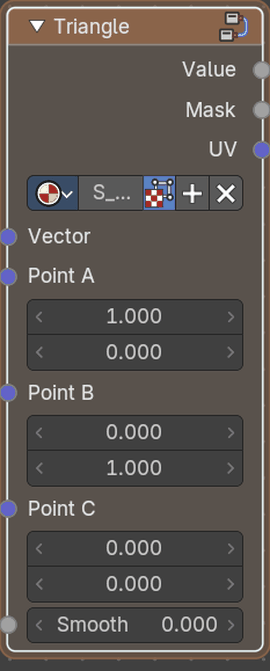
Draws a vector shape with controls. Value is the smooth shape and Mask the sharp one.
Inputs
Vector
Data typeVector
Coordinates to use. Leave unconnected for automatic Object coordinates.
Point A
Data typeVector
Vector of point A, modifies the shape procedurally. Default: (1, 0).
Point B
Data typeVector
Vector of point B, modifies the shape procedurally. Default: (0, 1).
Point C
Data typeVector
Vector of point C, modifies the shape procedurally.
Smooth
Data typeFloat
The smoothness/roundness of the shape. Default: 0.
Outputs
Value
Data typeFloat
A gradient output of the shape.
Mask
Data typeFloat
A black and white mask of the shape.
UV
Data typeVector
Outputs the UV of the shape.
How to use
A vector shape. Connect a vector, for example the UV output of a Texture Coordinate node, to Vector. Point A, Point B and Point C set the corners. Smooth softens the edge. Value is the smooth shape, Mask is the sharp version of it.
The asset with default values on a plane, with the UV coordinates of the plane mapped from -1.6 to 1.6 in X and -1 to 1 in Y:
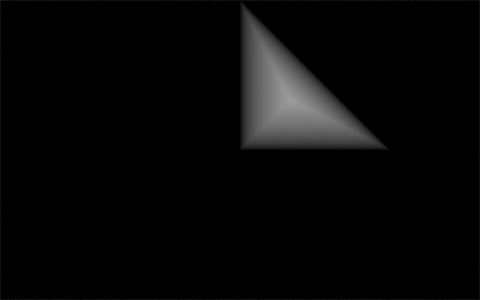
Utilities
Small helper assets for colors, masks, normal maps and spaces.
Channel Invert
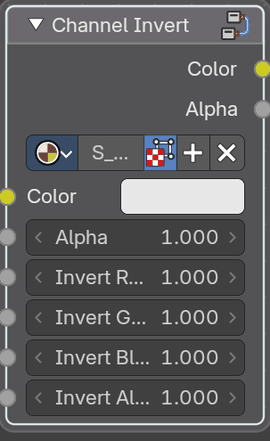
Inverts the red, green, blue and alpha channels separately.
Inputs
Color
Data typeColor
Color to change.
Alpha
Data typeFloat
Alpha to change. Default: 1.
Invert Red
Data typeFloat
How much to invert red. Default: 1.
Invert Green
Data typeFloat
How much to invert green. Default: 1.
Invert Blue
Data typeFloat
How much to invert blue. Default: 1.
Invert Alpha
Data typeFloat
How much to invert alpha. Default: 1.
Outputs
Color
Data typeColor
The result.
Alpha
Data typeFloat
The resulting alpha.
How to use
Connect a color to Color and an alpha to Alpha. Switch on Invert Red, Invert Green, Invert Blue or Invert Alpha to invert only that channel. In the slider Invert Red is on.
Color Boolean
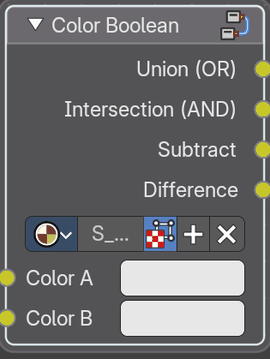
Combines two colors per channel with union, intersection, subtract and difference.
Inputs
Color A
Data typeColor
First color.
Color B
Data typeColor
Second color.
Outputs
Union (OR)
Data typeColor
Brightest of the two, per channel.
Intersection (AND)
Data typeColor
Darkest of the two, per channel.
Subtract
Data typeColor
Color A with Color B removed.
Difference
Data typeColor
Where the two colors differ.
How to use
Connect two colors to Color A and Color B. The four outputs combine them per channel like boolean operations: Union (OR), Intersection (AND), Subtract and Difference.
Combine CMYK

Builds a color from cyan, magenta, yellow and black.
Inputs
C
Data typeFloat (factor)
Amount of cyan. Default: 0.
M
Data typeFloat (factor)
Amount of magenta. Default: 0.
Y
Data typeFloat (factor)
Amount of yellow. Default: 0.
K
Data typeFloat (factor)
Amount of black. Default: 0.
Outputs
Color
Data typeColor
The combined color.
How to use
Connect values to C, M, Y and K. Color is the color that these four print inks make. It is the opposite of Separate CMYK.
Compare Color
Creates a mask from how closely two colors match.
Inputs
Base Color
Data typeColor
Color or image to test.
Comparison Color
Data typeColor
Color to match against.
Threshold
Data typeFloat (factor)
How close colors must be to count as a match. Default: 0.5.
Contrast
Data typeFloat (factor)
Sharpness of the mask edge. Default: 1.
Outputs
Value
Data typeFloat
White where the colors match.
How to use
Connect two colors to Base Color and Comparison Color. The output is white where they match closely and black where they differ. Threshold sets how close counts as a match and Contrast sharpens the mask. Use it to pick a color out of an image.
Float Boolean
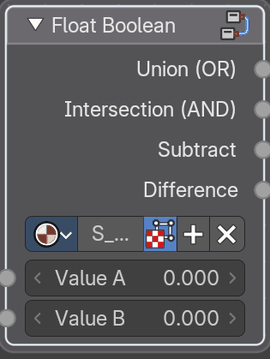
Combines two masks with union, intersection, subtract and difference.
Inputs
Value A
Data typeFloat
First mask. Default: 0.
Value B
Data typeFloat
Second mask. Default: 0.
Outputs
Union (OR)
Data typeFloat
White where either mask is white.
Intersection (AND)
Data typeFloat
White where both masks are white.
Subtract
Data typeFloat
Value A with Value B removed.
Difference
Data typeFloat
White where only one mask is white.
How to use
Connect two masks to Value A and Value B. The four outputs combine them like boolean operations: Union (OR) adds them, Intersection (AND) keeps what both share, Subtract removes B from A and Difference keeps what only one of them has.
Image Edge Detection
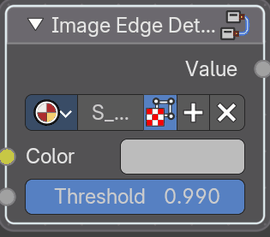
Finds edges in a color or an image.
Inputs
Color
Data typeColor
A color input.
Threshold
Data typeFloat (factor)
The threshold of the line detection. Default: 0.99.
Outputs
Value
Data typeFloat
A float output.
How to use
Connect a color to Color. Threshold sets how big a change must be to count as an edge. Value is white on the edges.
Landscape Slope Factor
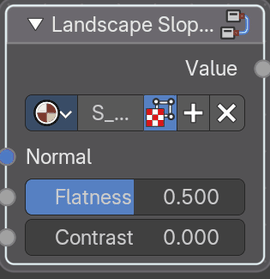
Makes a mask from how steep a surface is.
Inputs
Normal
Data typeVector
Addtional normal map input, default direction is to the Z normals of the object.
Flatness
Data typeFloat (factor)
The flatness of the shelves to drive the side masks. Default: 0.5.
Contrast
Data typeFloat (factor)
The contrast of the value output. Default: 0.
Outputs
Value
Data typeFloat
Smooth value of the pattern.
How to use
Connect a normal to Normal. Flatness sets which angle counts as flat and Contrast sharpens the mask. Use it to put snow on flat areas and rock on steep ones.
Layer Color
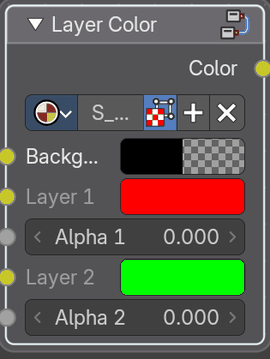
Stacks two color layers over a background, with a mask for each.
Inputs
Background
Data typeColor
Color behind the layers.
Layer 1
Data typeColor
First layer, above the background.
Alpha 1
Data typeFloat
Mask for Layer 1. Default: 0.
Layer 2
Data typeColor
Second layer, on top.
Alpha 2
Data typeFloat
Mask for Layer 2. Default: 0.
Outputs
Color
Data typeColor
The layered result.
How to use
Connect a color to Background and up to two layers to Layer 1 and Layer 2. Alpha 1 and Alpha 2 are the masks of the layers: where the mask is white the layer shows. Color is the stack of all three.
Normal Blend Angle
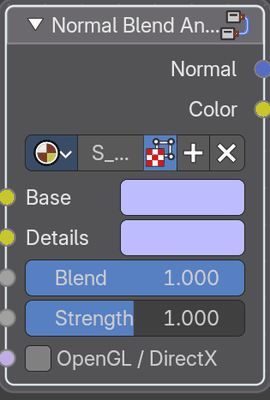
Blends two normal maps by angle.
Inputs
Base
Data typeColor
Main normal map.
Details
Data typeColor
Normal map to add on top.
Blend
Data typeFloat (factor)
How much of Details to add. Default: 1.
Strength
Data typeFloat (factor)
Strength of the result. Default: 1.
OpenGL / DirectX
Data typeBoolean
Off for OpenGL normal maps, on for DirectX. Default: Off.
Outputs
Normal
Data typeVector
Blended normal, in tangent space.
Color
Data typeColor
Blended normal map color.
How to use
Connect two normal maps to Base and Details. Blend mixes the details into the base by rotating the normals, which keeps the angles correct on strong details. Strength sets how strong the details are. Switch OpenGL / DirectX to match the green channel of your maps.
Normal Blend Channels
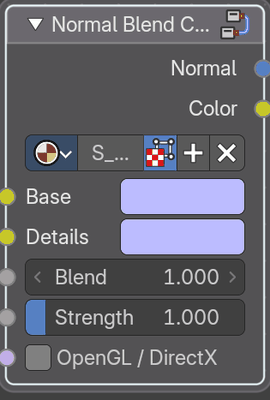
Blends two normal maps by channel.
Inputs
Base
Data typeColor
Main normal map.
Details
Data typeColor
Normal map to add on top.
Blend
Data typeFloat
How much of Details to add. Default: 1.
Strength
Data typeFloat (factor)
Strength of the result. Default: 1.
OpenGL / DirectX
Data typeBoolean
Off for OpenGL normal maps, on for DirectX. Default: Off.
Outputs
Normal
Data typeVector
Blended normal, in tangent space.
Color
Data typeColor
Blended normal map color.
How to use
Connect two normal maps to Base and Details. Blend mixes the details into the base channel by channel. Strength sets how strong the details are. Switch OpenGL / DirectX to match the green channel of your maps. Normal is the result as a vector and Color the same as a picture.
Random Per Object
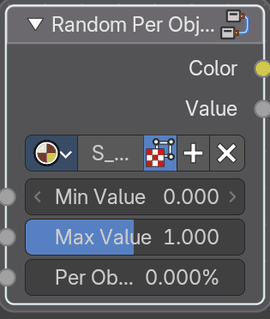
Gives a random value or color for each object, or for each location.
Inputs
Min Value
Data typeFloat
Minimum randomization value. Default: 0.
Max Value
Data typeFloat (factor)
Maximum randomization value. Default: 1.
Per Object / Per Location
Data typeFloat (percentage)
Randomization bias per object versus per world space location. Default: 0.
Outputs
Color
Data typeColor
The resulting color.
Value
Data typeFloat
Smooth value of the pattern.
How to use
Min Value and Max Value set the range. Per Object / Per Location chooses whether every object or every point gets its own value. Use it to vary instances of the same material.
Select Color

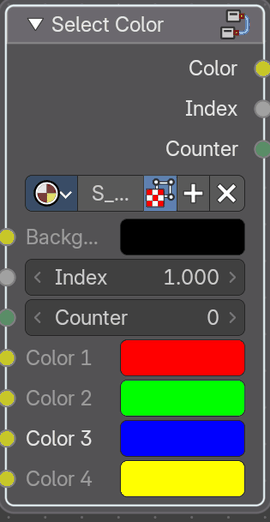
Picks one of four colors by index.
Inputs
Background
Data typeColor
Color used when no slot matches. Chain another Select Color here for more colors.
Index
Data typeFloat
Which color to pick. Use whole numbers. Default: 1.
Counter
Data typeInteger
Position of this node in a chain. Connect the Counter output of the previous Select Color. Default: 0.
Color 1
Data typeColor
First color.
Color 2
Data typeColor
Second color.
Color 3
Data typeColor
Third color.
Color 4
Data typeColor
Fourth color.
Outputs
Color
Data typeColor
The selected color.
Index
Data typeFloat
Passes the Index through, for chaining.
Counter
Data typeInteger
Connect to the Counter input of the next Select Color.
How to use
Connect an integer to Index. The color with that number (1 to 4) is the output, and every other index gives Background. Counter keeps count of the steps and can be reused.
Separate CMYK
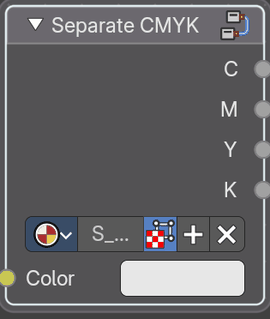
Splits a color into cyan, magenta, yellow and black.
Inputs
Color
Data typeColor
Color to split.
Outputs
C
Data typeFloat
Amount of cyan.
M
Data typeFloat
Amount of magenta.
Y
Data typeFloat
Amount of yellow.
K
Data typeFloat
Amount of black.
How to use
Connect a color to Color. The four outputs C, M, Y and K are the cyan, magenta, yellow and black parts of it, as used in printing.
Tangent To World


Converts a vector from tangent space to world space.
Inputs
Vector
Data typeVector
Vector input.
Smooth
Data typeFloat
Smooths the tangent to world vector. Default: 0.
Outputs
Vector
Data typeVector
Vector output.
How to use
Connect a tangent space vector, for example from a normal map, to Vector. Smooth smooths the result. The output is the same direction in world space.
To Normal Map
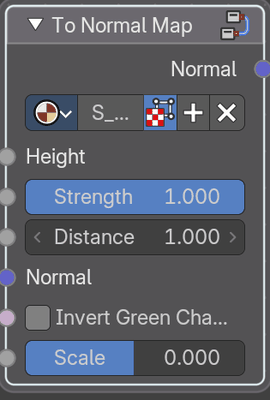
Turns a height map into a normal map.
Inputs
Height
Data typeFloat
The height input, from here you generate the normal map. Default: 1.
Strength
Data typeFloat (factor)
The strength of the normals. Default: 1.
Distance
Data typeFloat
The distance samples of the normals. Default: 1.
Normal
Data typeVector
An additional normal map input.
Invert Green Channel
Data typeBoolean
Invert the green channel of the generated normal map. Default: Off.
Scale
Data typeFloat (factor)
The scale of the normals. Default: 1.
Outputs
Normal
Data typeVector
A normal vector output.
How to use
Connect a height to Height. Strength and Distance set how strong the bumps are, Scale the size of the sample, and Invert Green Channel switches between OpenGL and DirectX style. Connect another normal to Normal to add to it.
World Camera Location

Gives the location of the camera, for the Object shader and the World shader.
Outputs
Location(Object Shader)
Data typeVector
Location of the camera in the Object Shader mode of a material.
Location(World Shader)
Data typeVector
Location of the camera in the World Shader mode of a material.
How to use
Connect the output that matches the shader you work in. It is used for effects that depend on where the camera is.
World To Tangent


Converts a vector from world space to tangent space.
Inputs
Vector
Data typeVector
Coordinates to use.
Outputs
Vector
Data typeVector
The resulting vector.
How to use
Connect a world space vector to Vector. The output is the same direction in tangent space, the space that normal maps use.